
Custom forms
Make a form for your customers
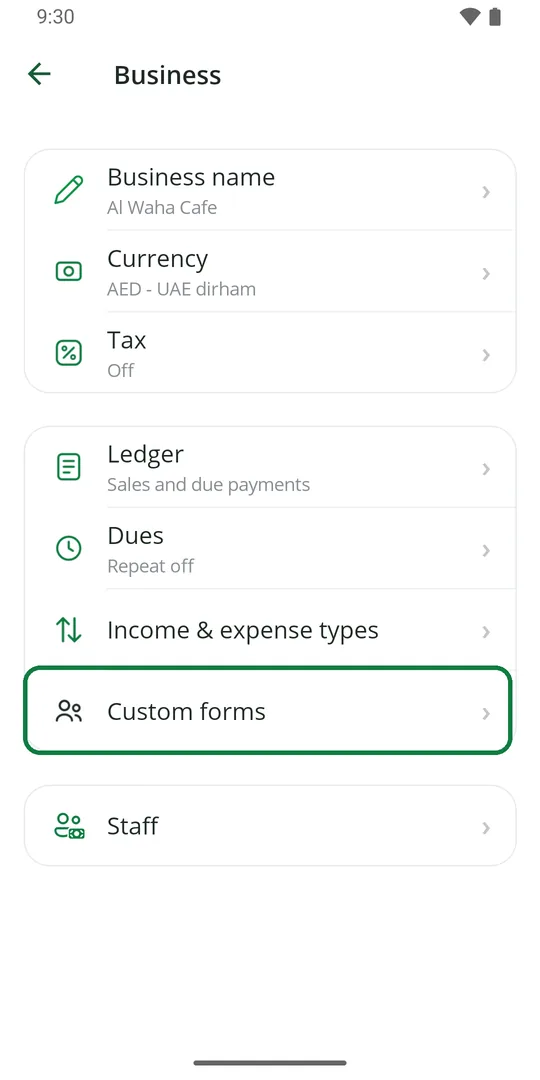
1Tap ☰, Business, then Custom forms 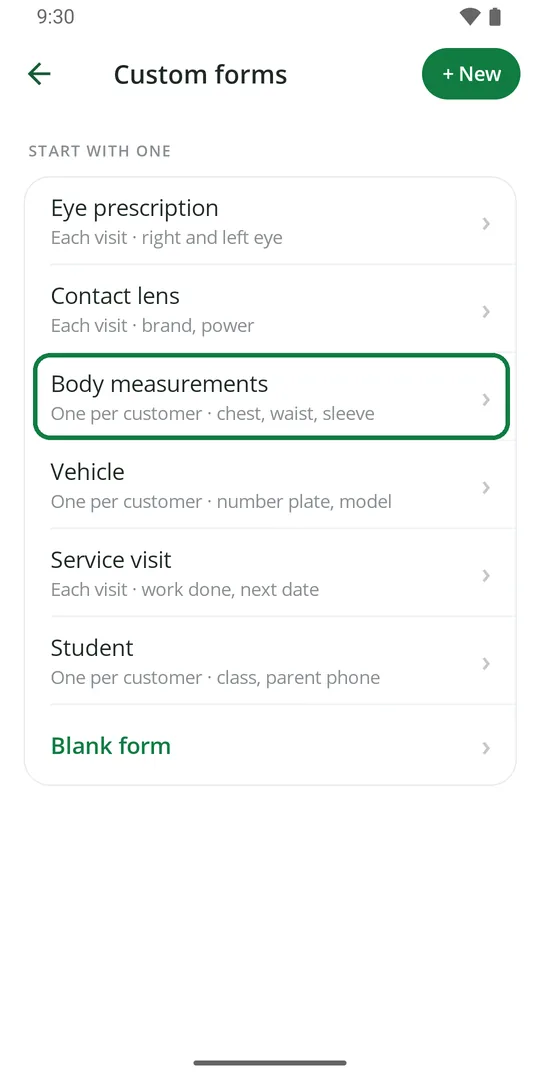
2Tap a ready form like Body measurements, or Blank form to make your own 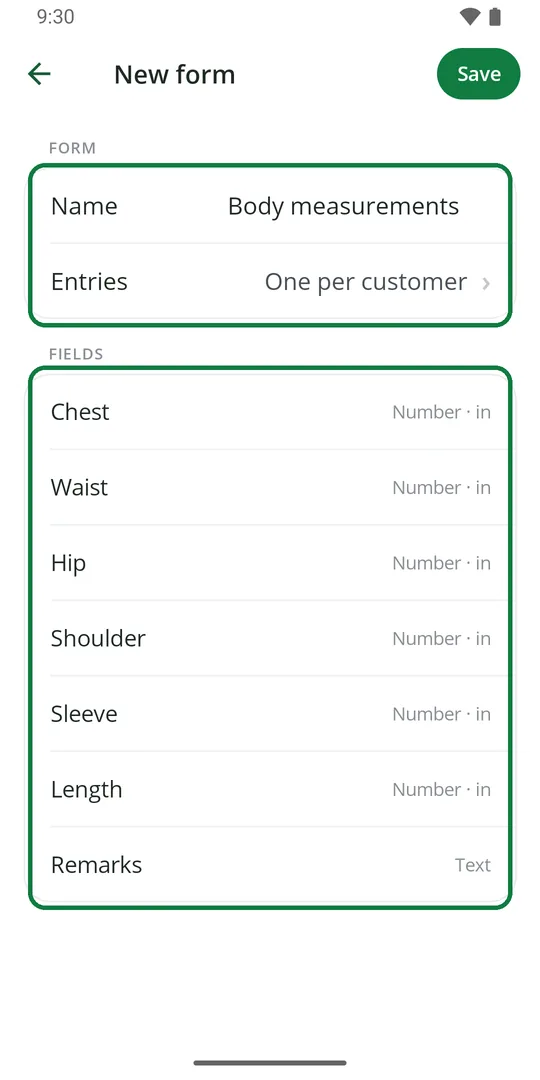
3Check the name and whether it is One per customer or Each visit. Tap Save 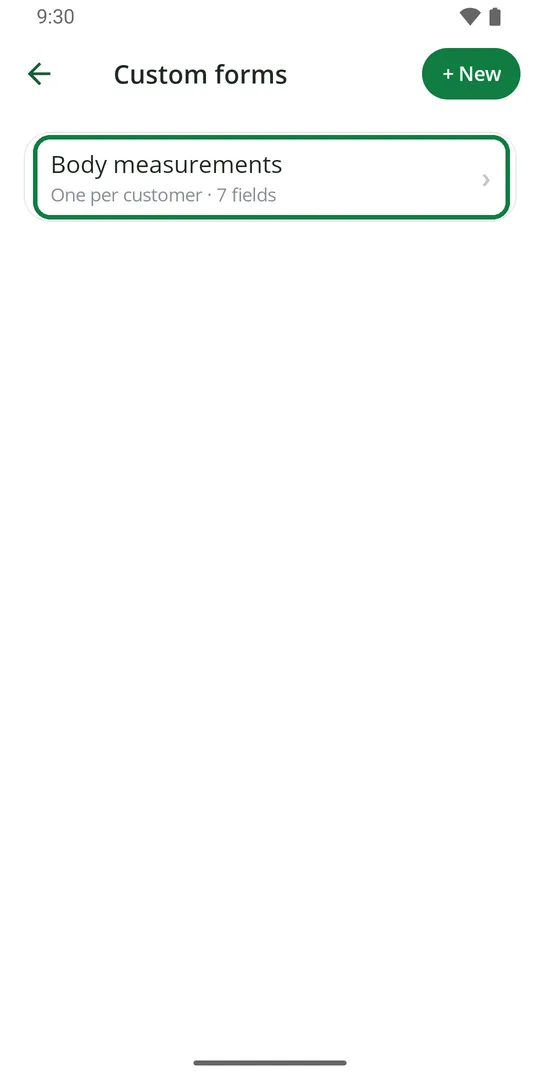
4The form is ready. It now shows on every customer's page
Ready forms: eye prescription, contact lens, body measurements, vehicle, service visit and student. Already have a form? Tap + New to add another.
Add a field to a form
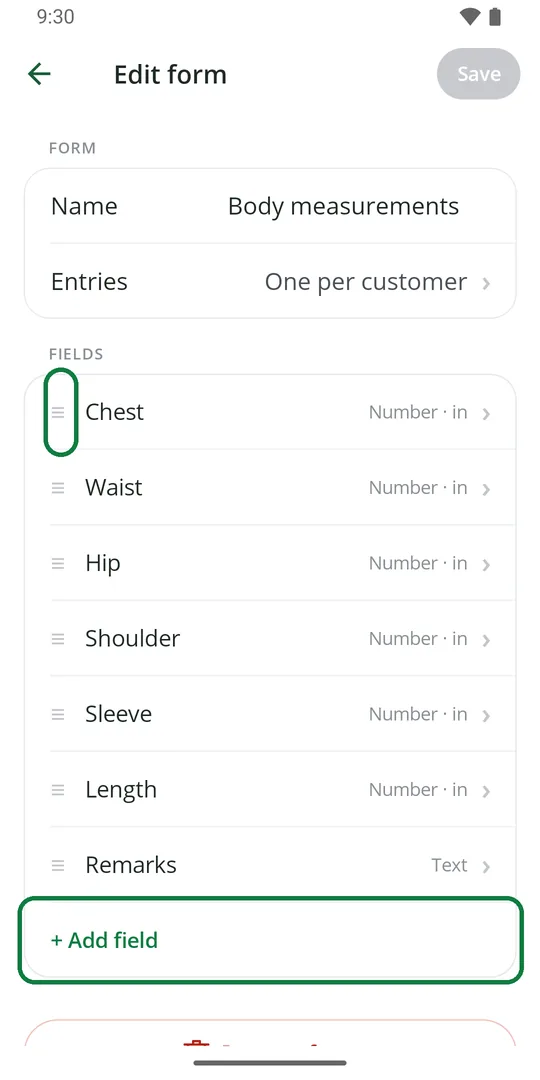
1Open the form and tap + Add field. To move a field up or down, tap its ≡ 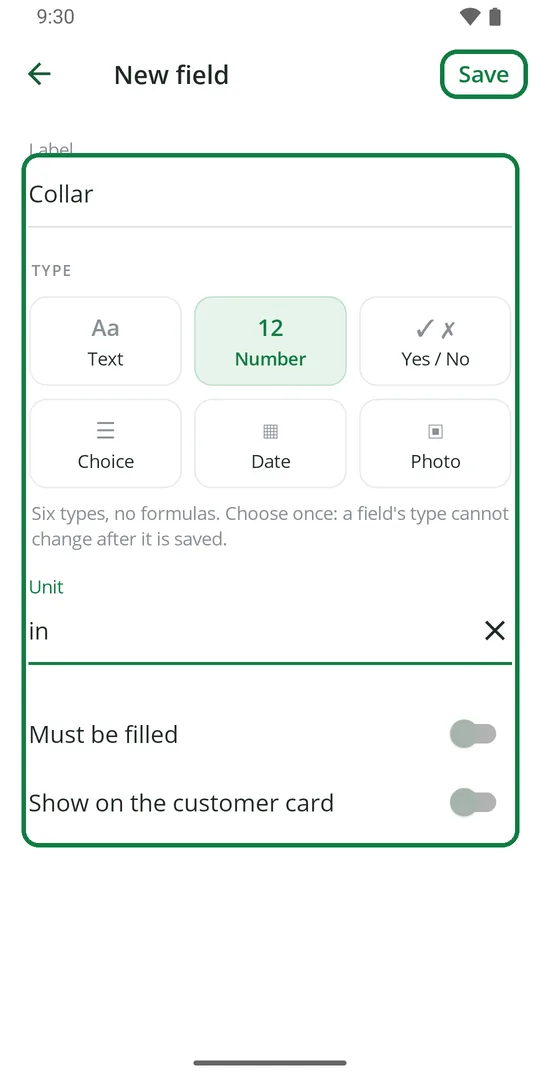
2Type the label, pick the type, and a unit if it is a number. Tap Save
Pick the type carefully. It cannot be changed after the field is saved.
Fill a form for a customer
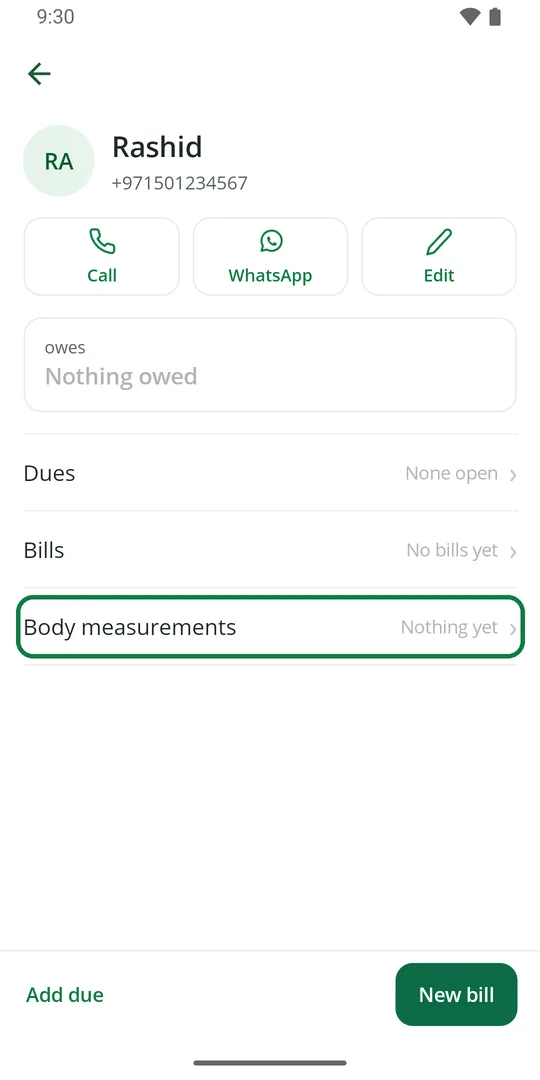
1Open the customer and tap the form's name 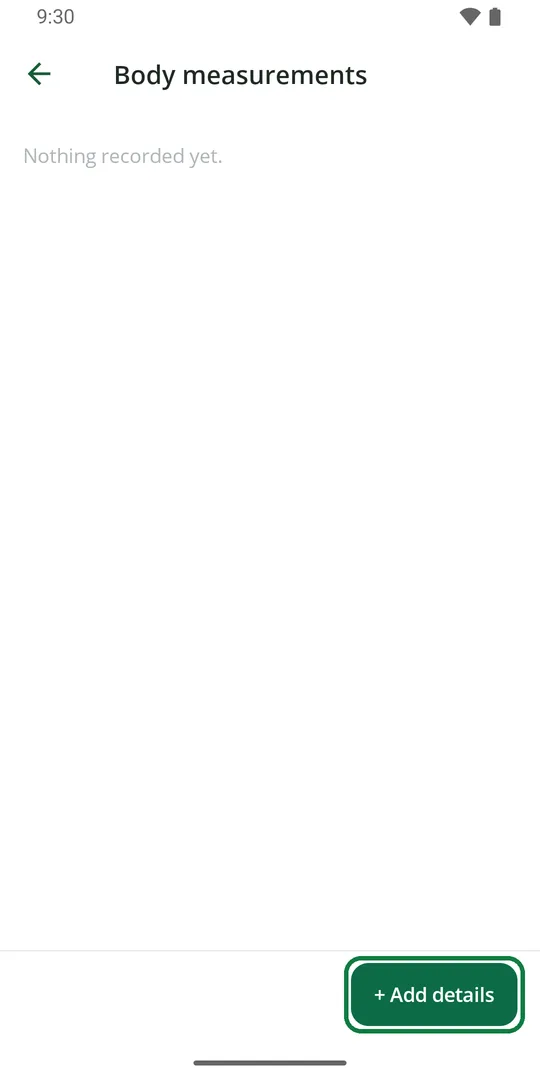
2Tap + Add details 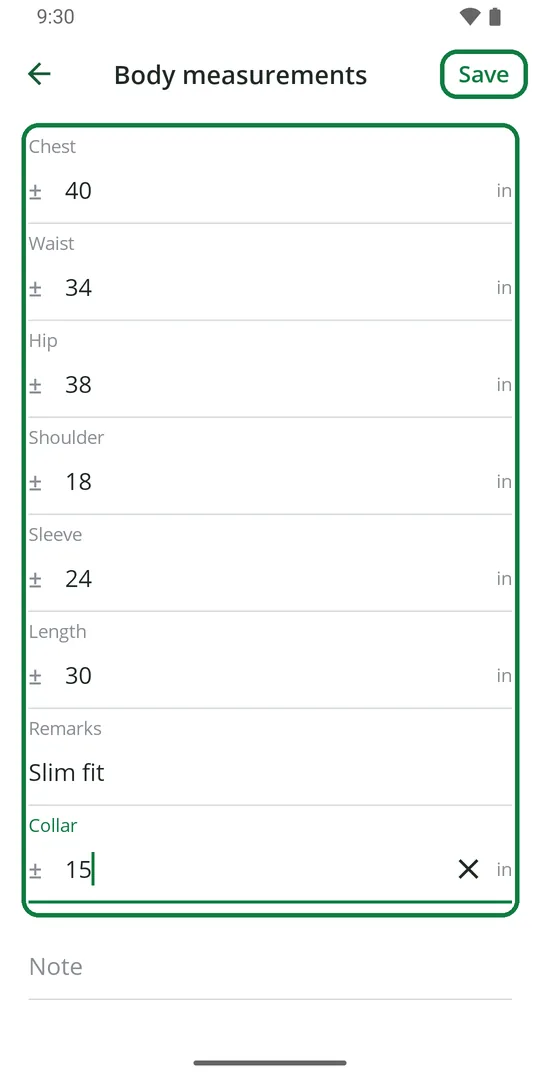
3Fill in what you have and tap Save 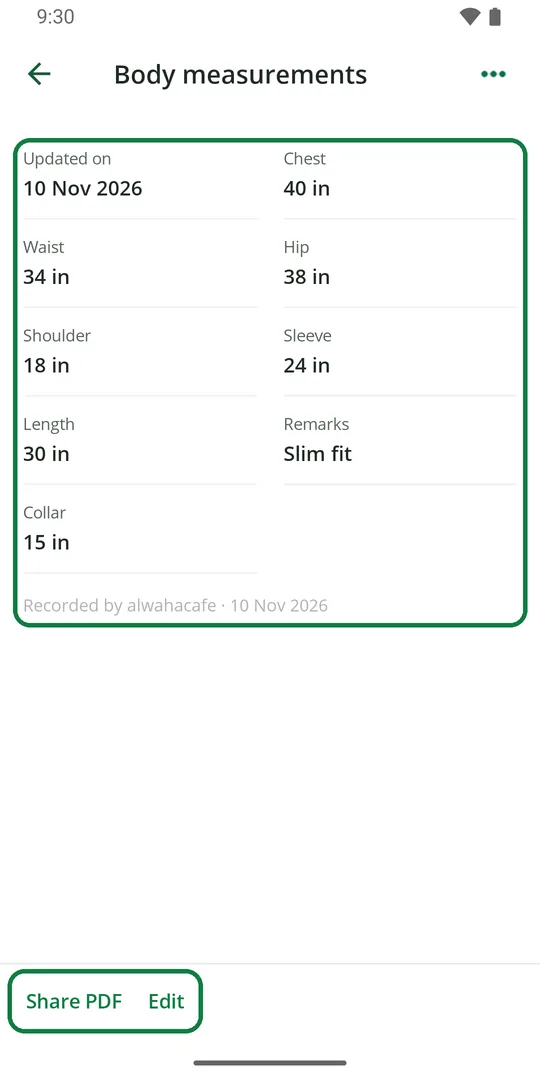
4It is kept with the customer. Tap Edit to change it, or Share PDF to send it
Remove a form
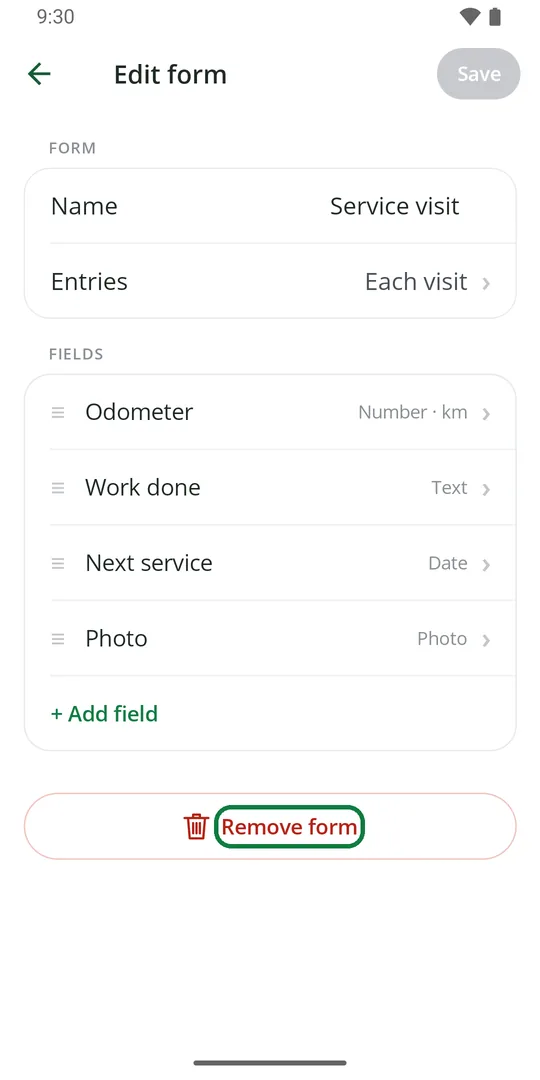
1Open the form and tap Remove form at the bottom 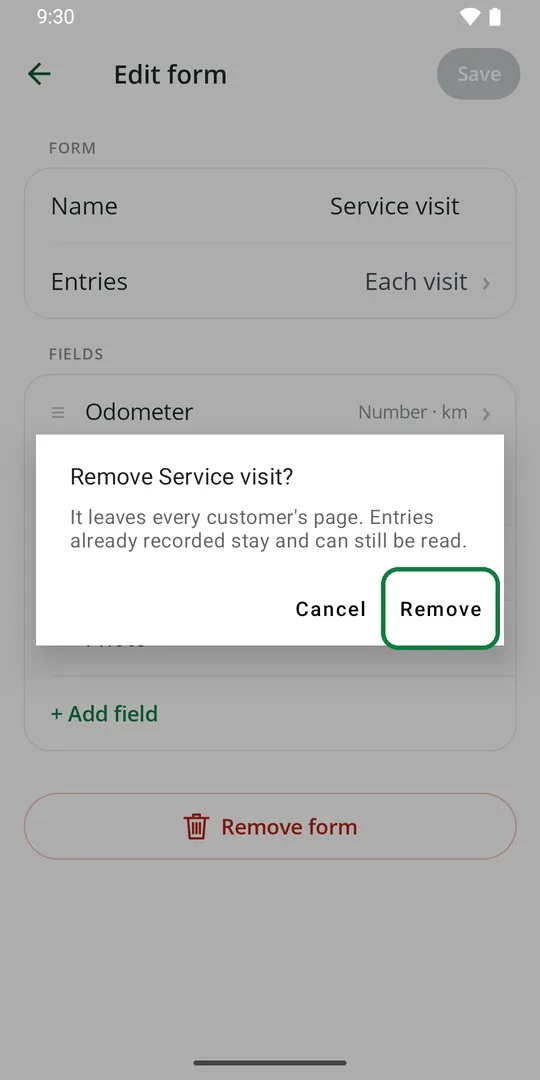
2Tap Remove
Details already saved for customers stay and can still be read.