
Getting started
Create your account
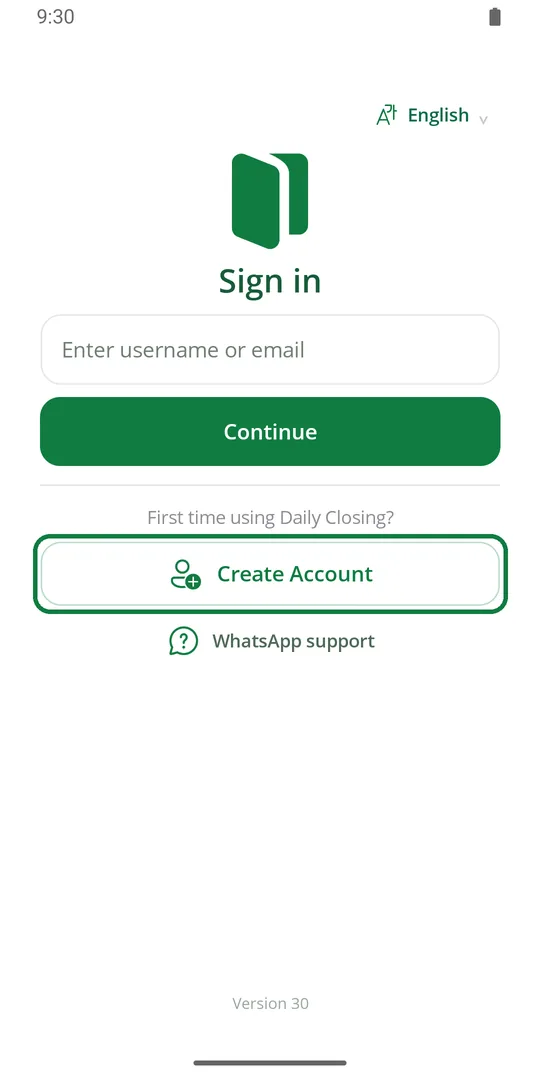
1Open the app and tap Create Account 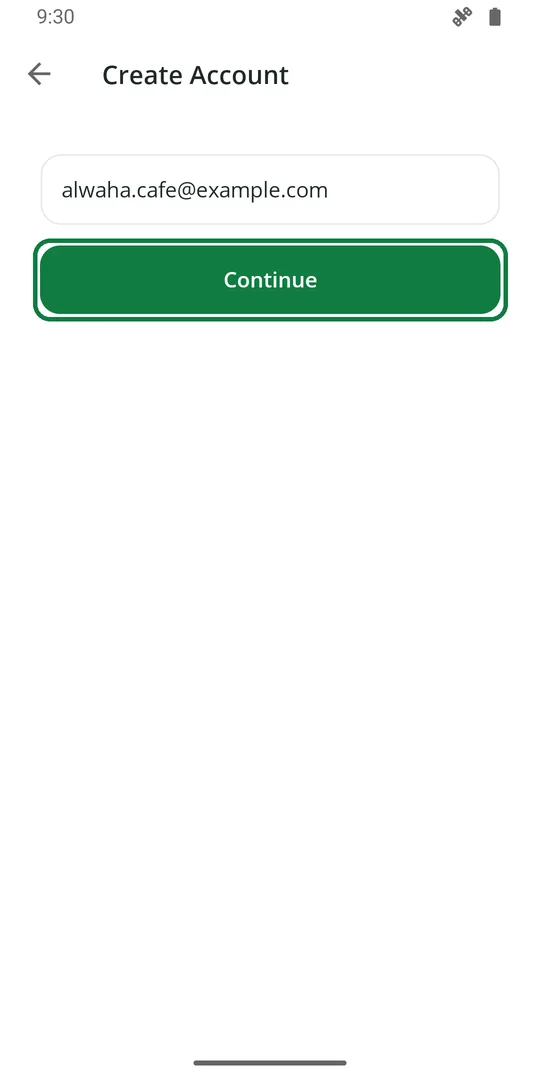
2Type your email and tap Continue 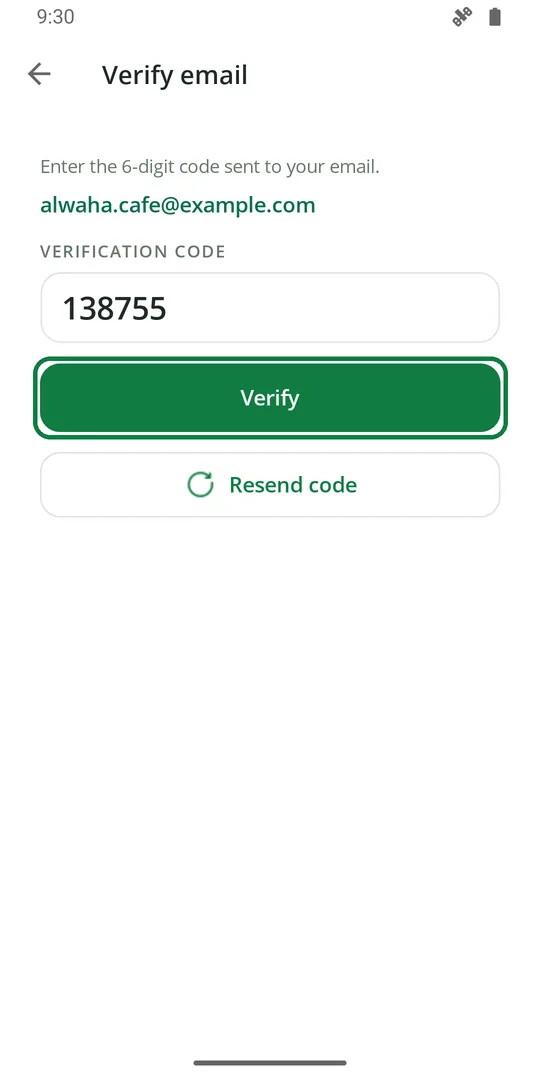
3Type the 6-digit code from your email and tap Verify 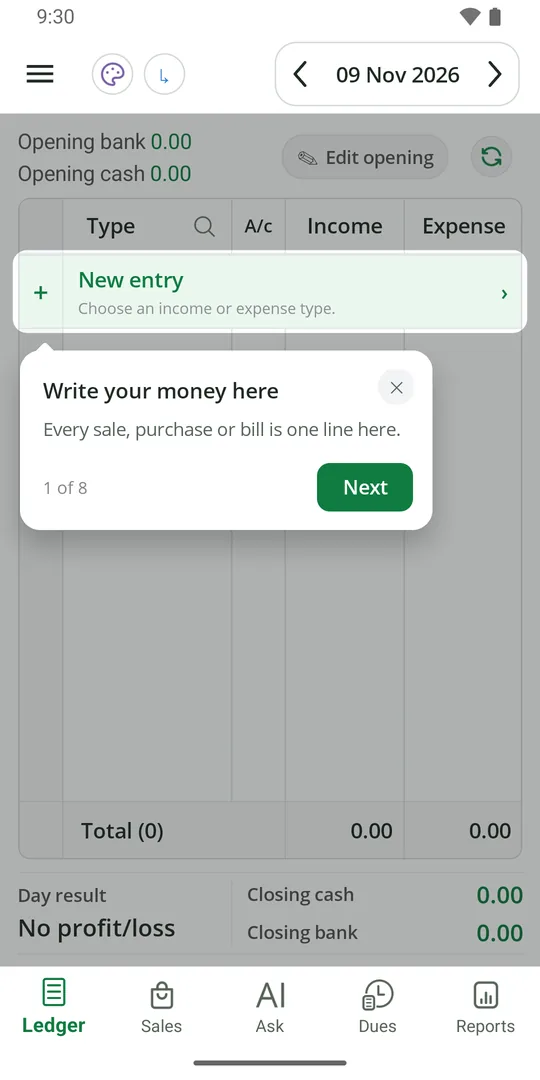
4You are in. A short tour opens on the Ledger. Tap Next
The first 14 days are free.
Write your first money in and out
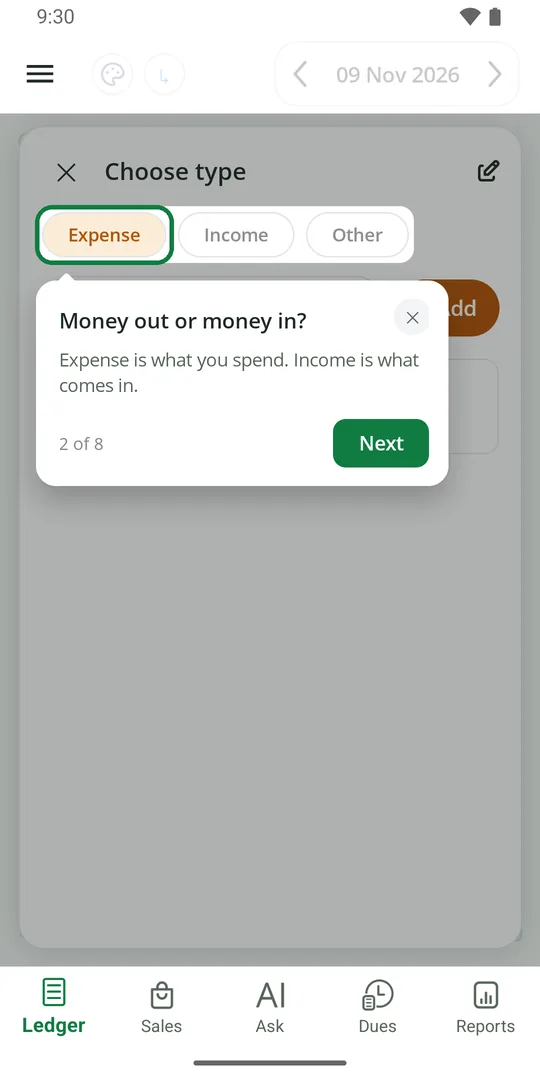
1Tap Expense for money you spend, Income for money that comes in 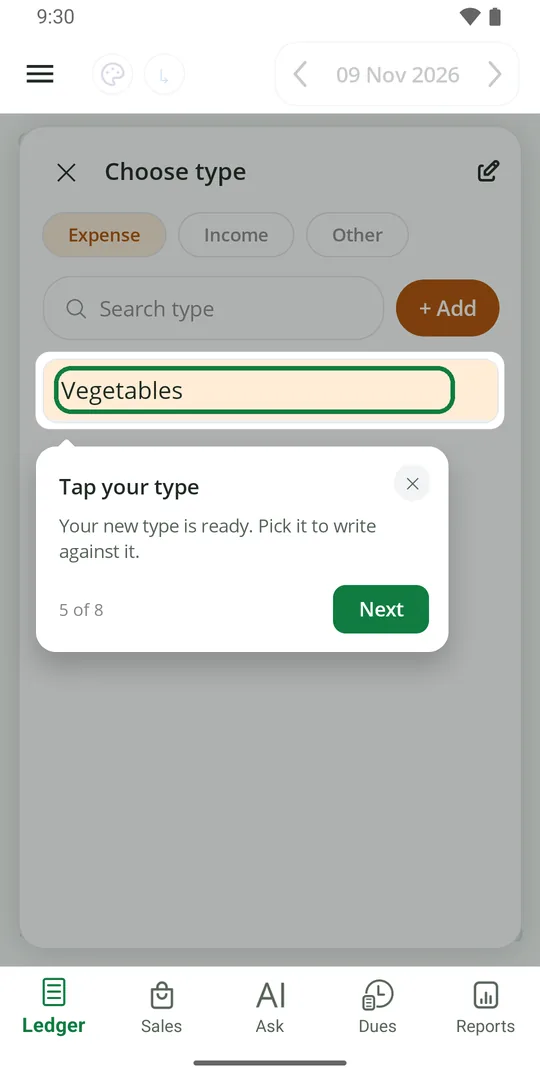
2Tap + Add, type a name like Vegetables and Save. Then tap your new type 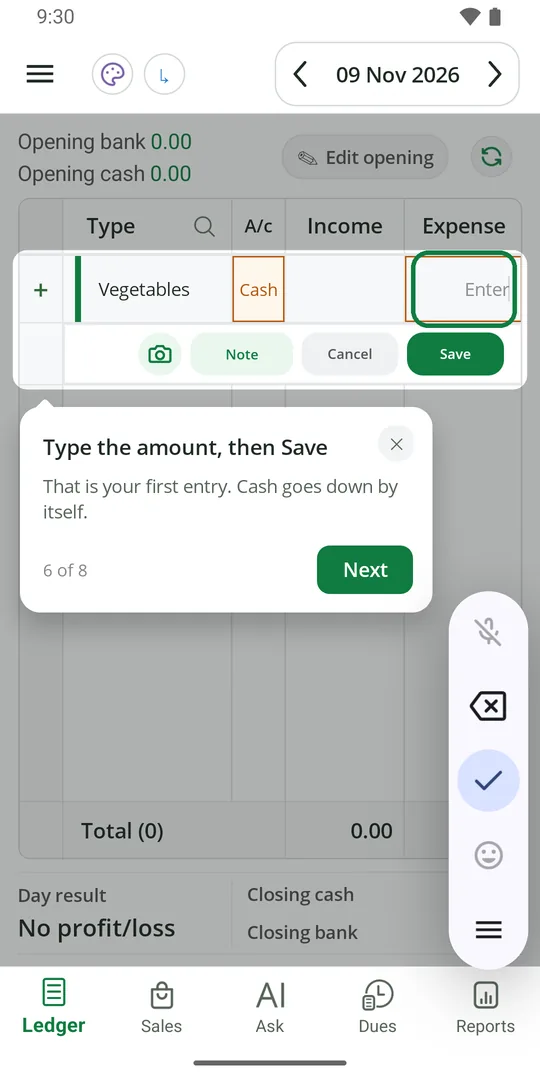
3Type the amount and tap Save 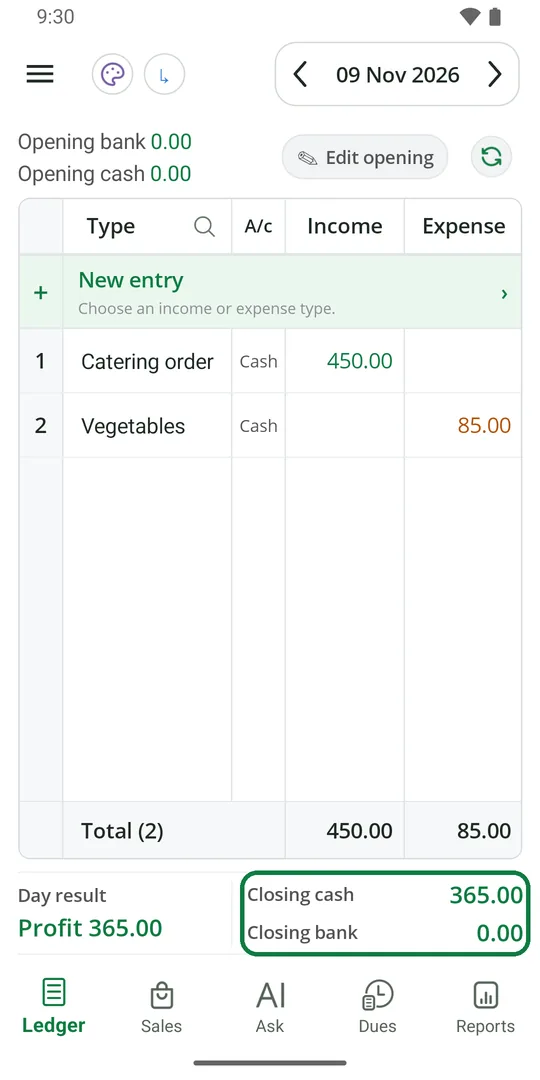
4Closing cash and the day's profit are worked out for you
Set your shop name and currency
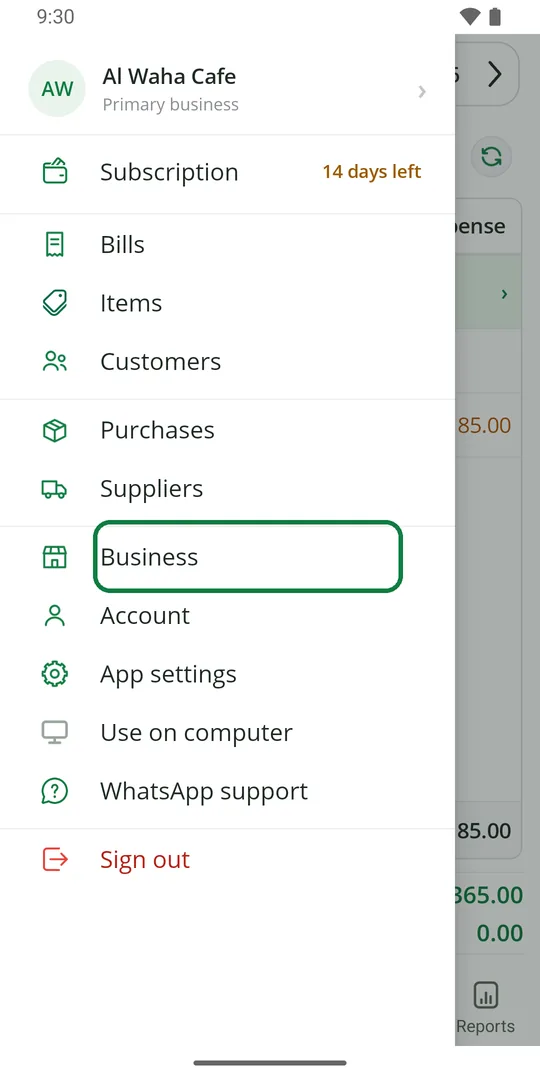
1Tap ☰ at the top left, then Business 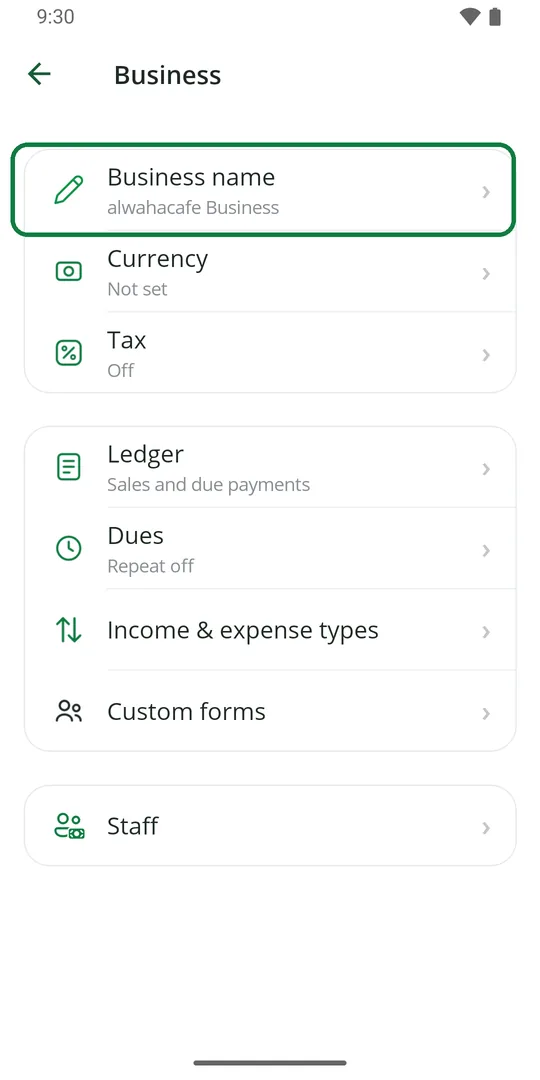
2Tap Business name 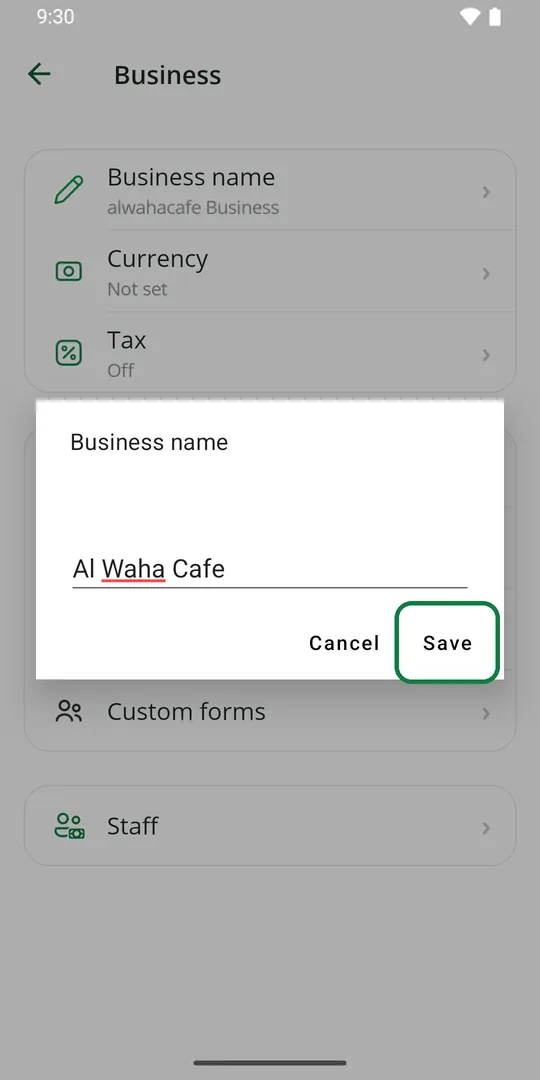
3Type your shop's name and tap Save 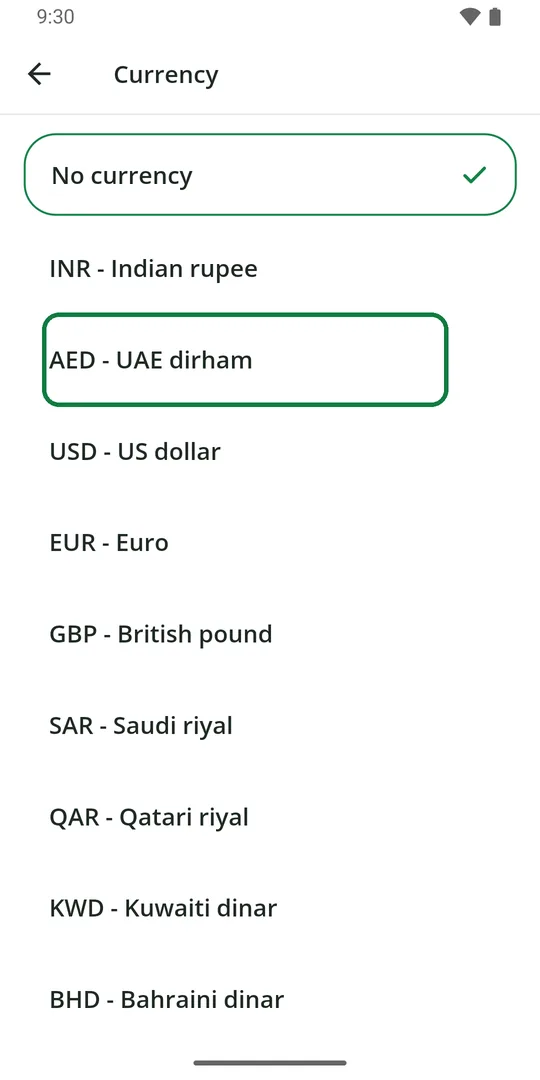
4Tap Currency and pick yours 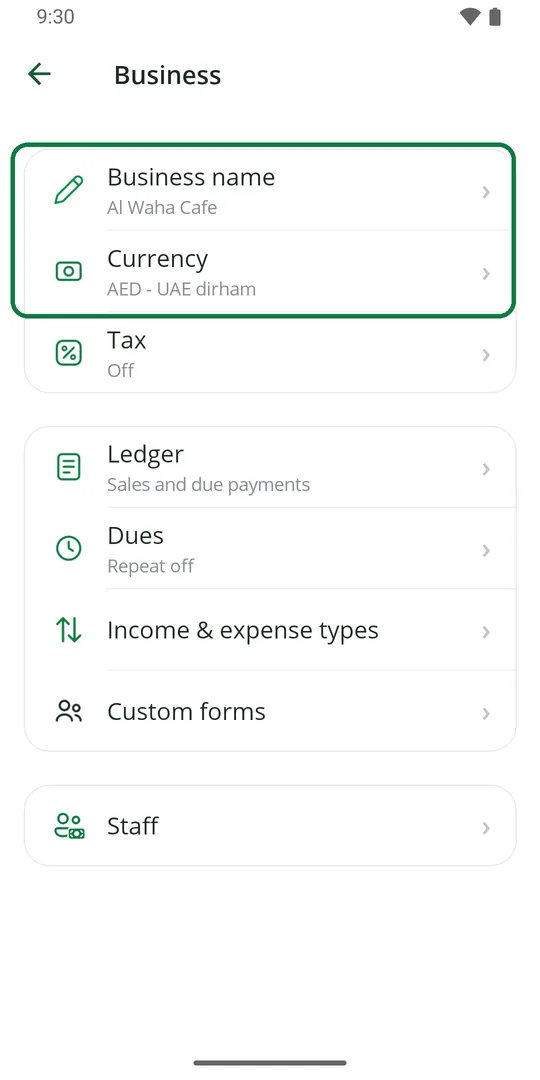
5Your shop name and currency are set
Find your way around
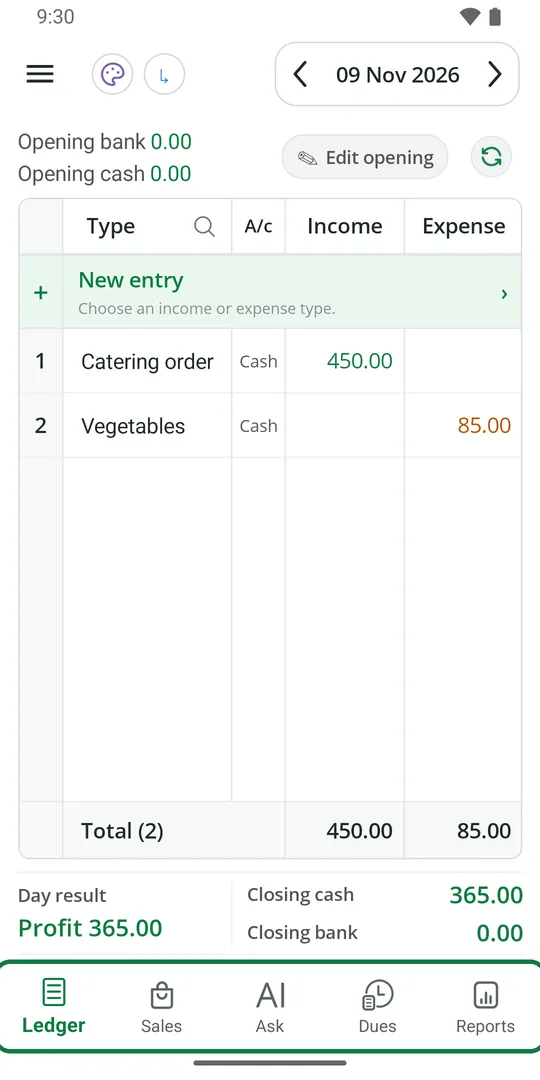
1Five tabs at the bottom: Ledger, Sales, Ask, Dues, Reports 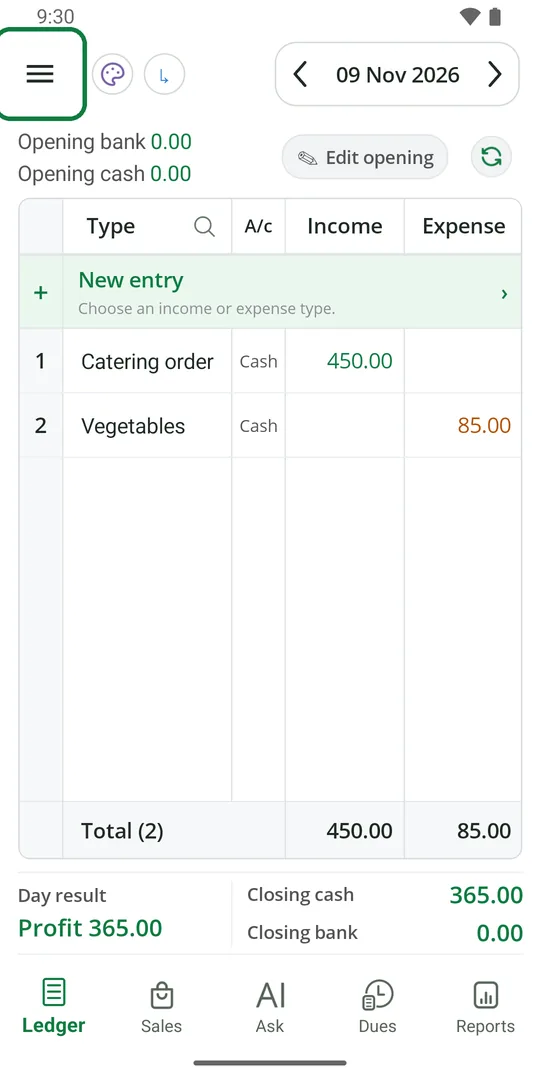
2Tap ☰ at the top left for the menu 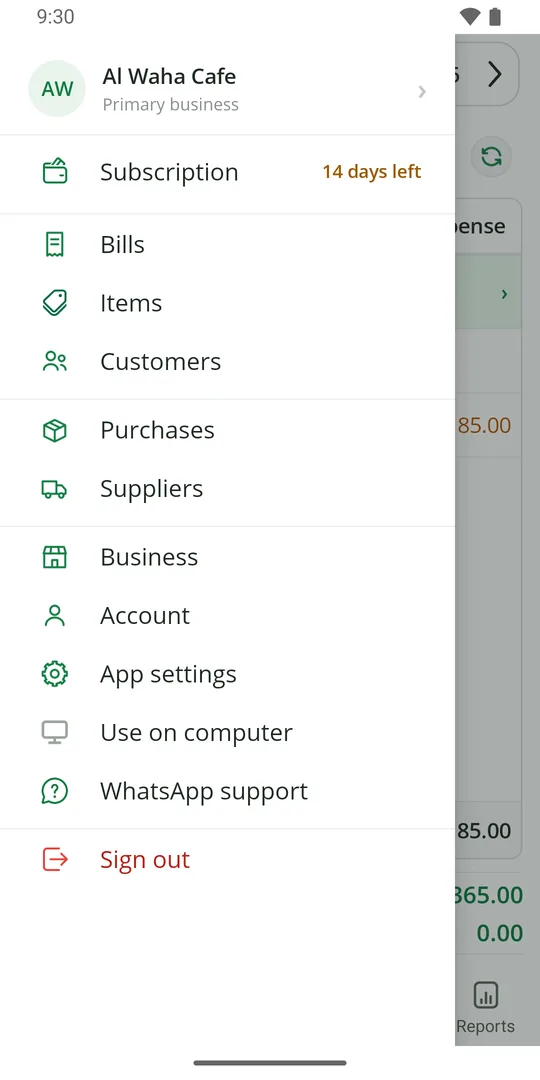
3Everything else is in the menu: Bills, Items, Customers, Business, settings
Change the language
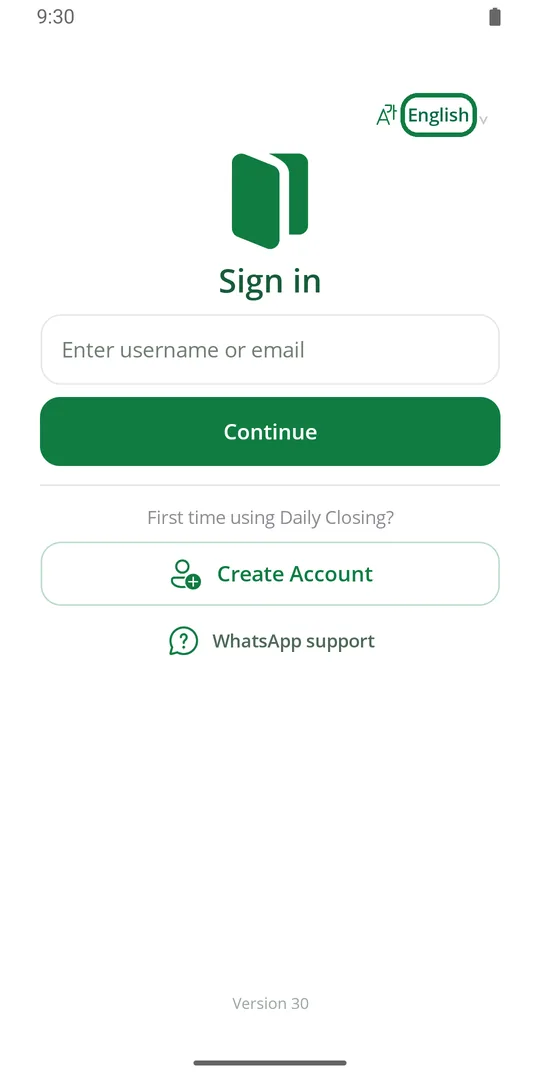
1On the sign-in page, tap English 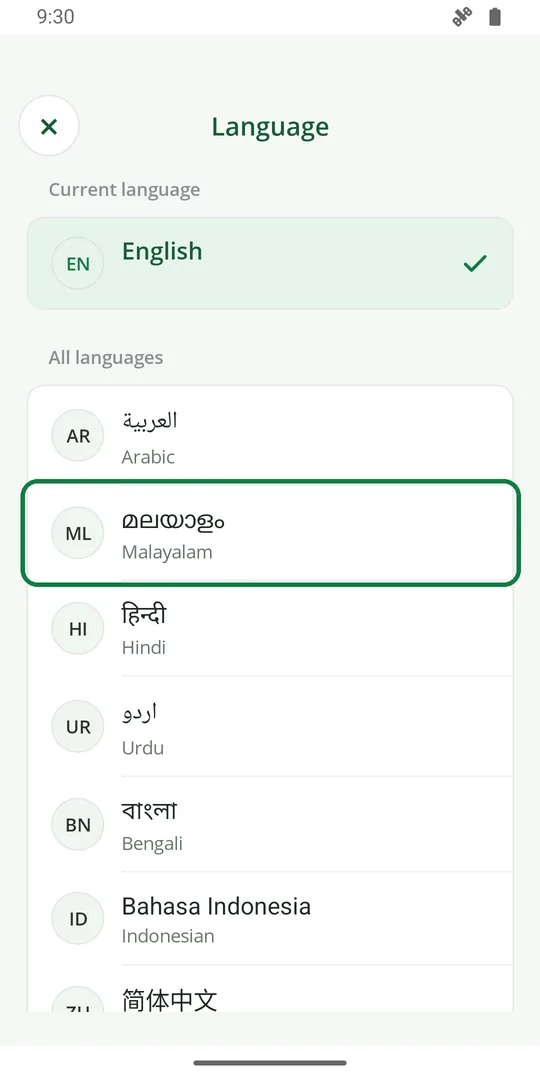
2Tap your language 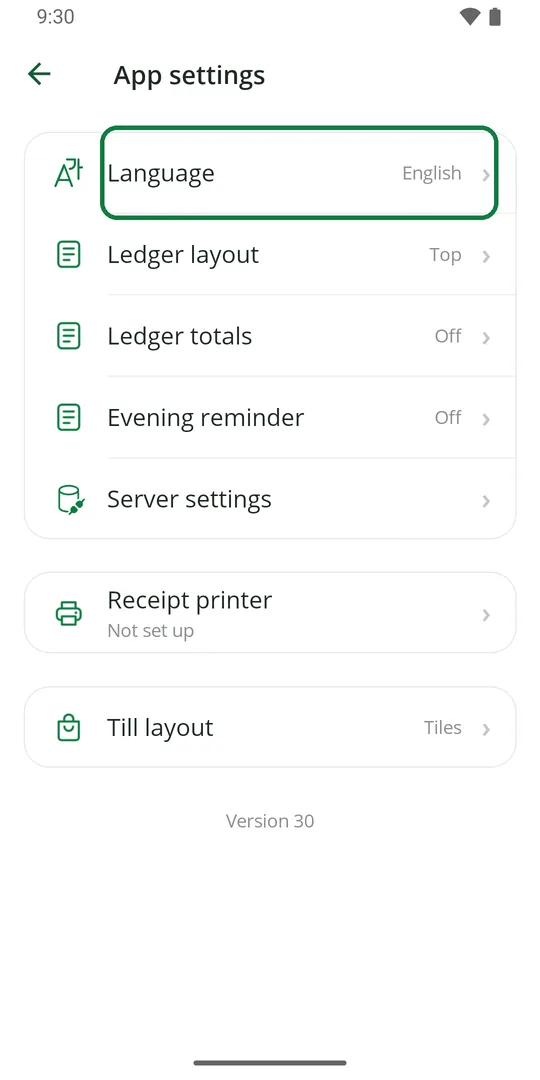
3Already signed in? Tap ☰, App settings, then Language
Sign in on another phone
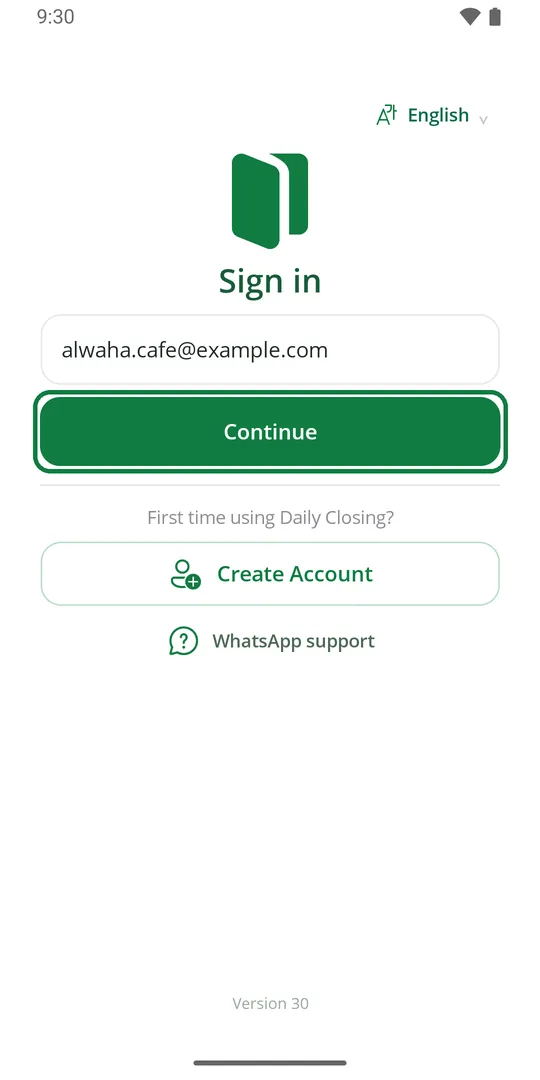
1Type the same email and tap Continue 2Type the code from your email and tap Verify
Your Ledger is kept online, so every phone, computer and the web see the same records.
Sign out
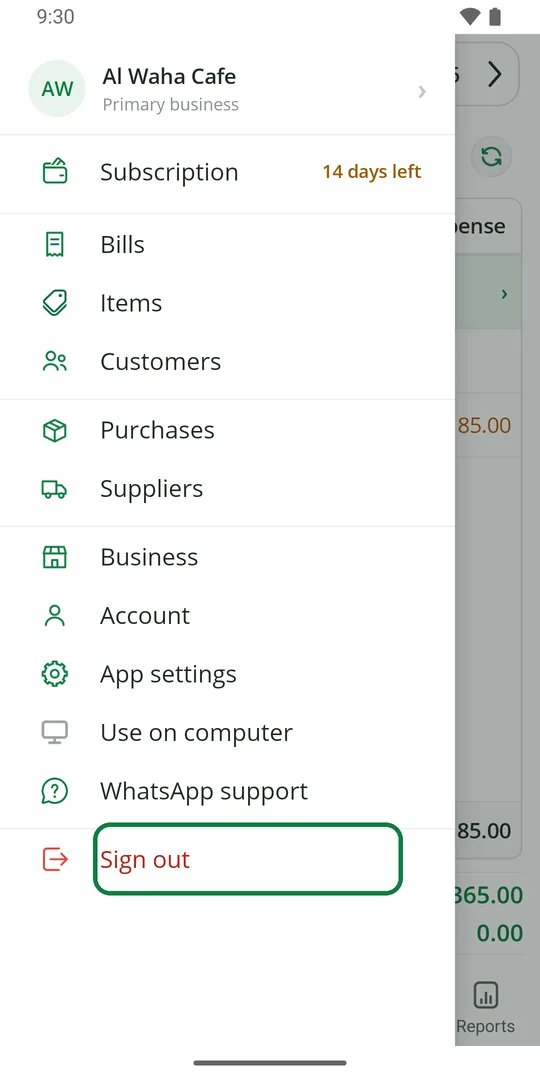
1Tap ☰, then Sign out at the bottom 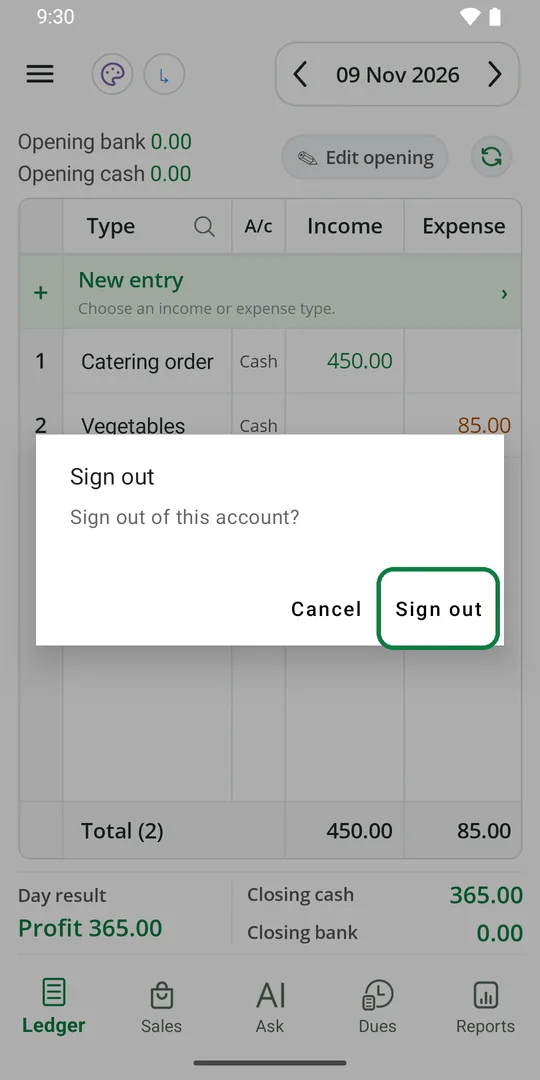
2Tap Sign out again to confirm
Get help on WhatsApp
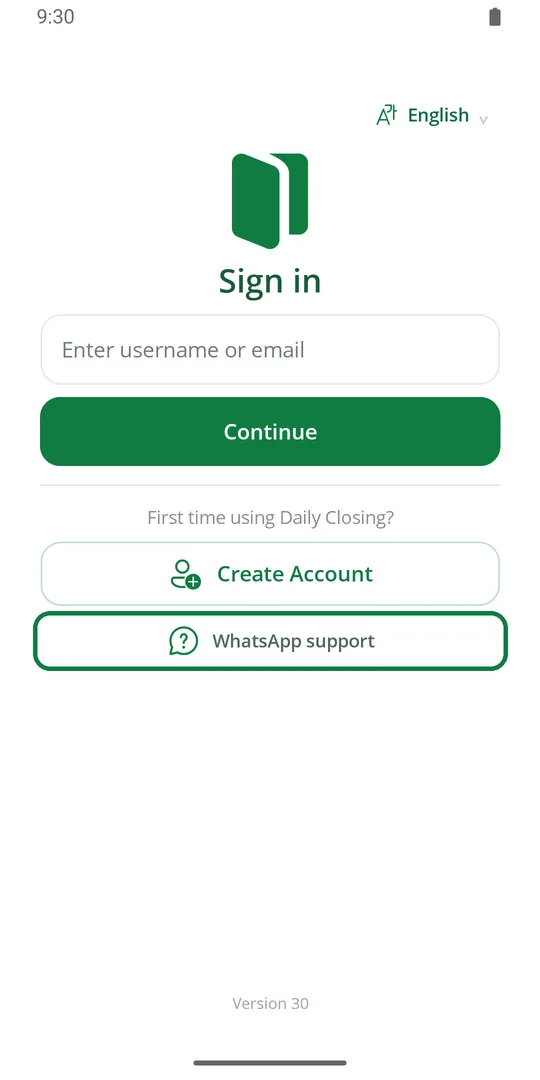
1On the sign-in page, tap WhatsApp support 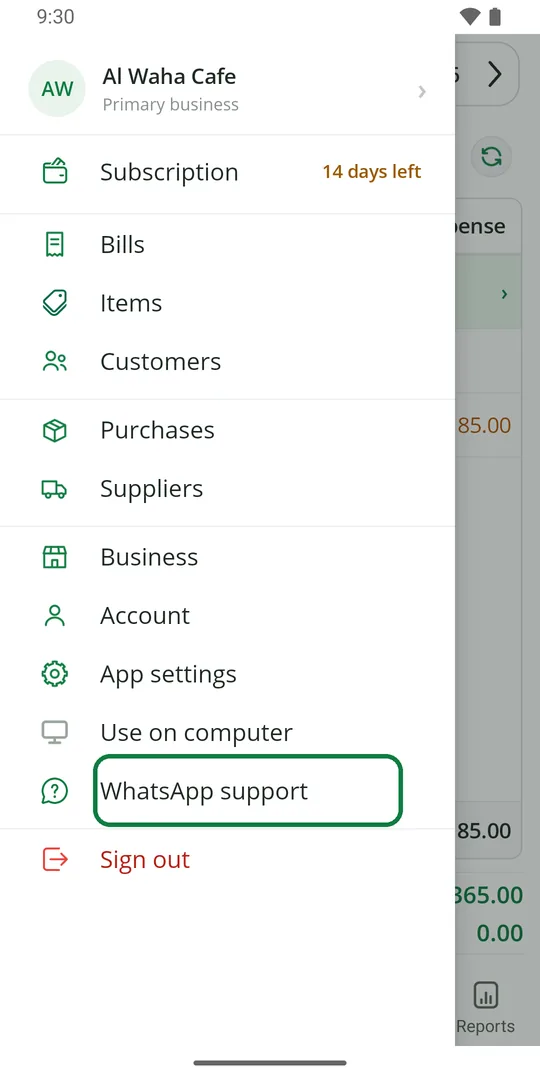
2Signed in? Tap ☰, then WhatsApp support