
Suppliers & purchases
See your suppliers
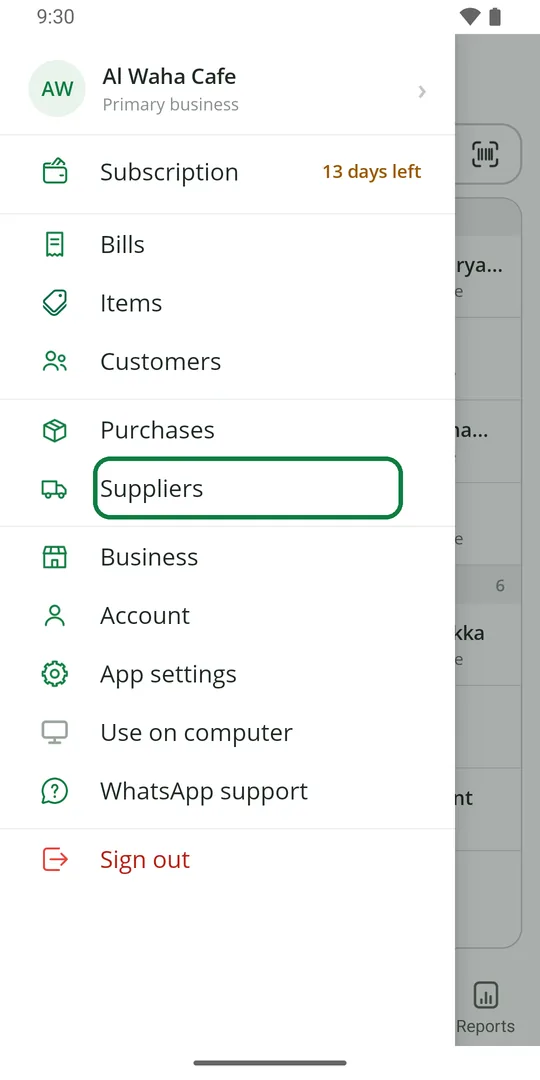
1Tap ☰, then Suppliers 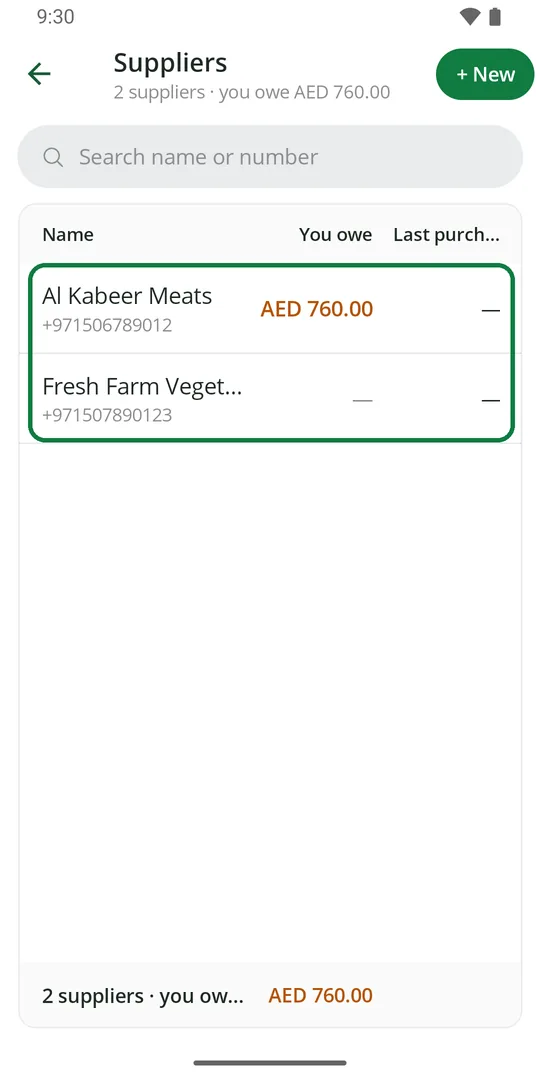
2Each supplier shows what you owe and the last purchase. Tap one to open it
Add a supplier
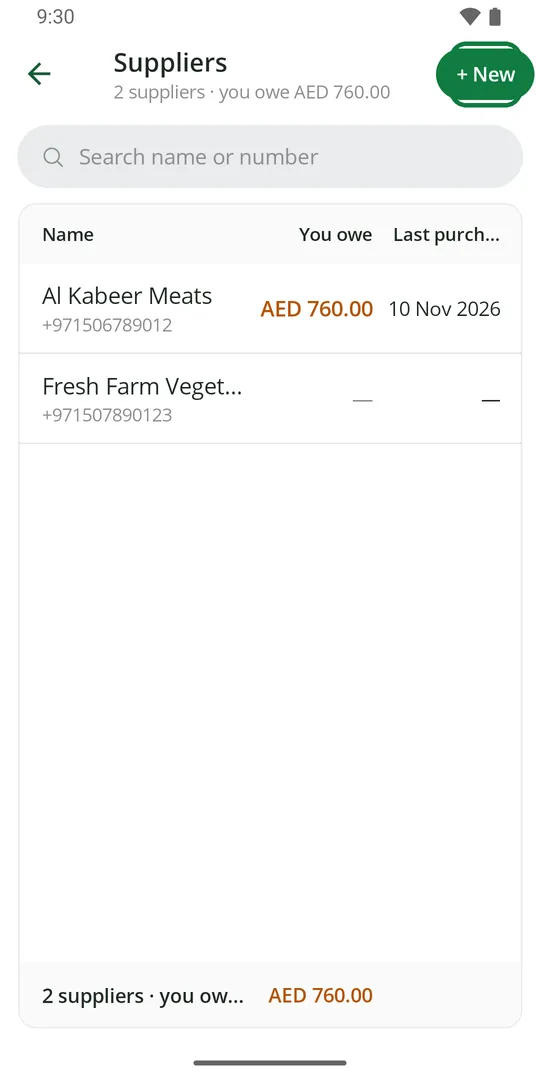
1In Suppliers, tap + New 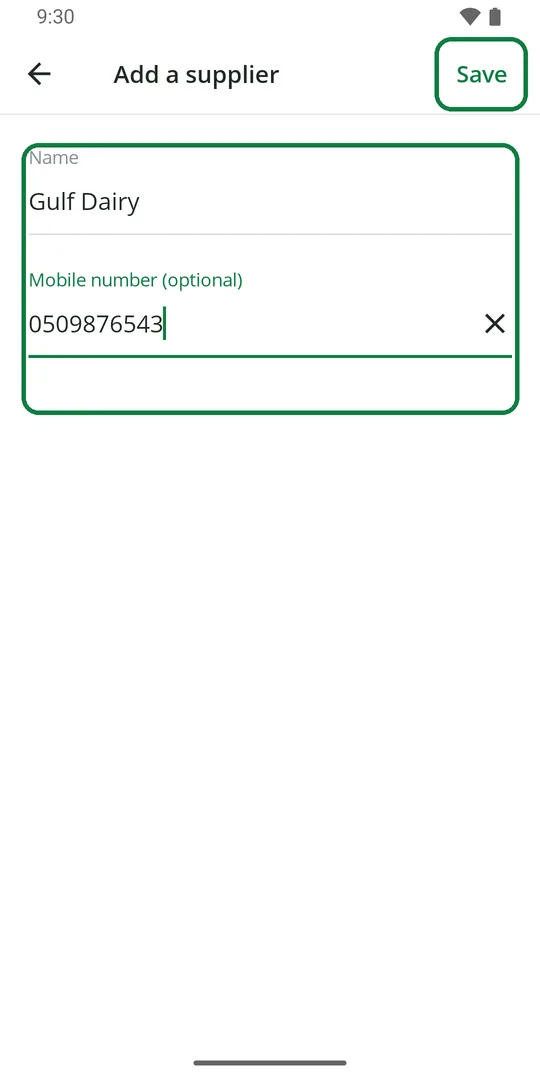
2Type the name and mobile number, or tap Visiting card. Tap Save 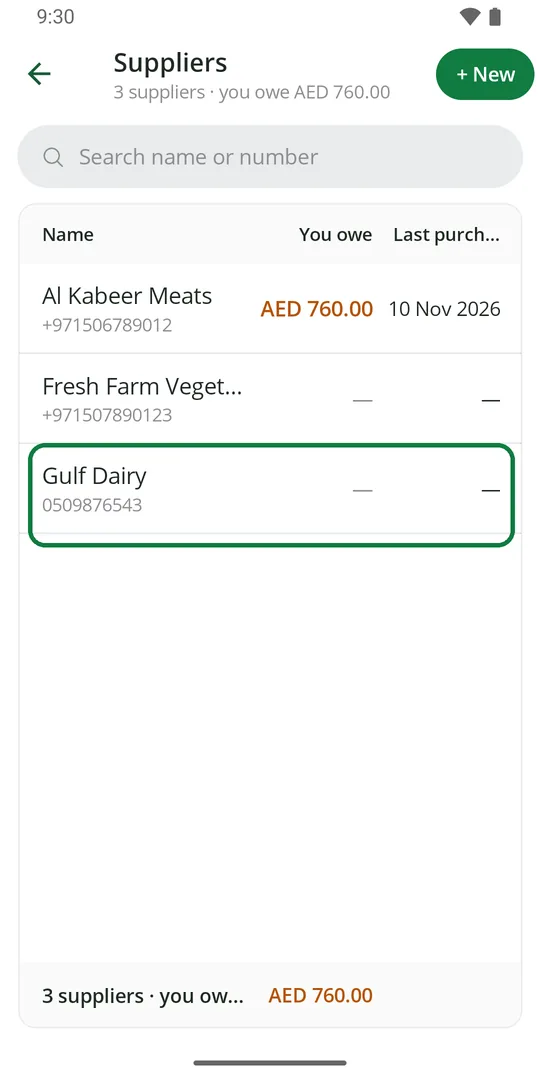
3The supplier is in the list
See what you owe a supplier
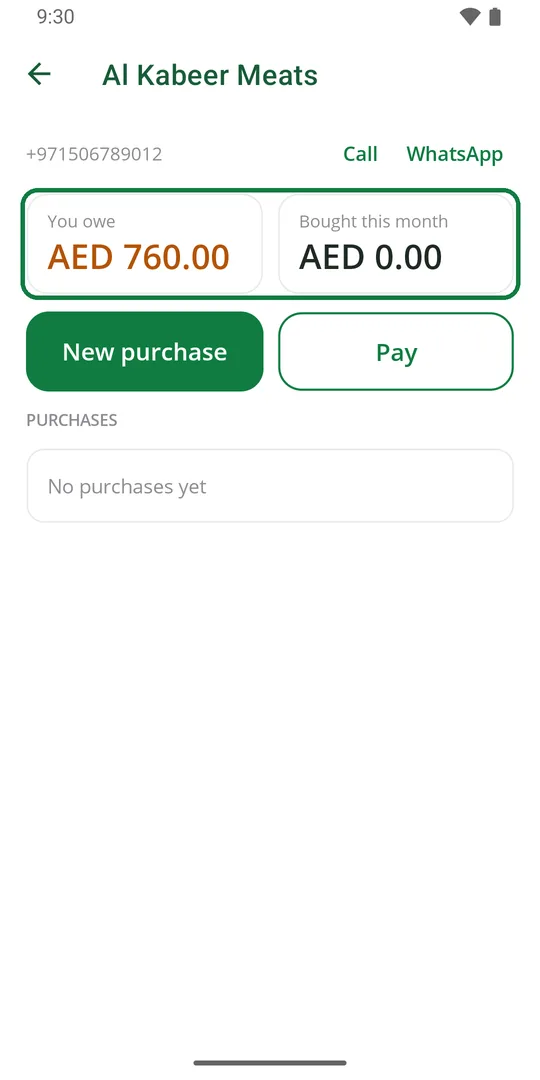
1Open the supplier. You see what you owe and what you bought this month
Call and WhatsApp are at the top. Their purchases are listed below.
Write a purchase
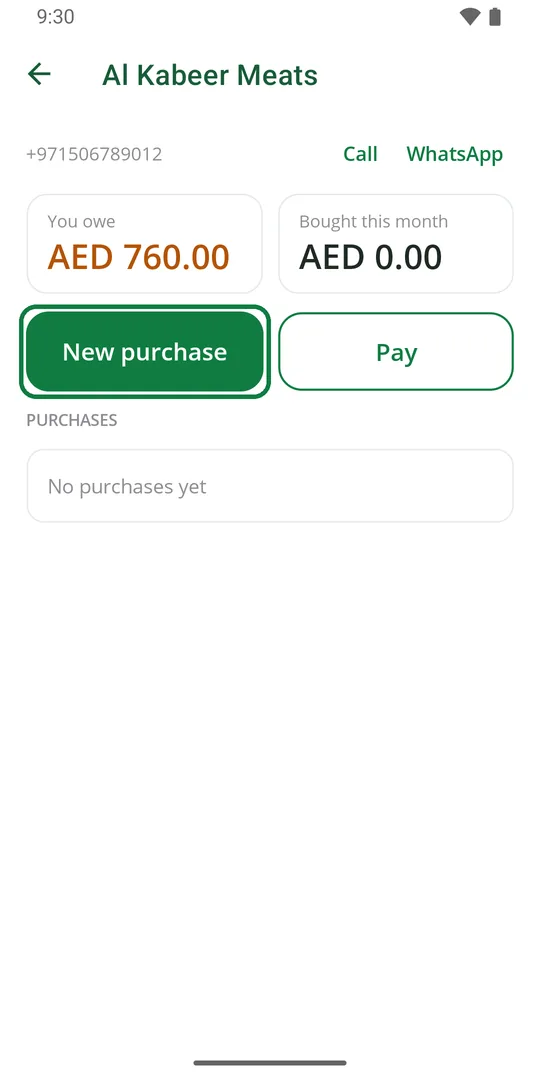
1Open the supplier and tap New purchase 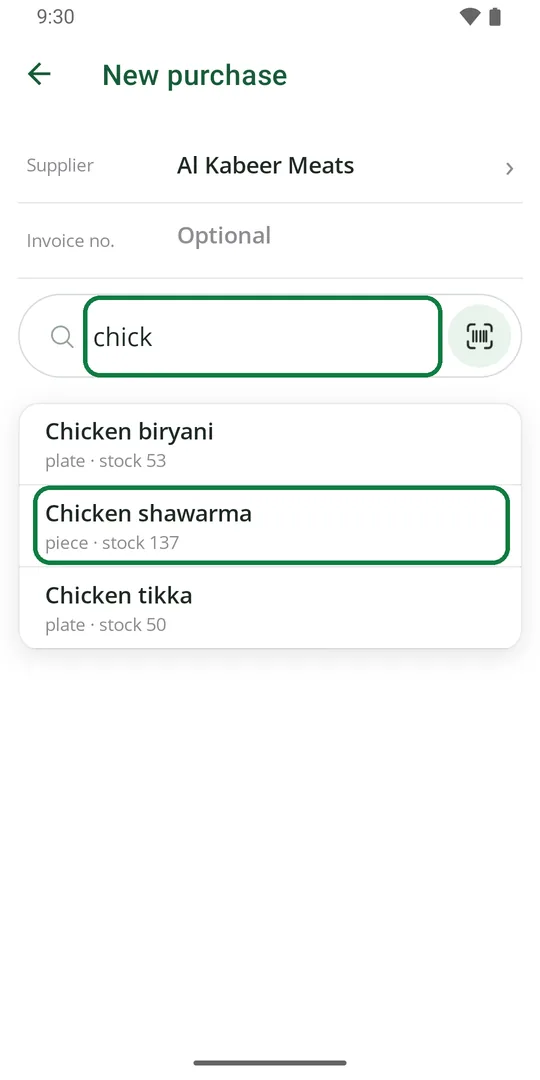
2Type part of the item's name, or tap the barcode mark. Tap the item 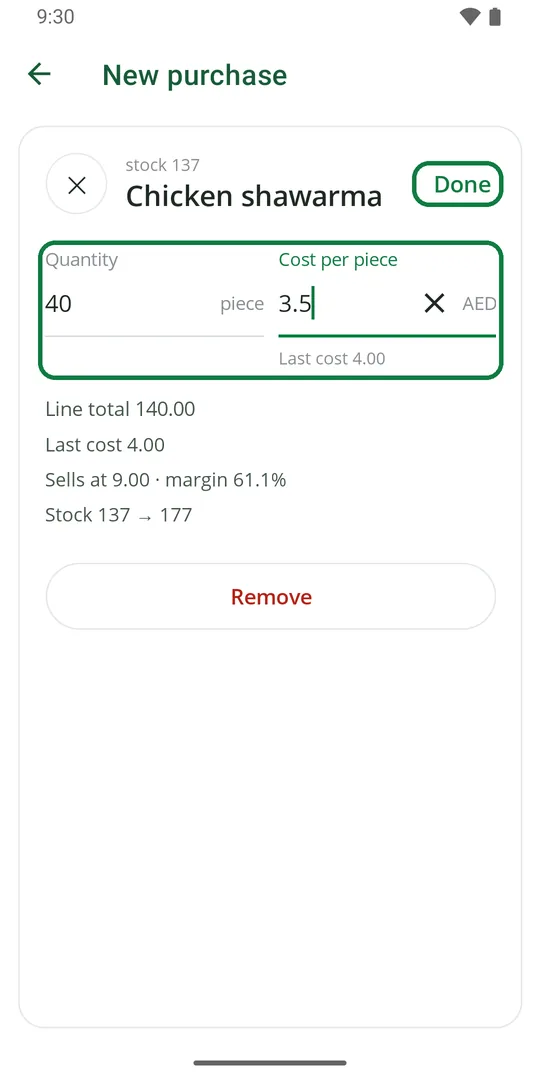
3Type how many you bought and the cost of each. Tap Done 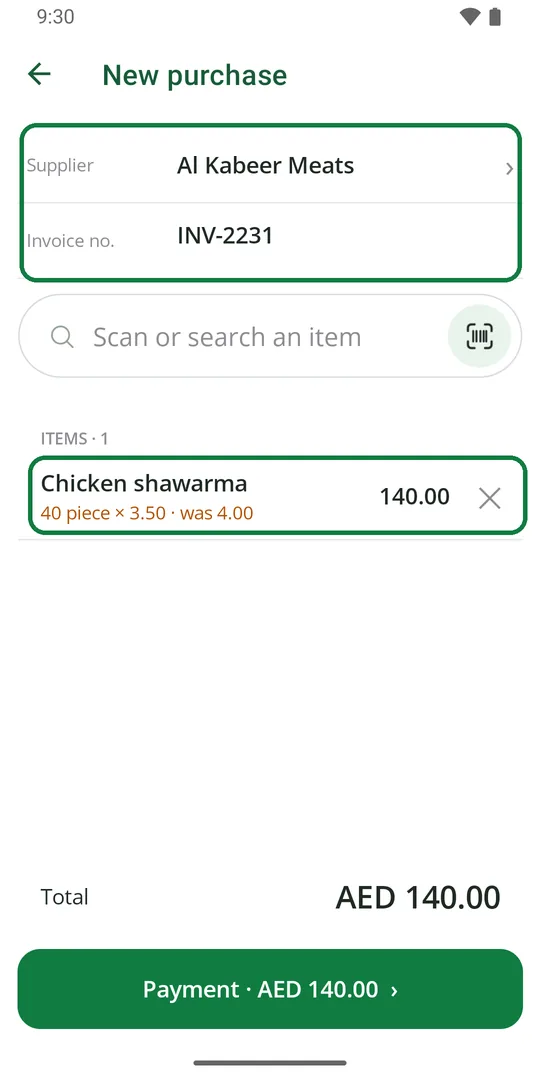
4Add more items the same way. Type the invoice number if you have one 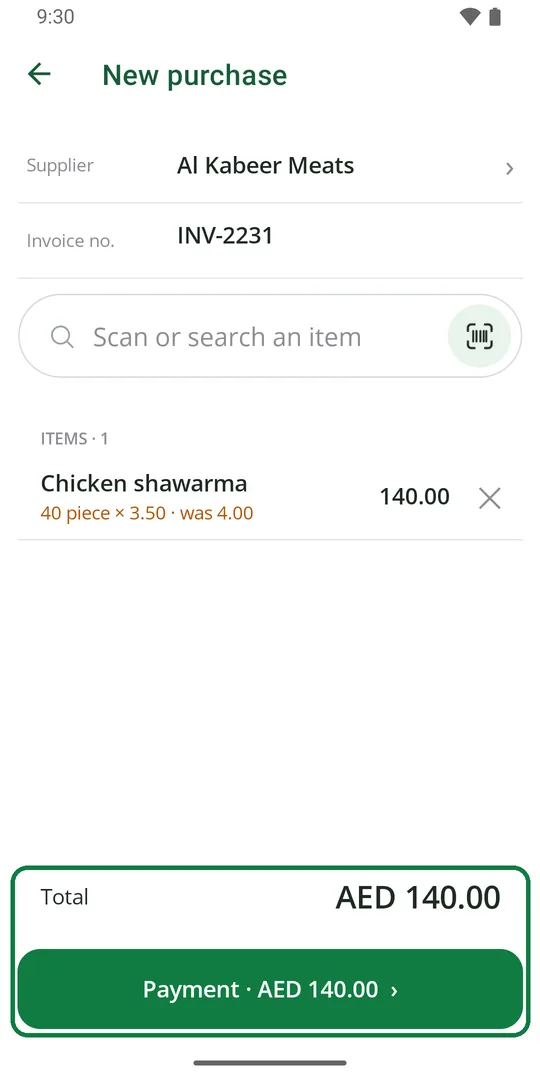
5Tap Payment 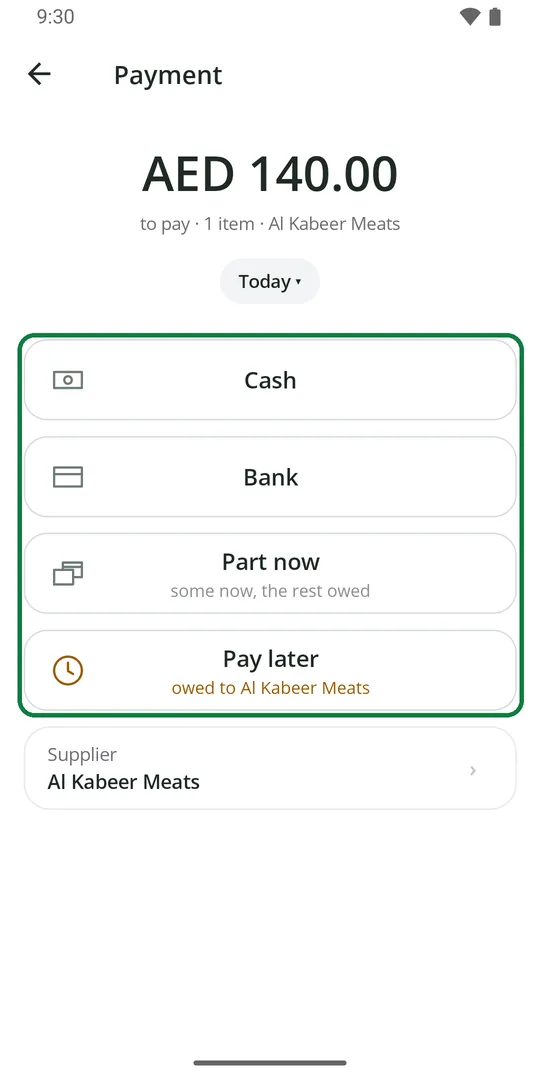
6Tap Cash or Bank if you paid. Part now if you paid some. Pay later if you owe it all 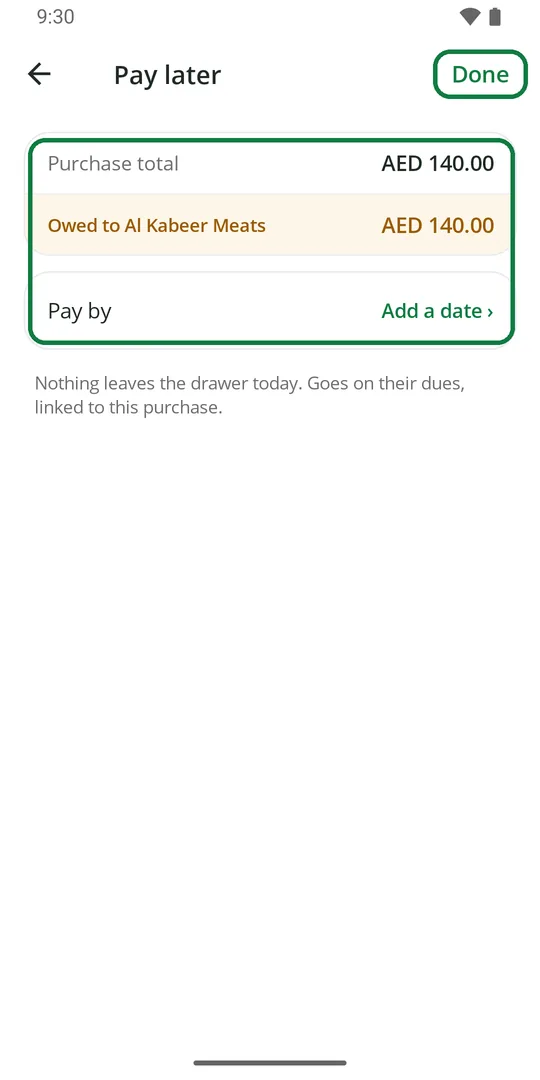
7For Pay later, you can add the day you will pay. Tap Done 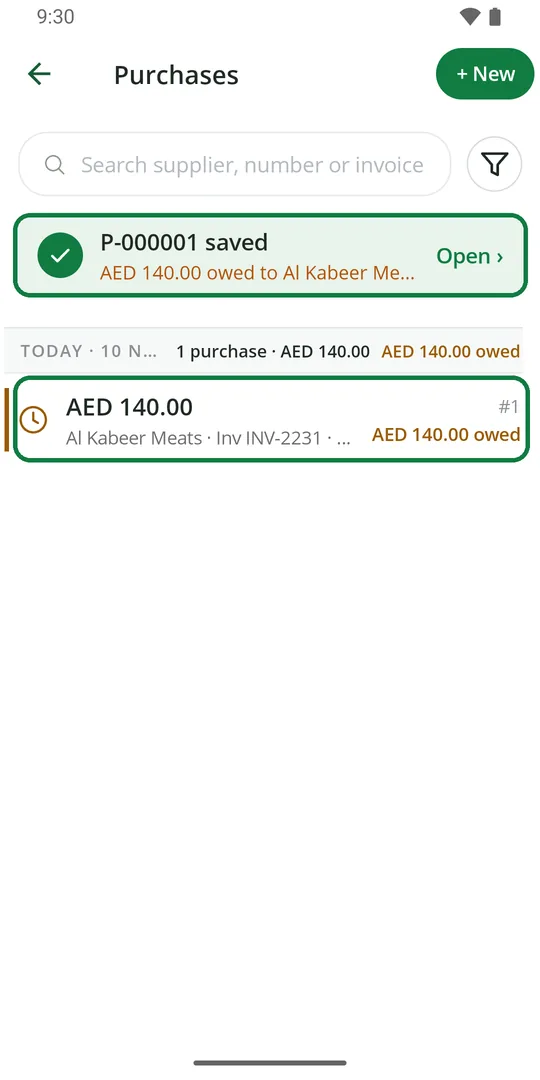
8The purchase is saved
The stock goes up by itself, and the new cost becomes the item's cost price. Money you owe goes to Dues. You can also start from ☰ › Purchases › + New.
See what a purchase changed
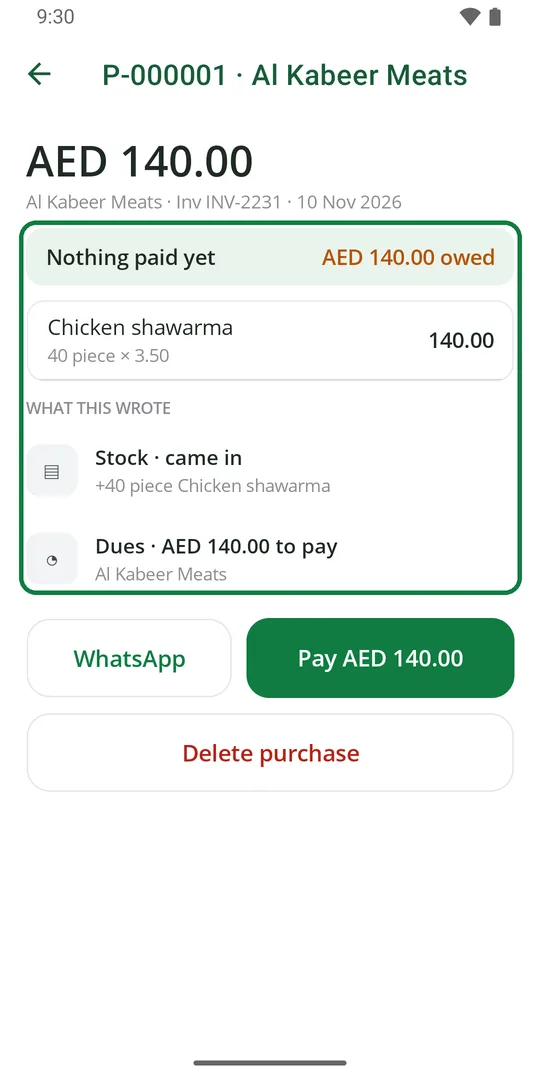
1Open the purchase. What this wrote shows the stock that came in and what you owe
Pay for a purchase
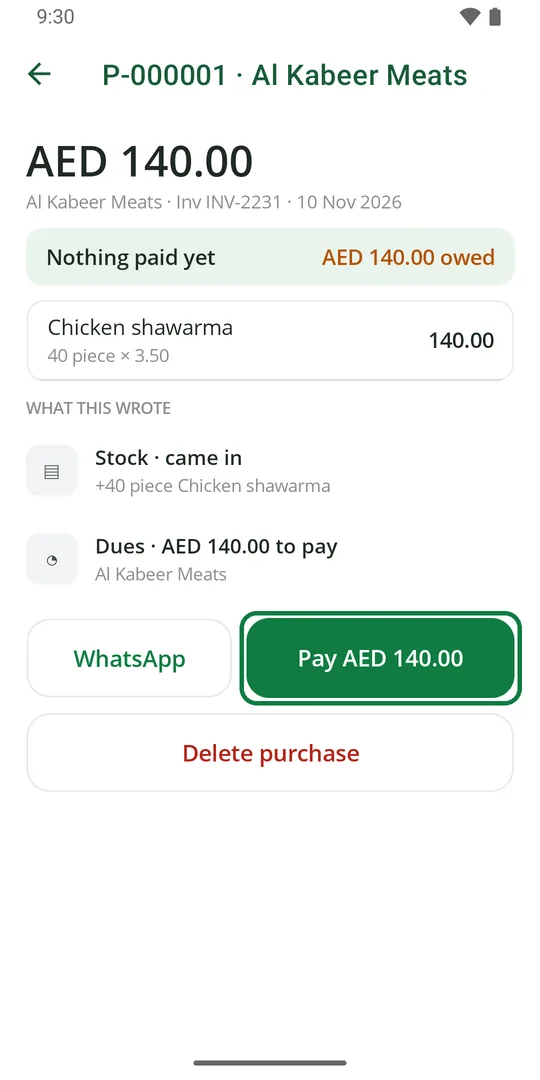
1Open the purchase and tap Pay 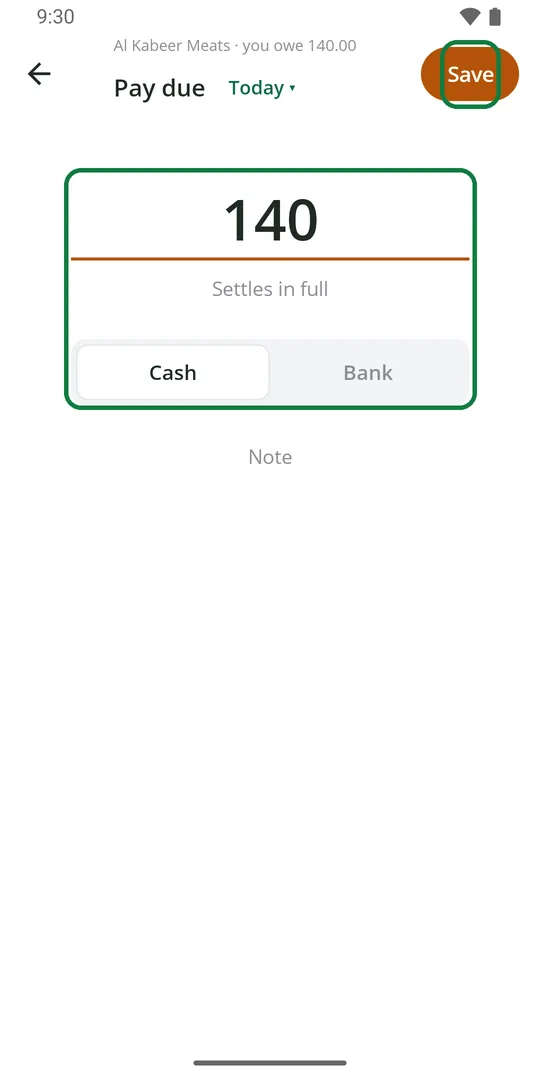
2Check the amount, pick Cash or Bank, and tap Save 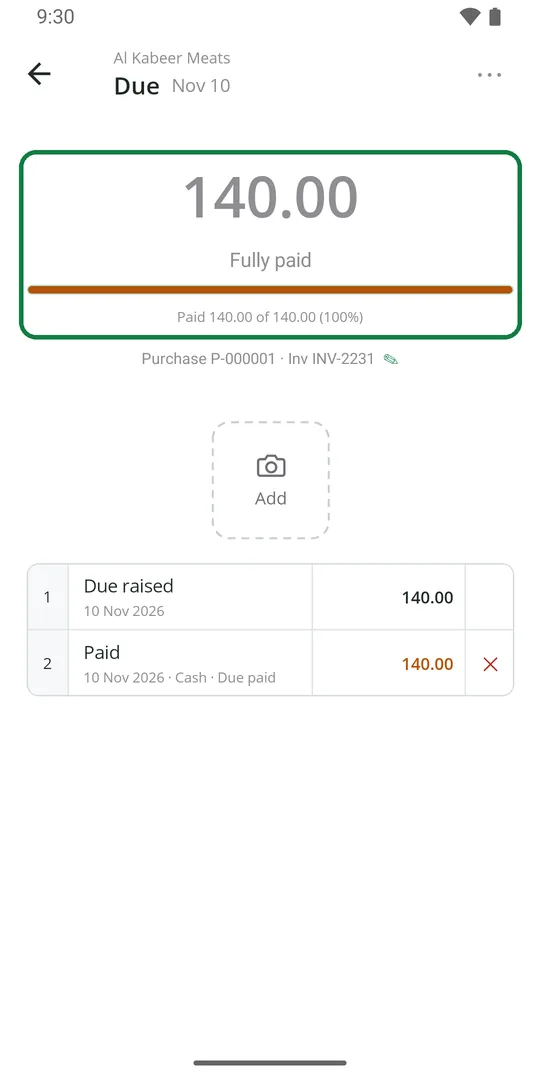
3It is paid
To pay several purchases at once, open the supplier and tap Pay.
See all purchases
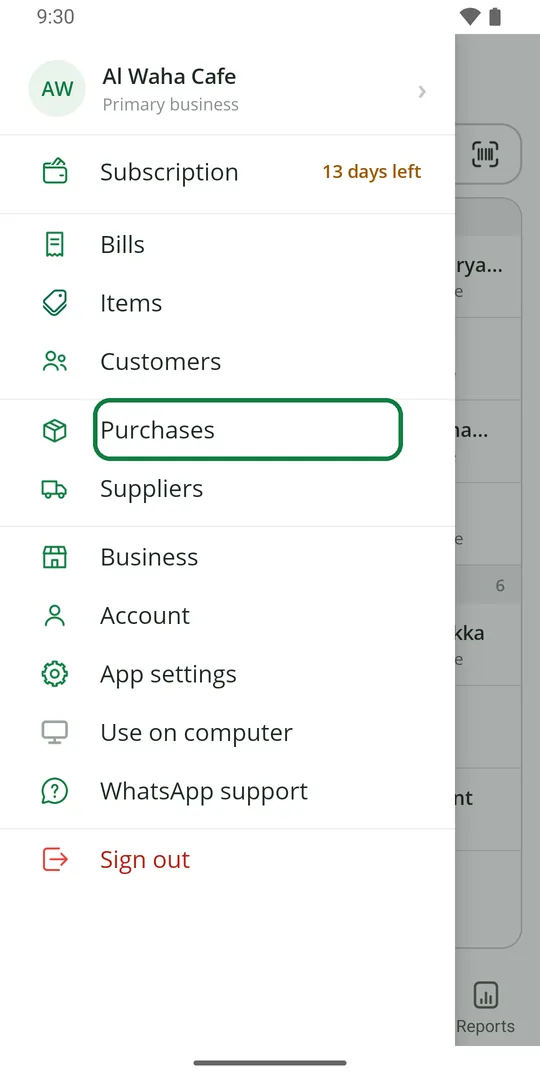
1Tap ☰, then Purchases 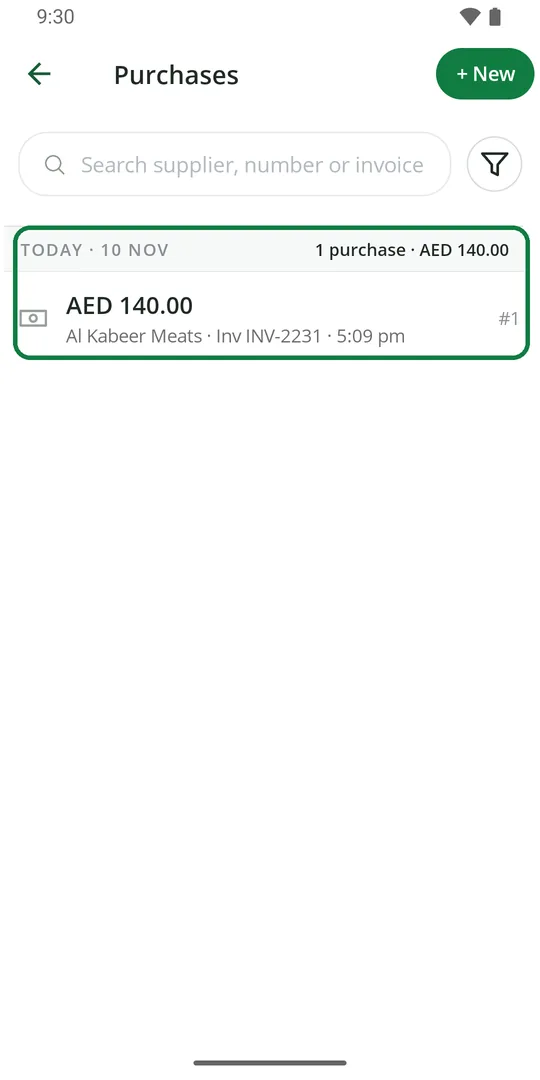
2Each day shows how many purchases, the total and what is owed. Tap one to open it 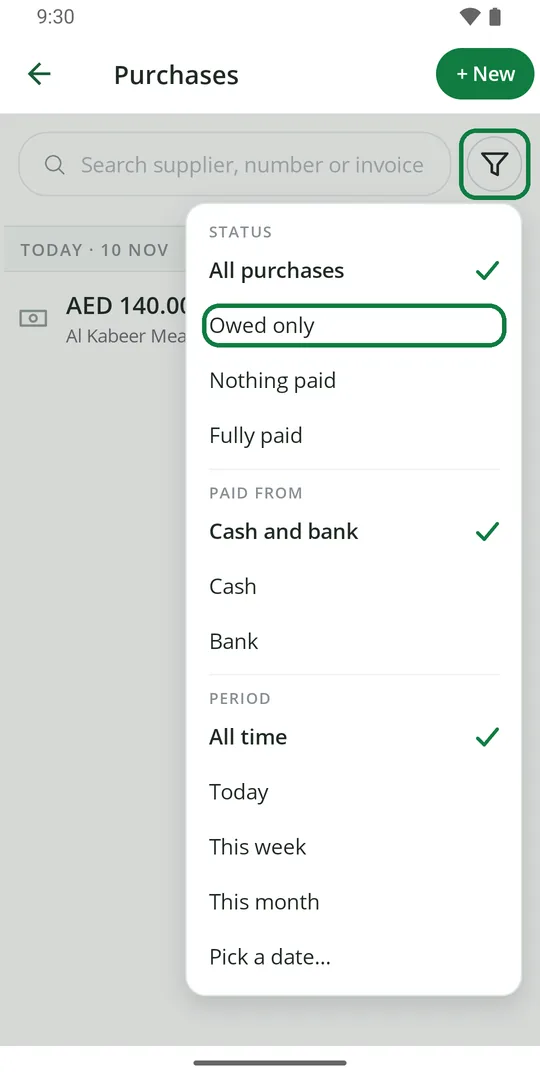
3Tap the filter to see only owed, paid, cash, bank or one period
Delete a purchase
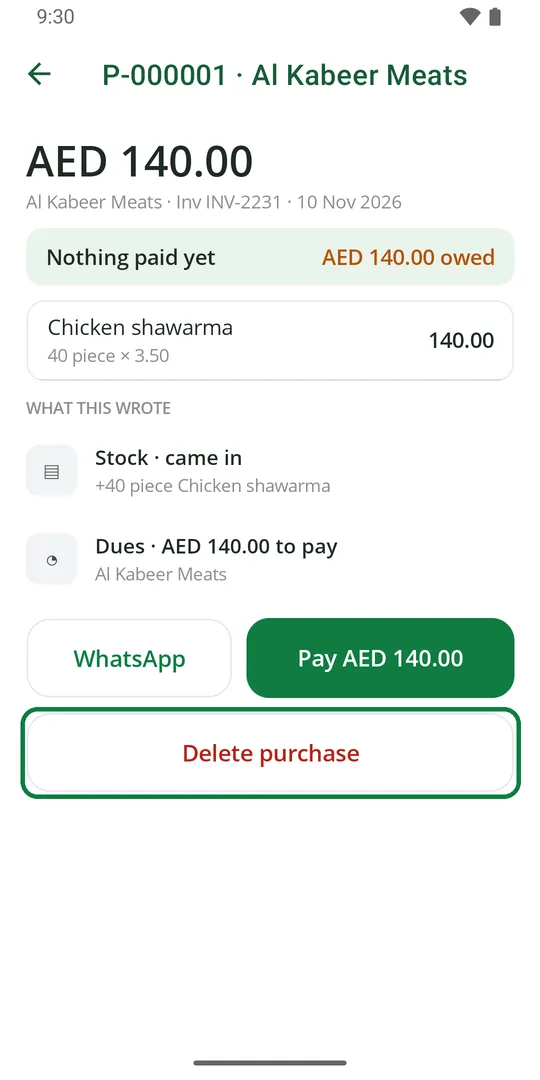
1Open the purchase and tap Delete purchase 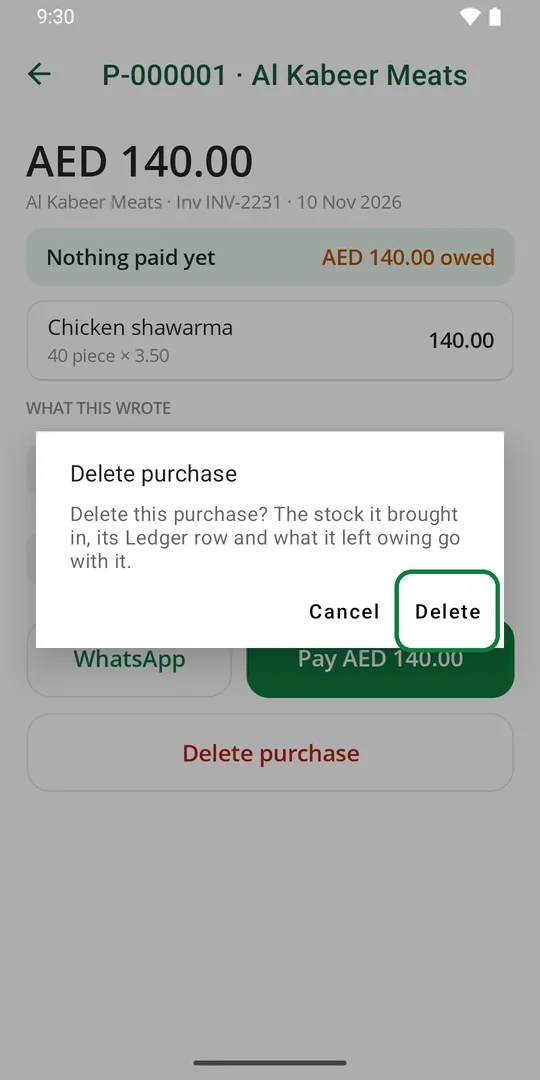
2Tap Delete
The stock it brought in, its Ledger row and what it left owing are removed with it.