
Customers
See your customers
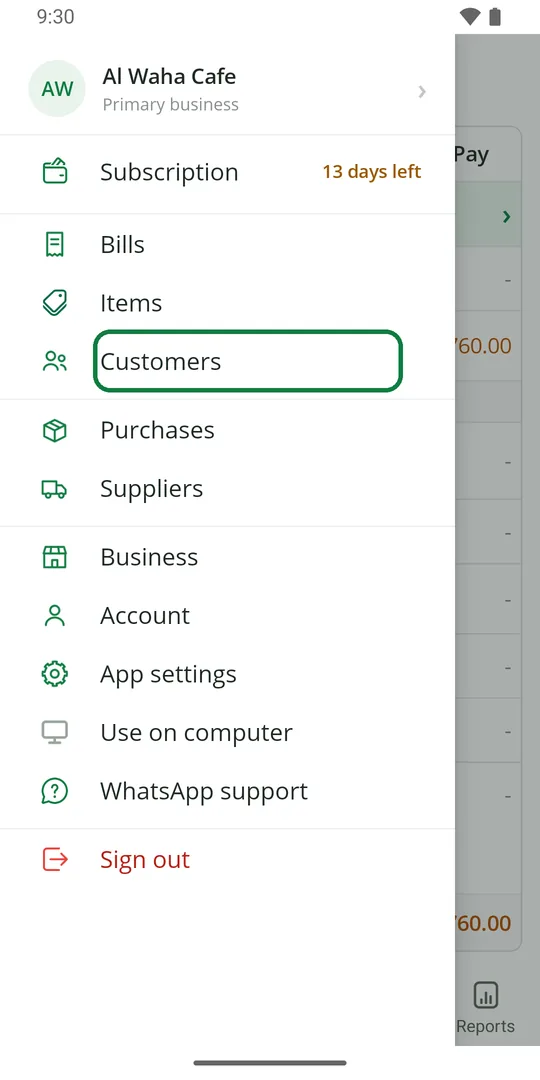
1Tap ☰, then Customers 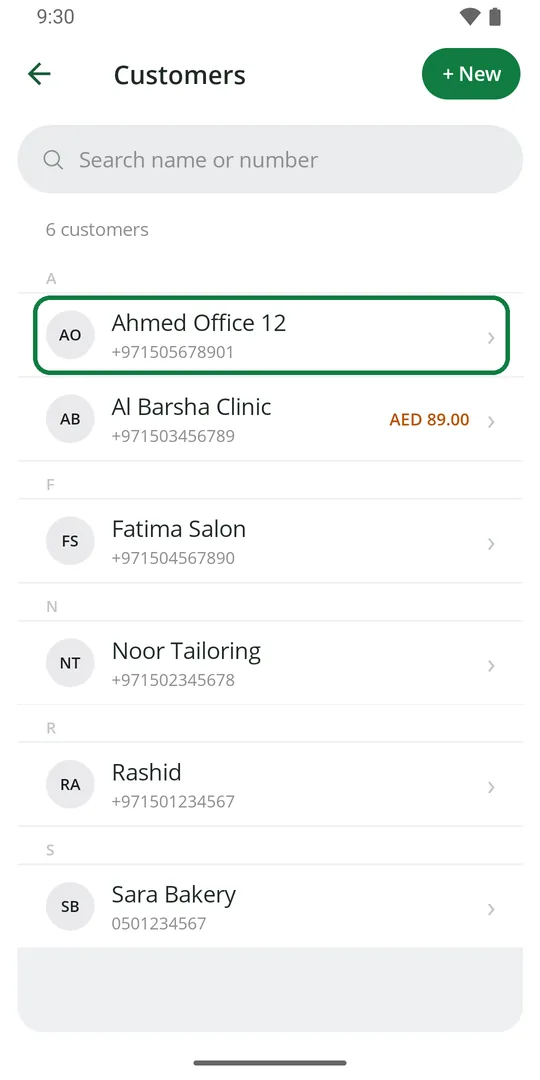
2Each customer shows their number, and what they owe if anything. Tap a name to open it
Find a customer
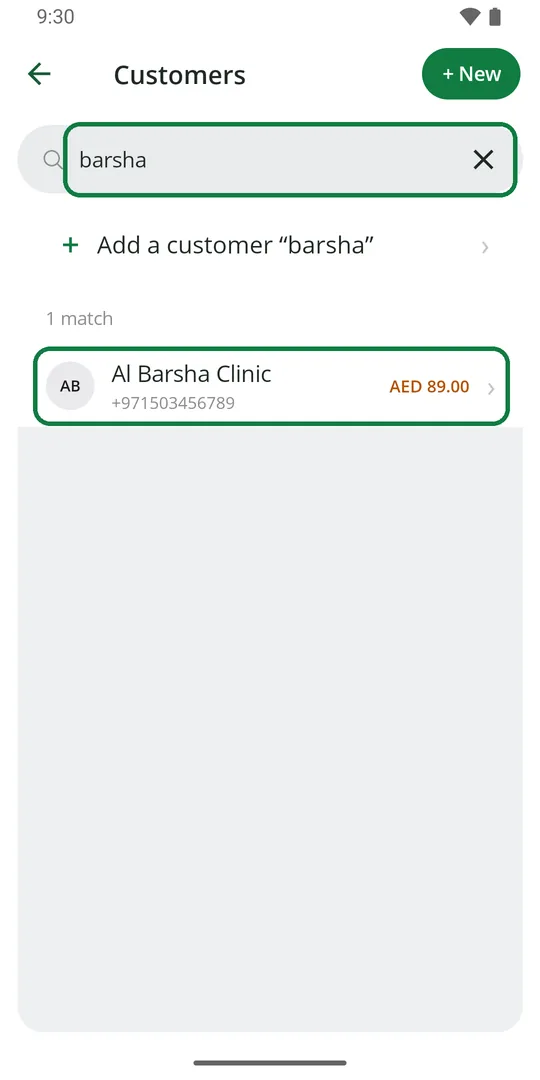
1Type part of the name or the number in Search name or number
Add a customer
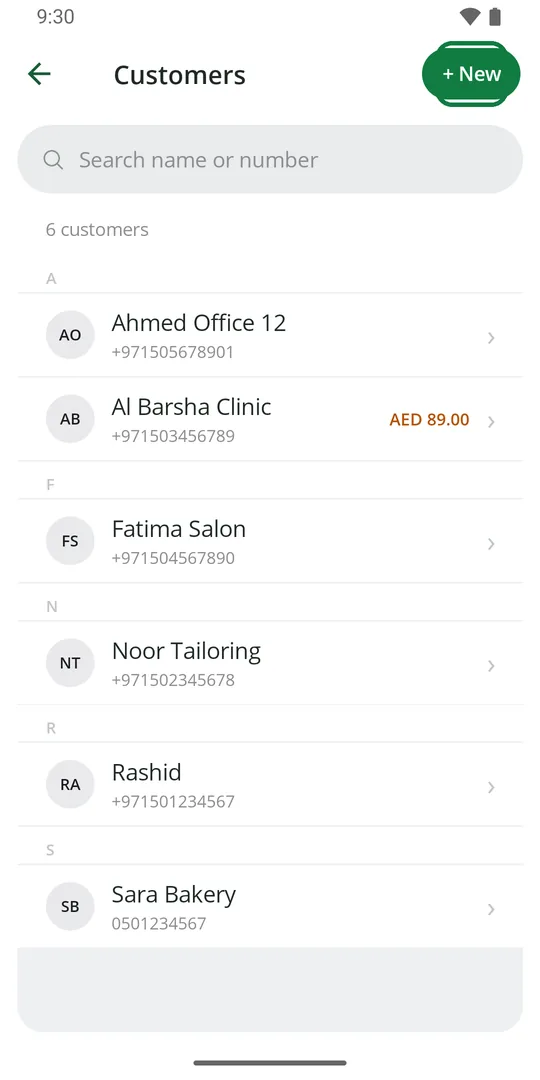
1In Customers, tap + New 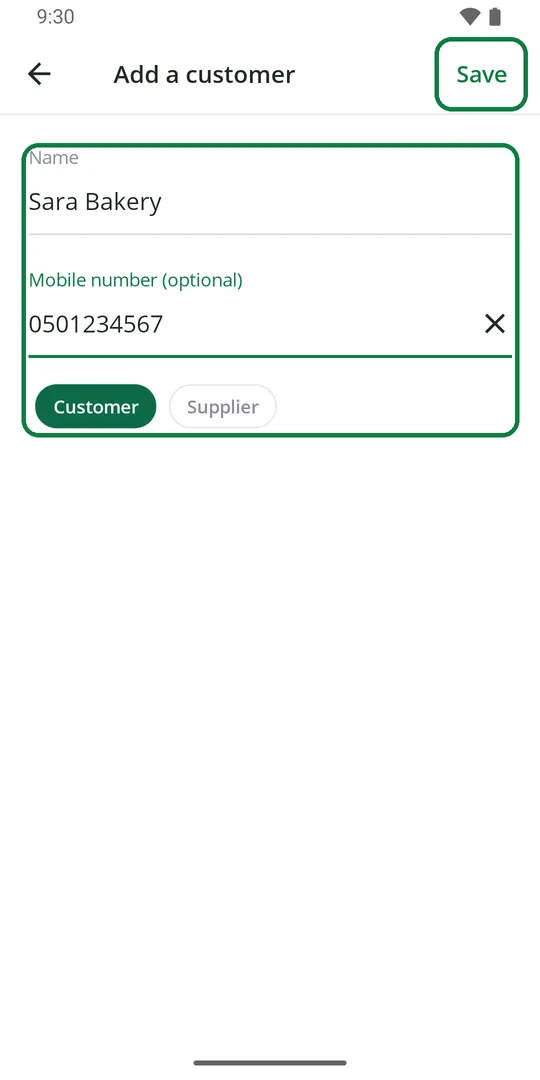
2Type the name and mobile number, then tap Save
A name typed on a credit bill or a due is added here by itself.
Add a customer from a visiting card
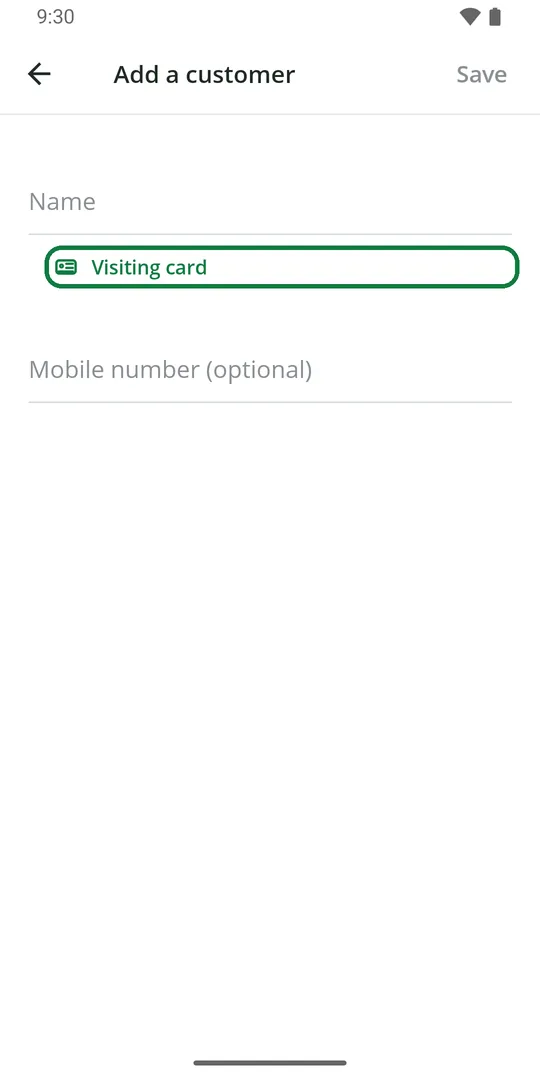
1On Add a customer, tap Visiting card 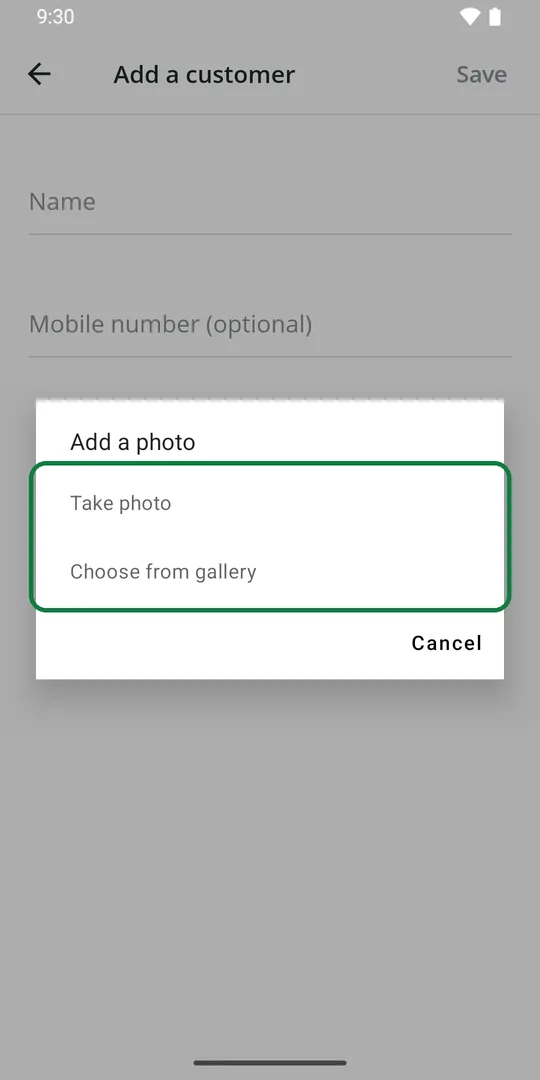
2Tap Take photo, or Choose from gallery 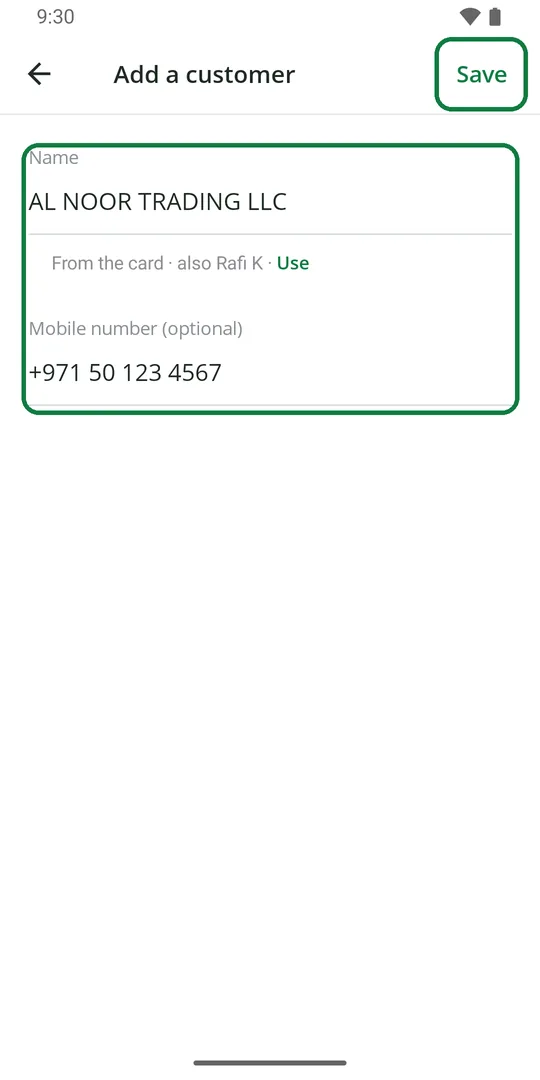
3The name and number are filled in from the card. Another name on it? Tap Use. Then tap Save 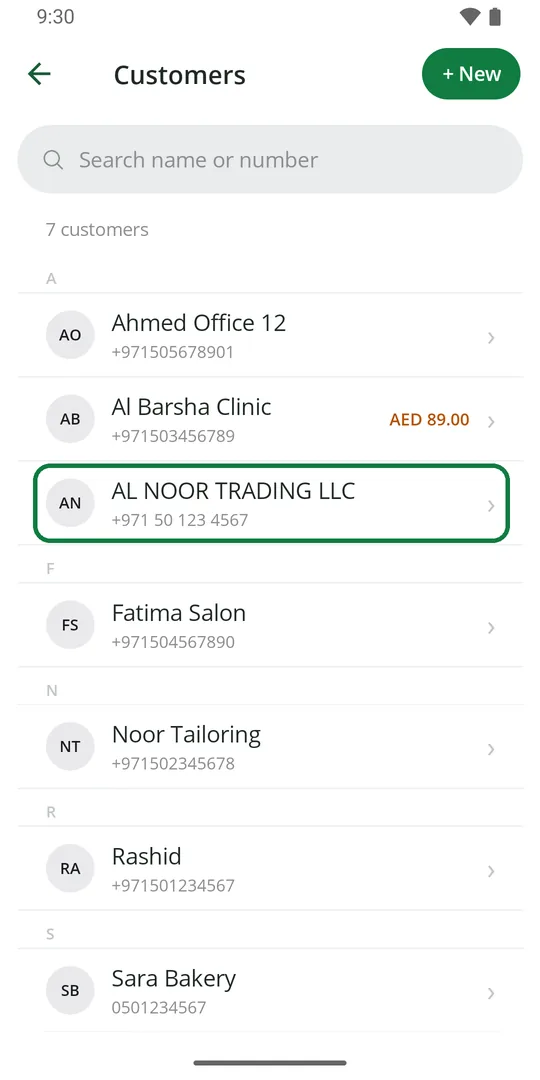
4The customer is added 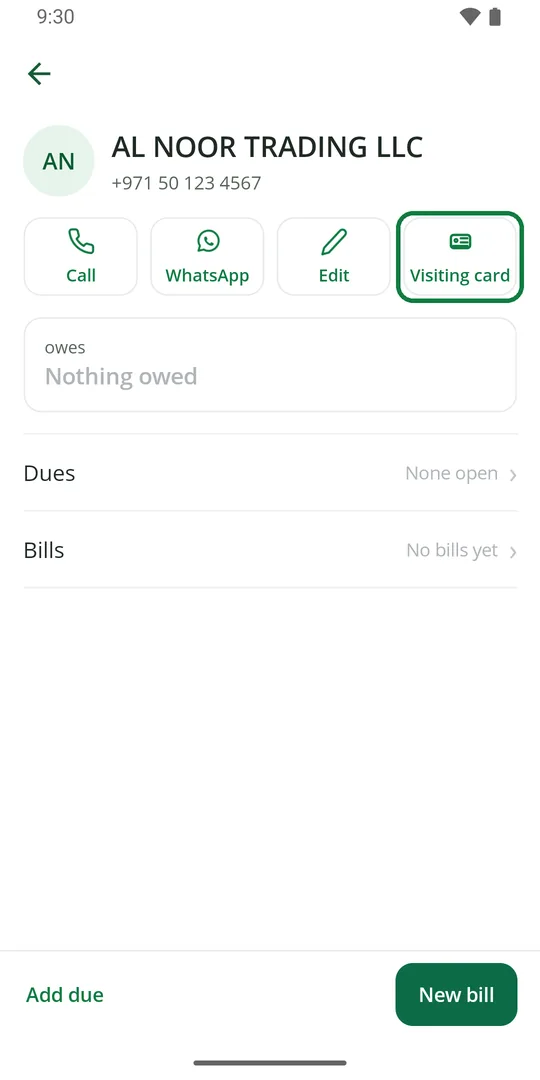
5The card is kept. Tap Visiting card on their page to see it 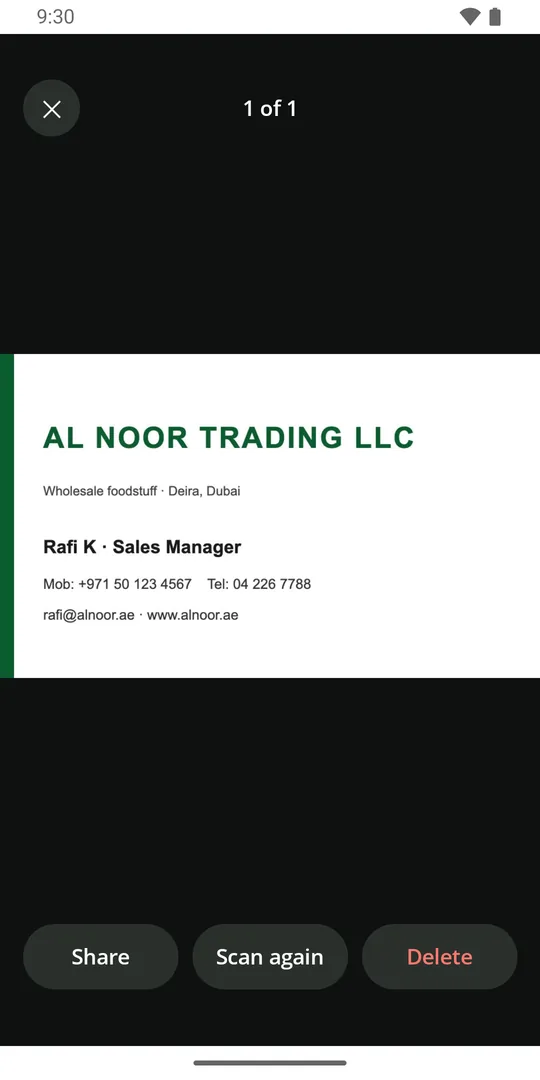
6From here you can share it, scan it again or delete it
See everything about one customer
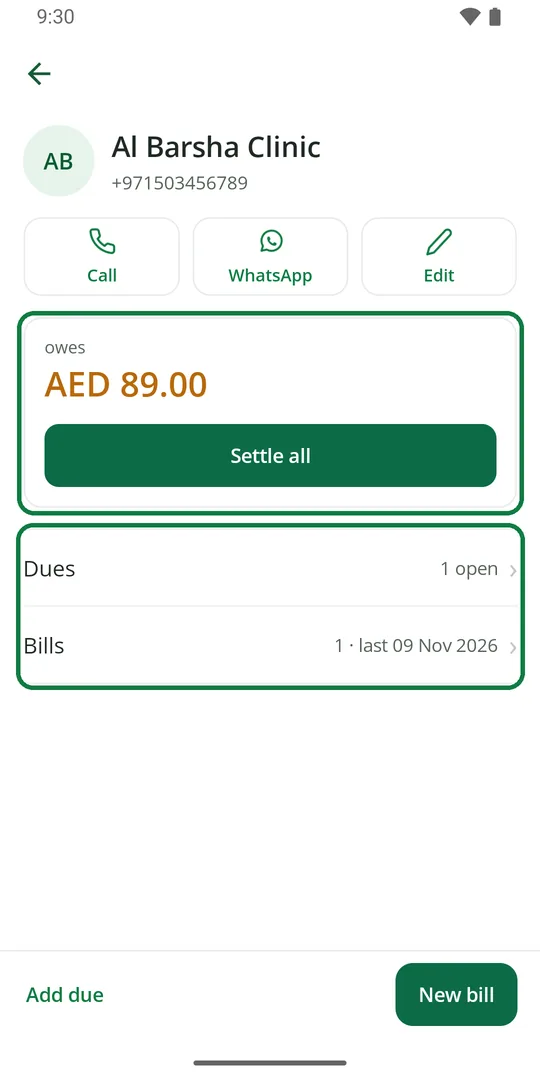
1Open the customer. You see what they owe, their dues and their bills
Settle all takes payment for every open due at once.
Call or WhatsApp a customer
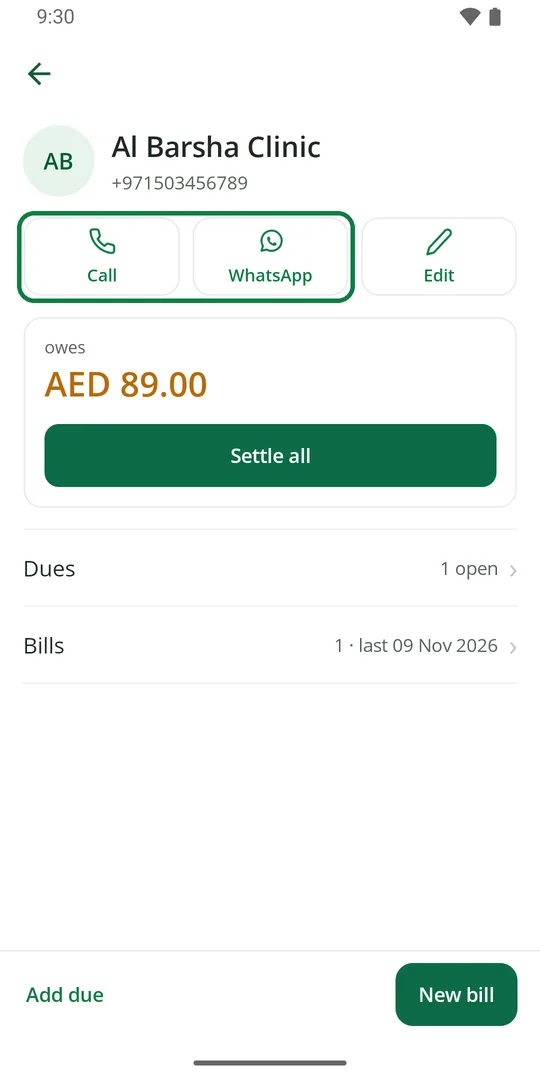
1Open the customer and tap Call or WhatsApp
See a customer's bills
1Open the customer and tap Bills 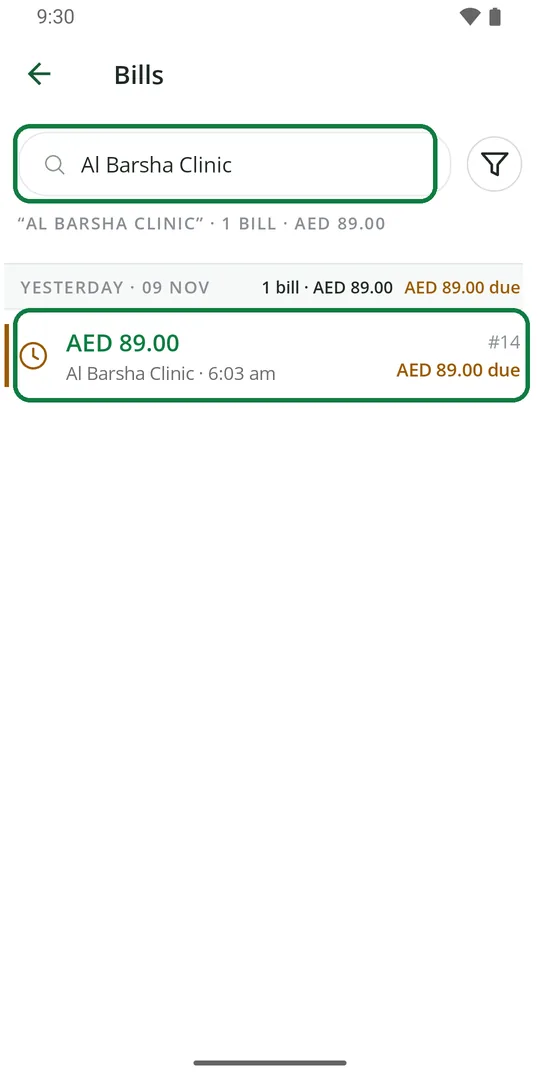
2Only their bills show. Tap one to open it
Make a bill for a customer
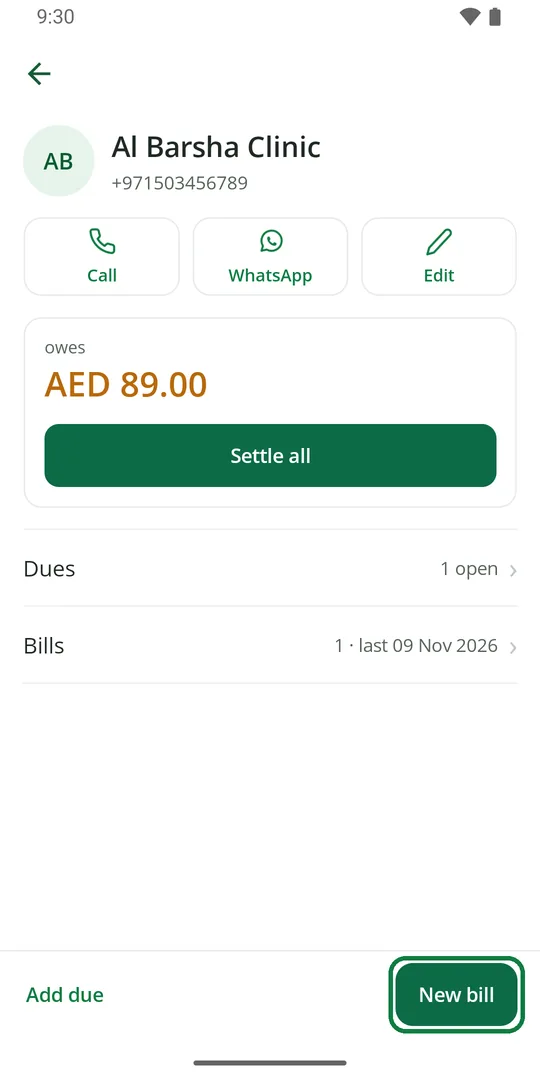
1Open the customer and tap New bill. Add the items and tap Charge 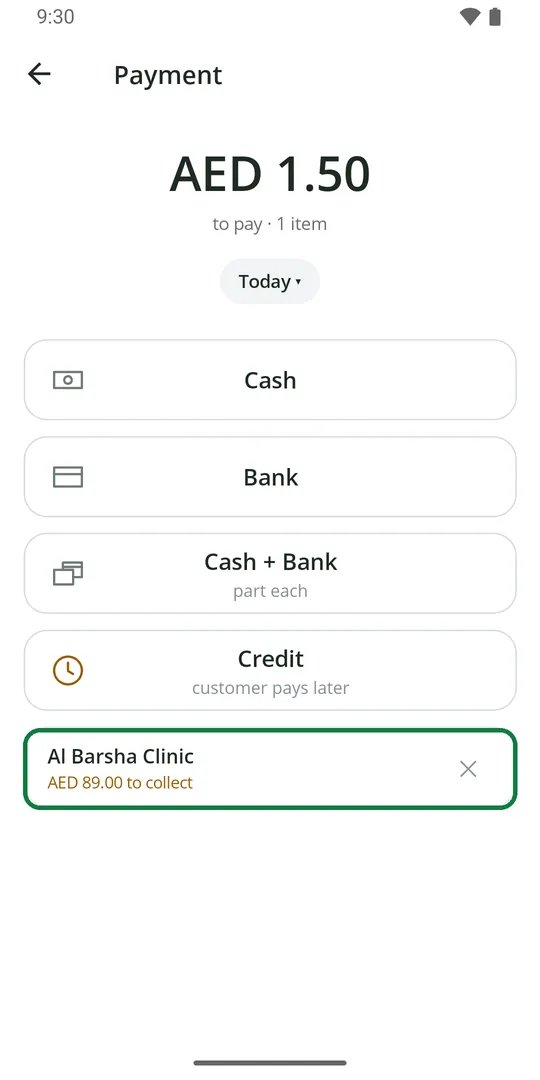
2The bill already has their name. Tap Cash, Bank or Credit
Write a due for a customer
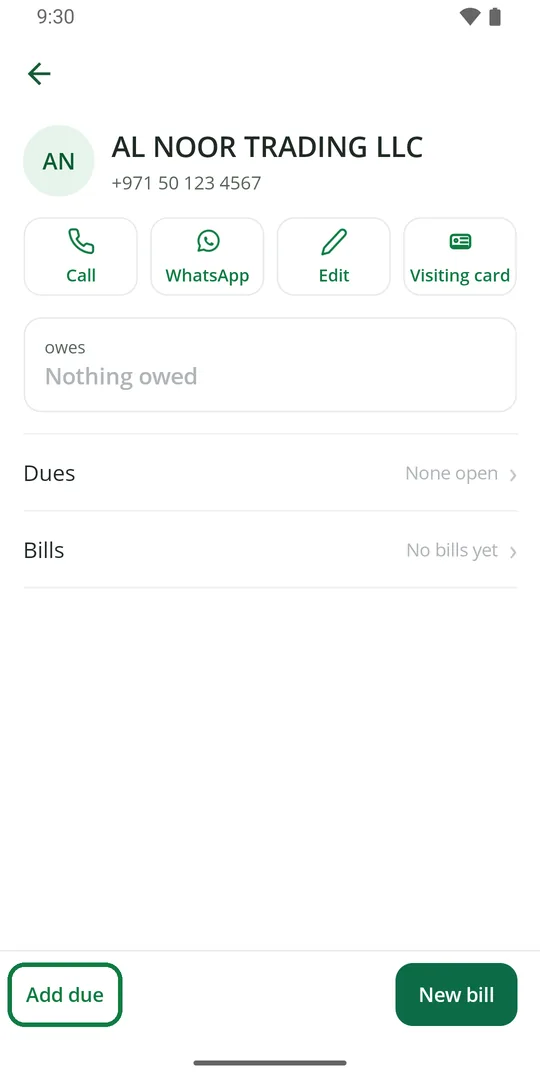
1Open the customer and tap Add due 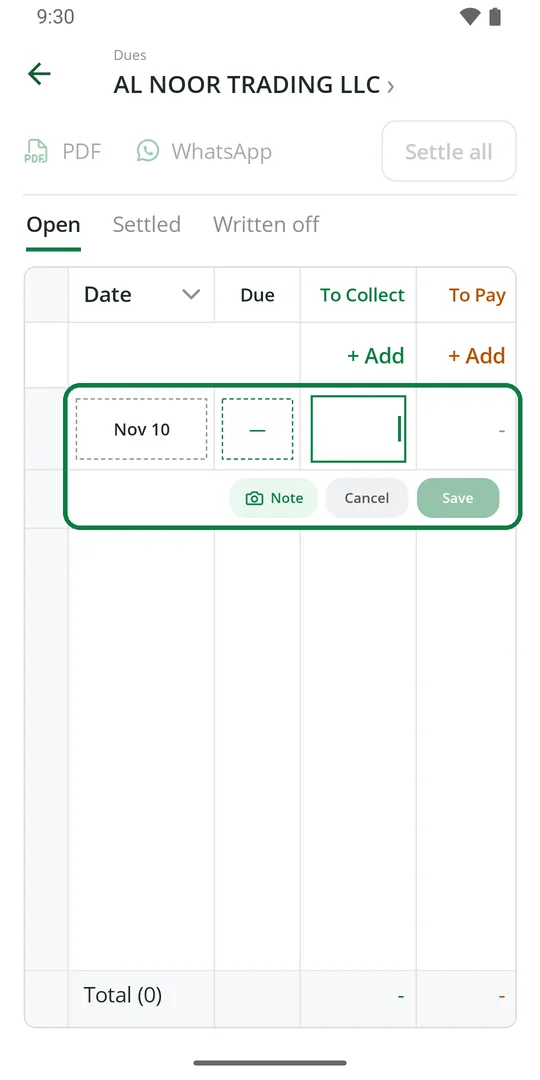
2Type the amount and tap Save
Change a customer's name or number
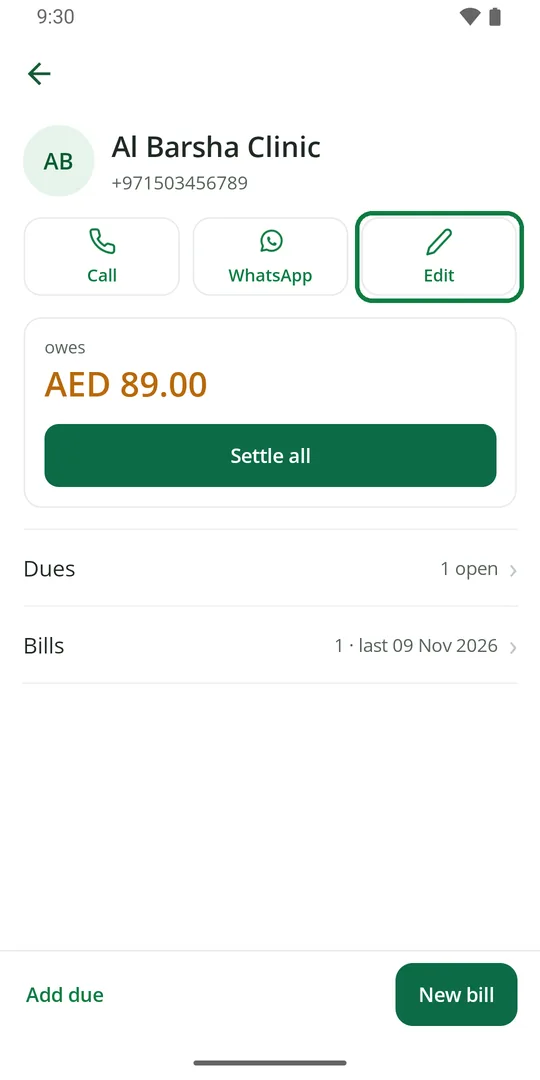
1Open the customer and tap Edit 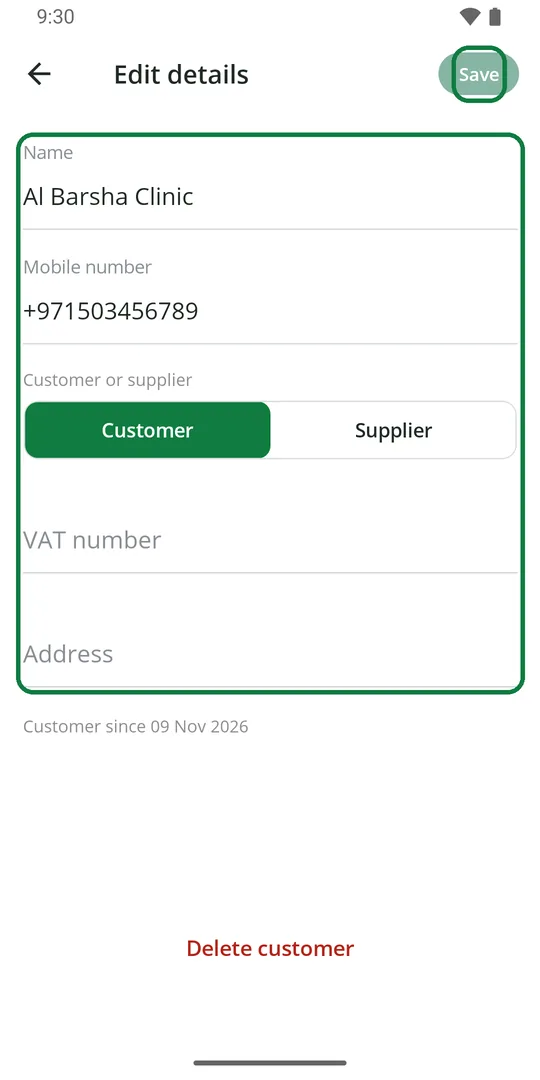
2Change the name, number, VAT number or address. Tap Save
Delete a customer
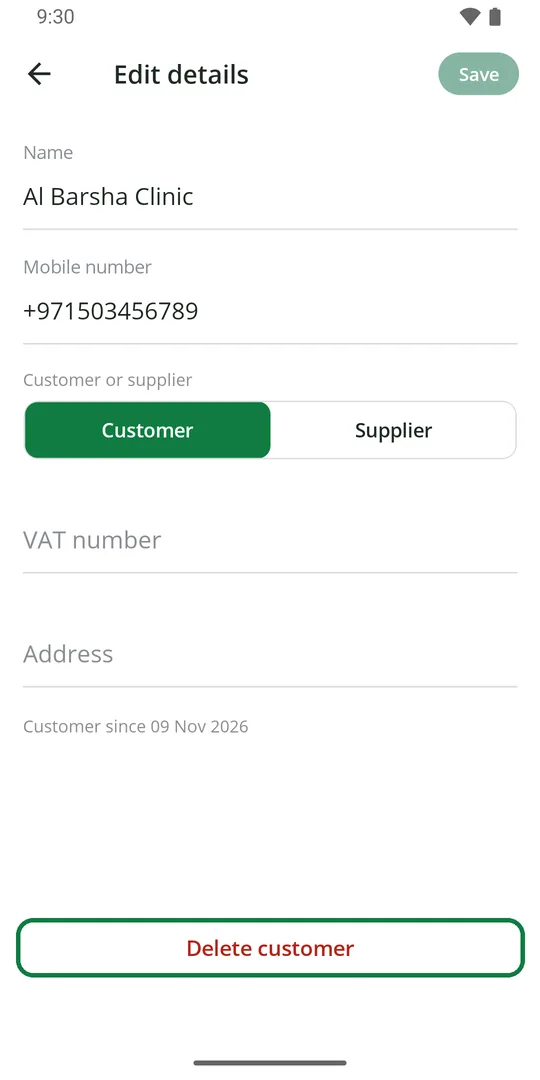
1Open the customer, tap Edit, then Delete customer at the bottom 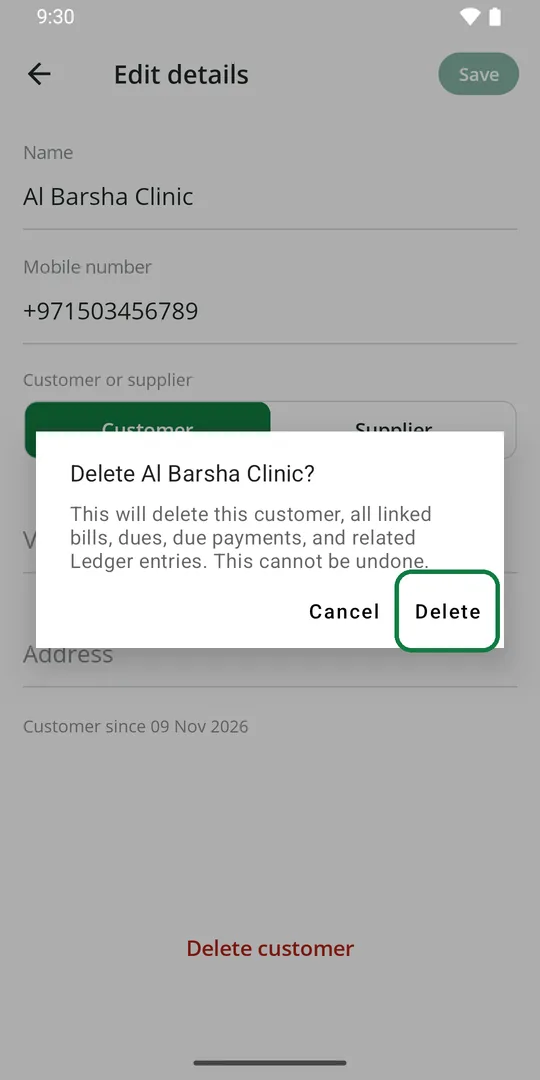
2Tap Delete
Careful: this also deletes all their bills, dues, payments and the Ledger entries for them. It cannot be undone.