
Dues
See who owes you, and whom you owe
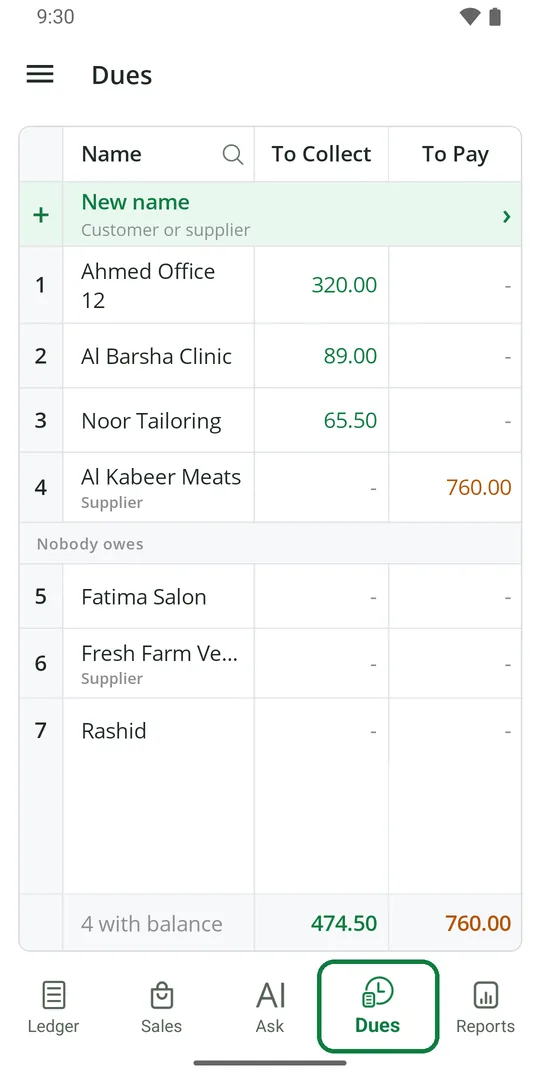
1Tap Dues at the bottom 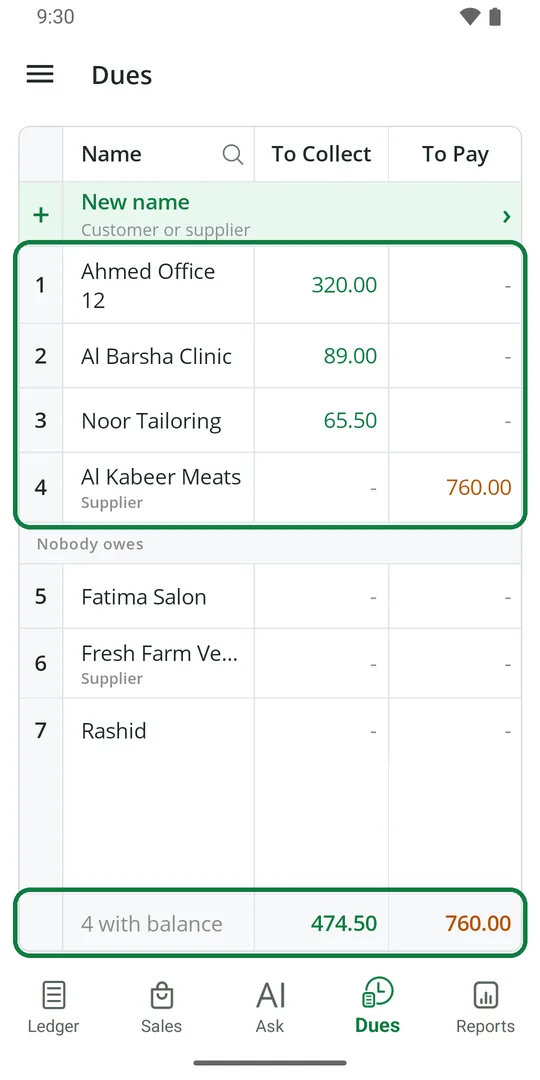
2Green is what people owe you. Orange is what you owe. The last line is the total
Find a person
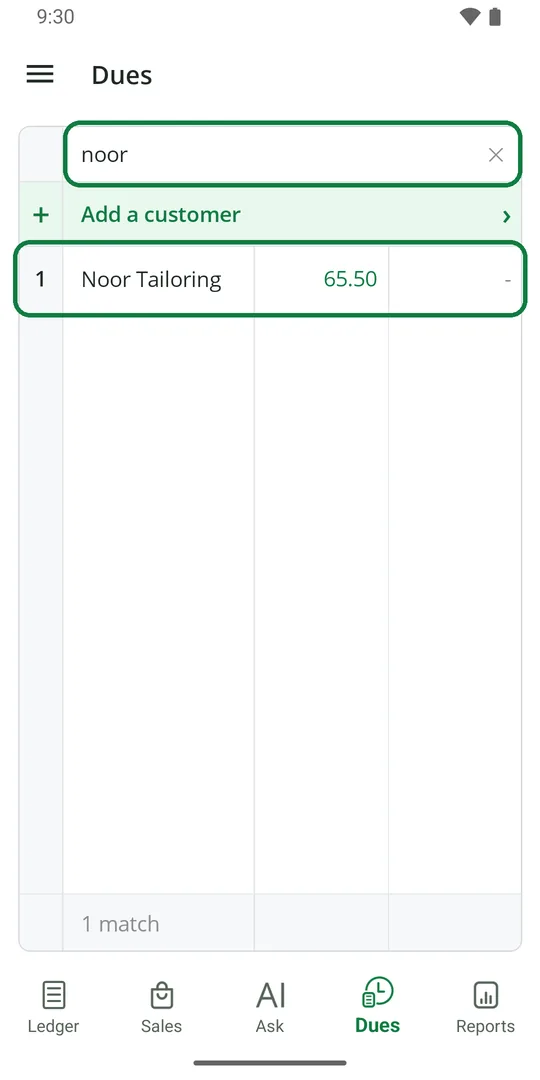
1Tap the search mark beside Name and type part of the name. Tap ✕ to see all again
Add a new customer or supplier
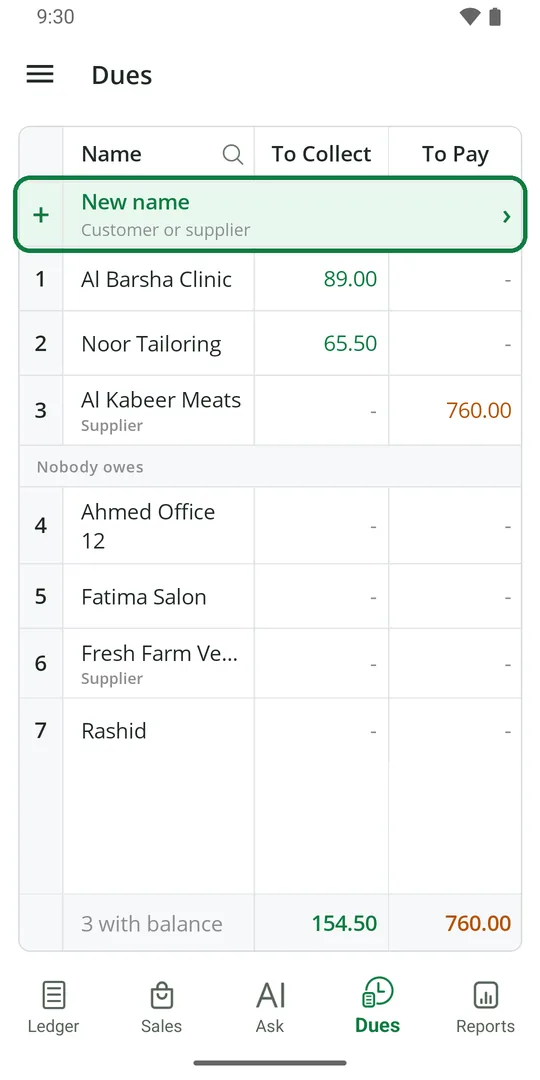
1Tap New name 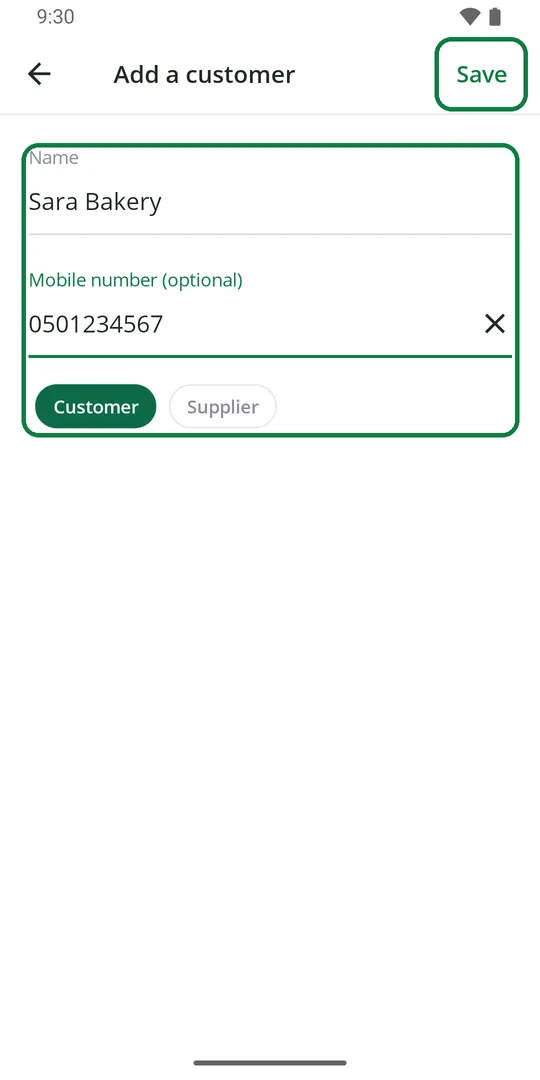
2Type the name and mobile number, pick Customer or Supplier, and tap Save 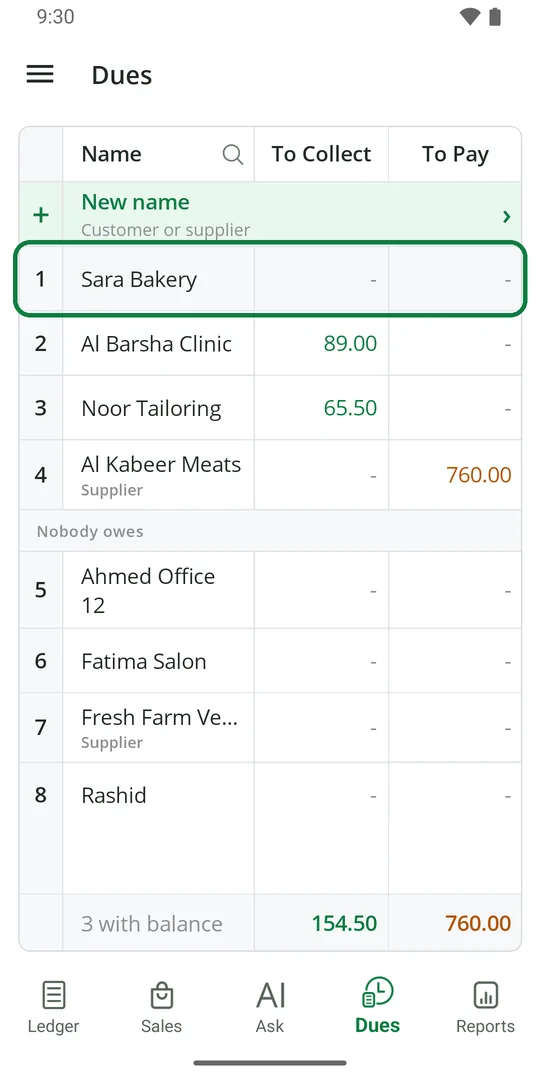
3The name is in the list. Tap it to write a due
Write money someone owes you
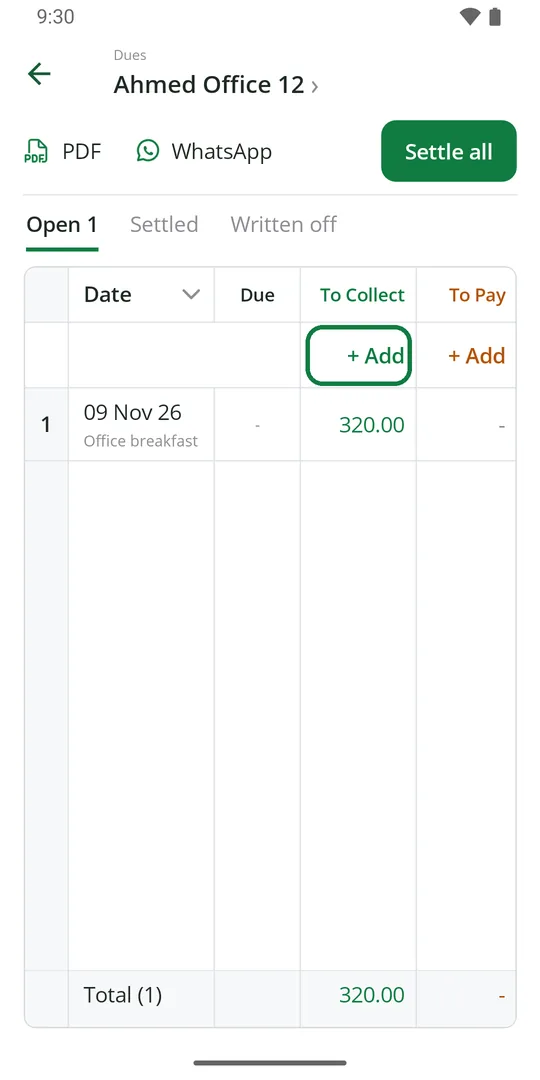
1Open the person and tap + Add under To Collect 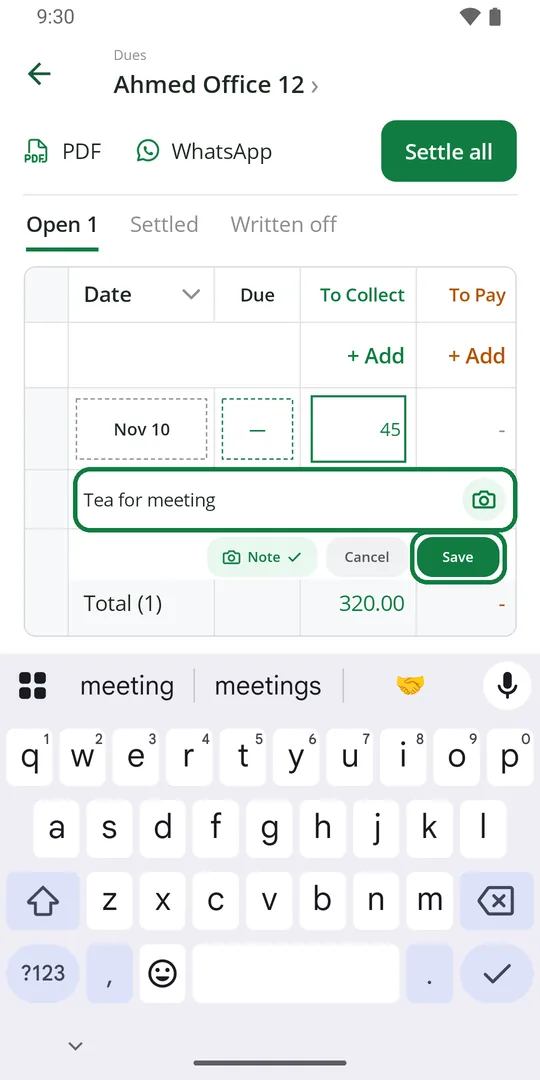
2Type the amount. Tap Note and write what it was for. Tap Save 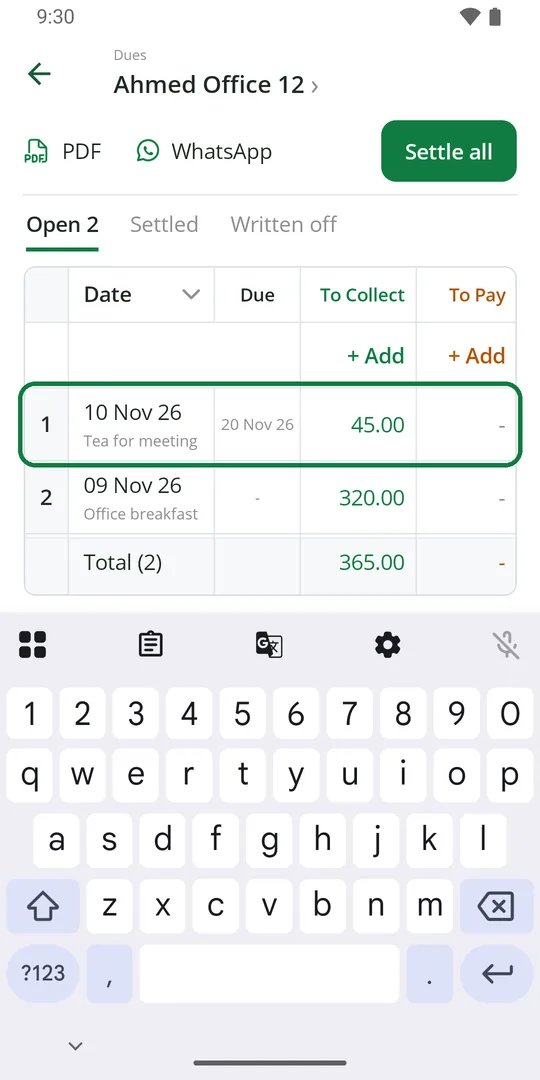
3The due is in the list
A bill sold on credit comes here by itself.
Set the day it should be paid
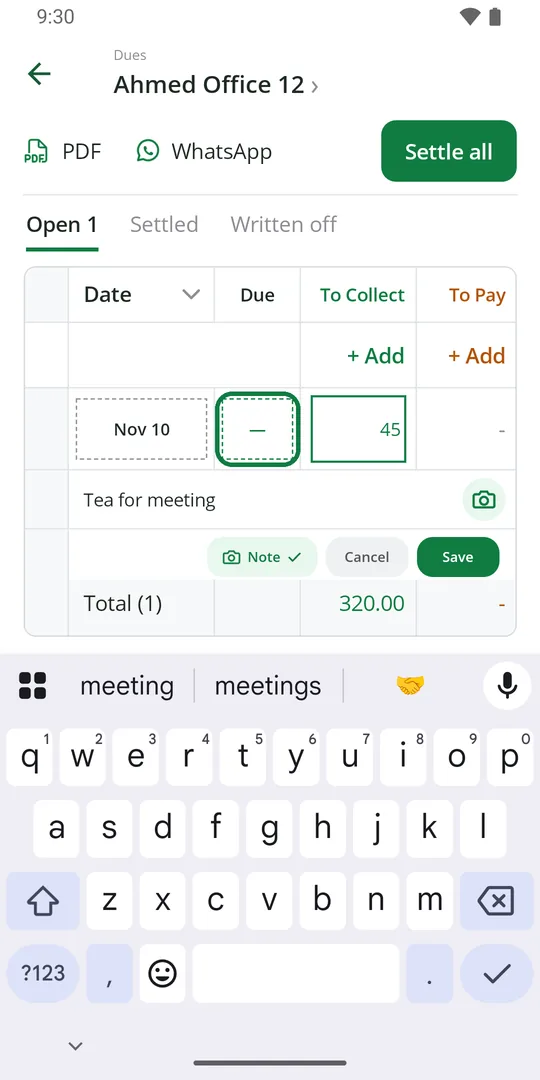
1While writing the due, tap the box under Due 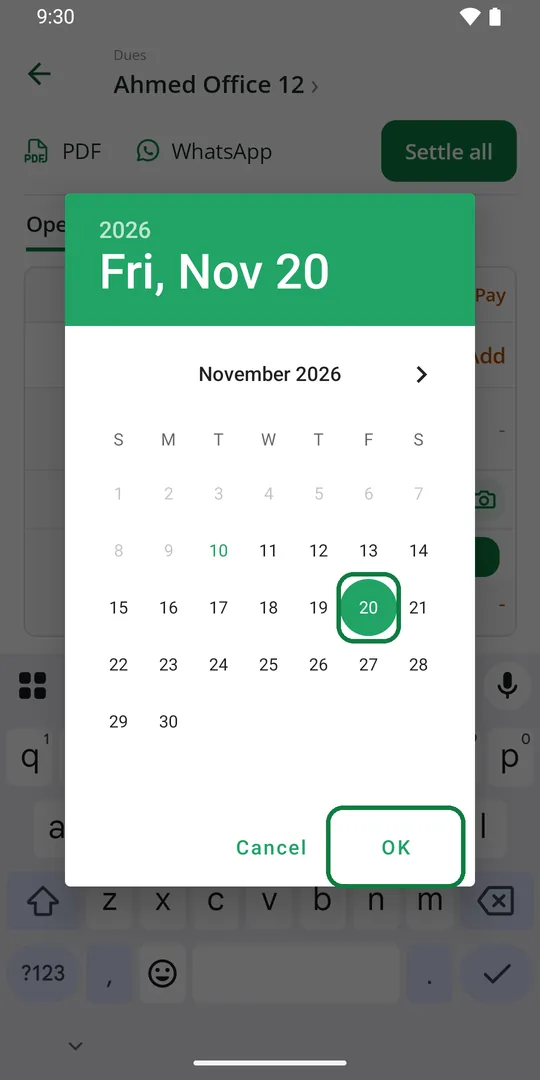
2Pick the day and tap OK
Get paid for a due
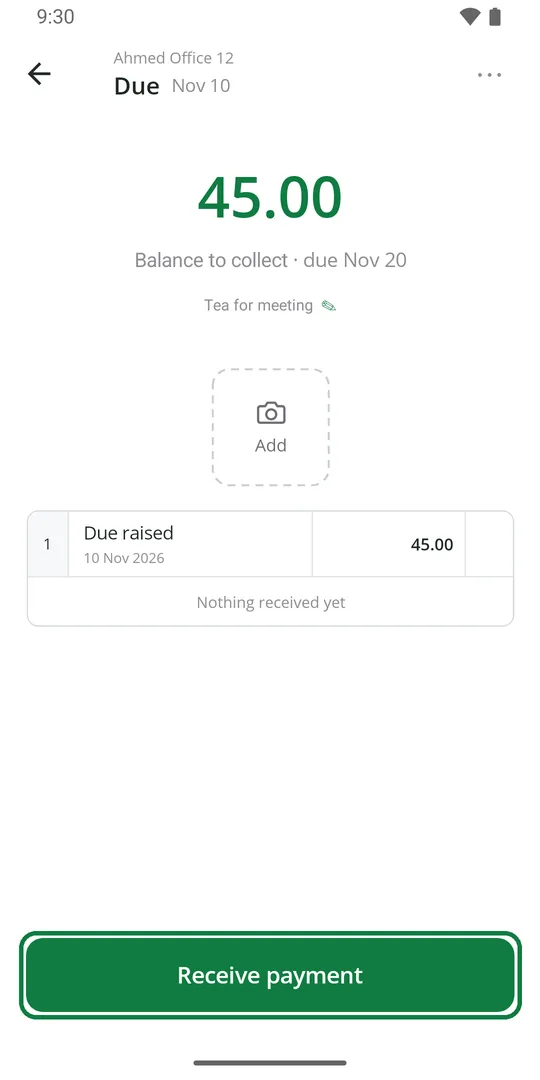
1Tap the due, then Receive payment 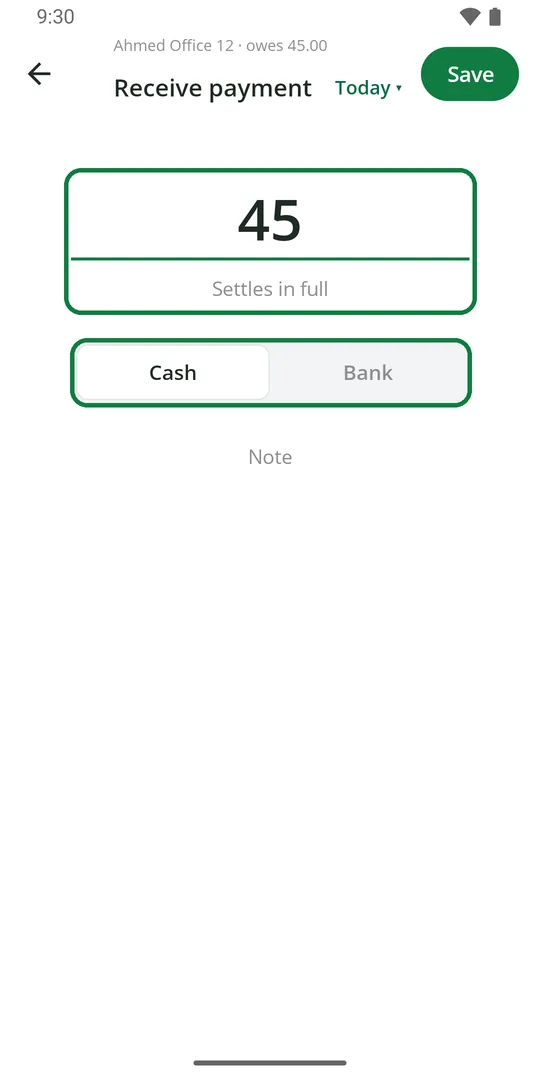
2The full amount is filled in. Pick Cash or Bank 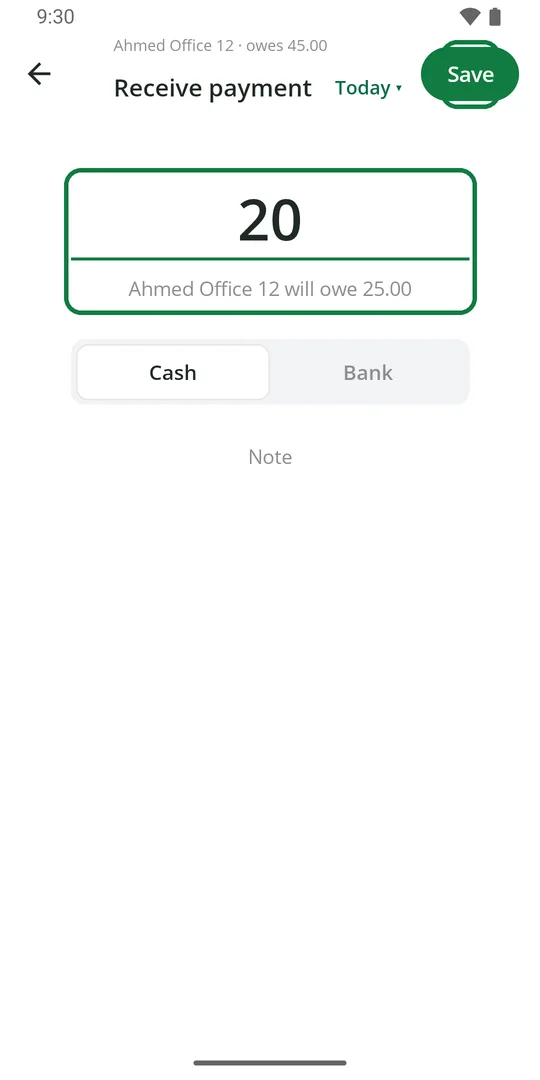
3Got only part of it? Type what you got. It shows what is still owed. Tap Save 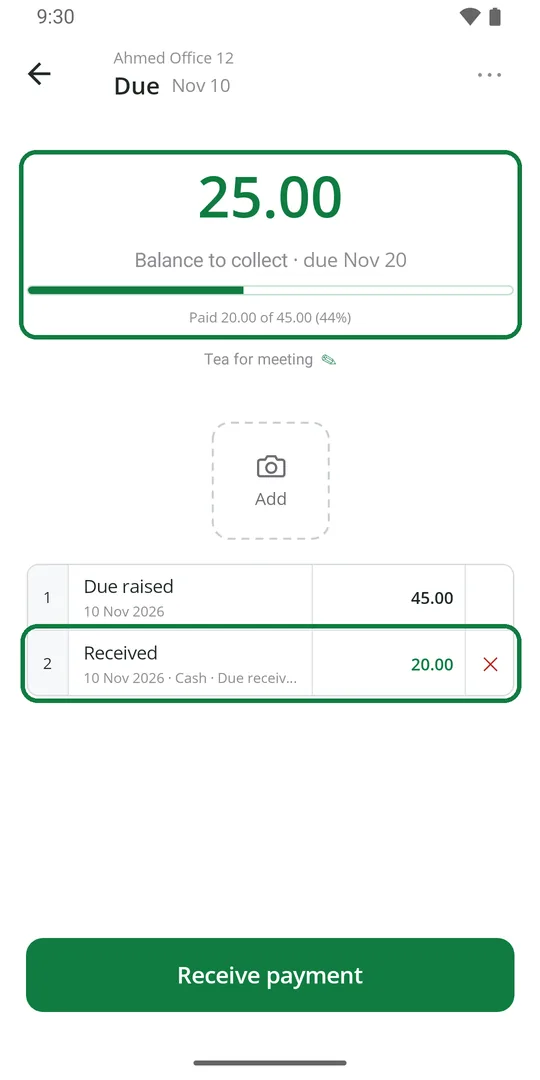
4The due shows what is paid and what is left
The money goes into the Ledger by itself.
Get paid for all of a person's dues
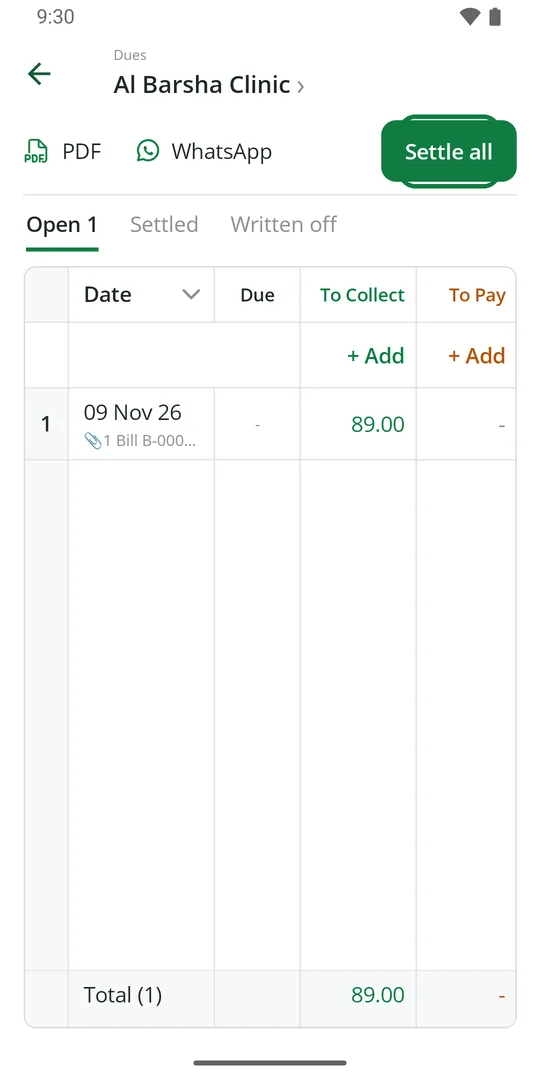
1Open the person and tap Settle all 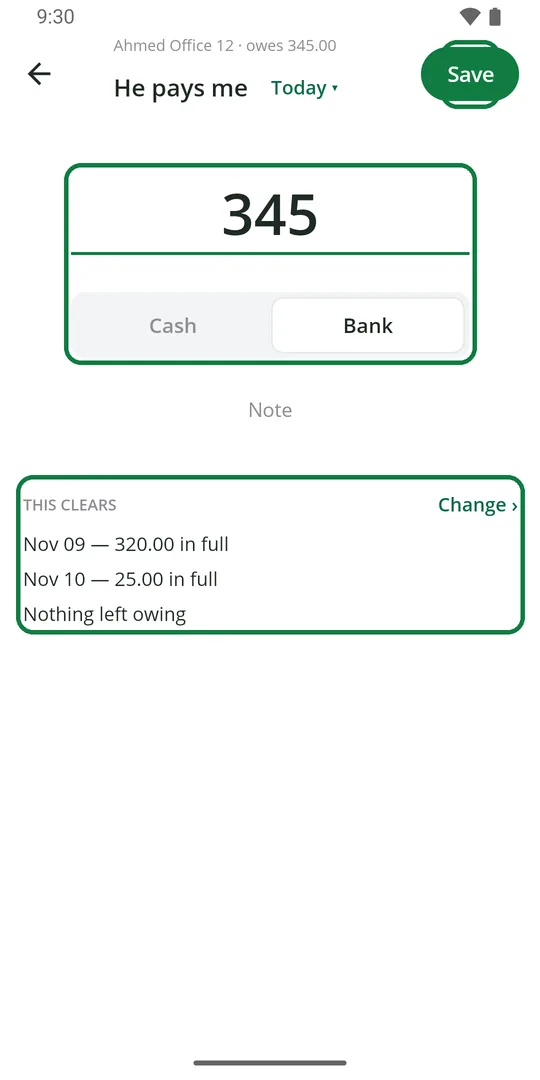
2Check the amount and pick Cash or Bank. It shows which dues get cleared. Tap Save 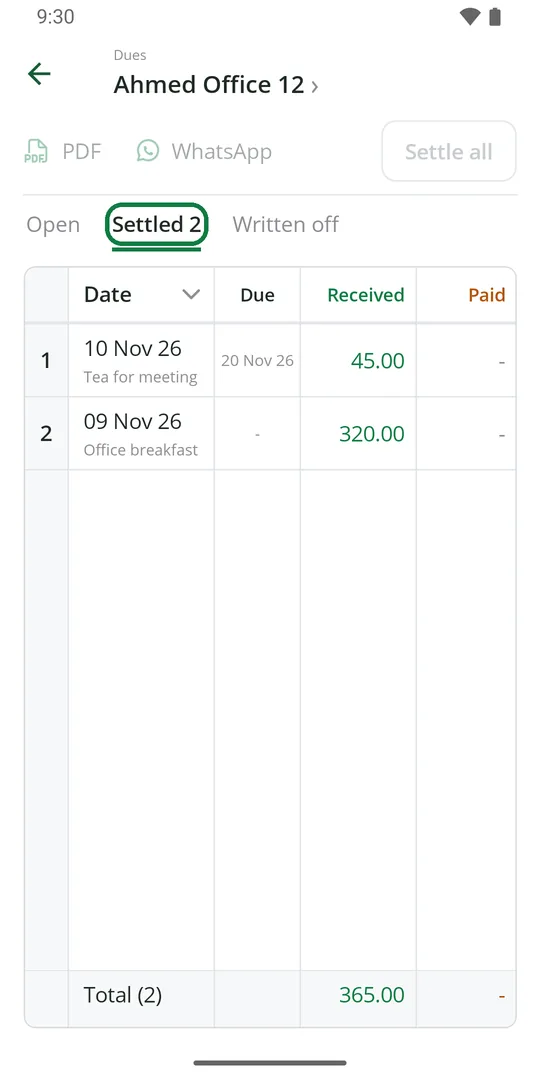
3Paid dues move to Settled
Write money you owe a supplier
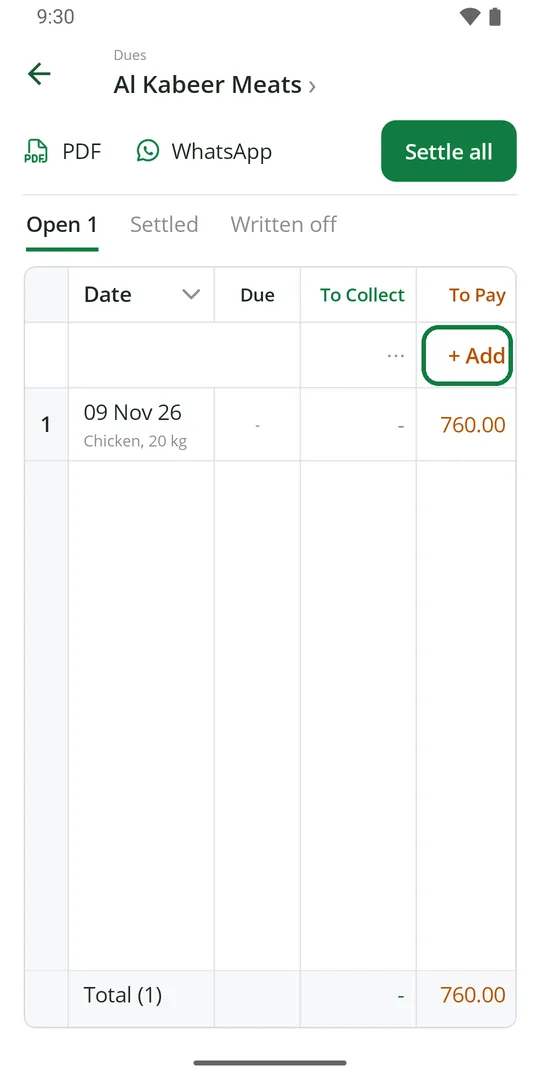
1Open the supplier and tap + Add under To Pay 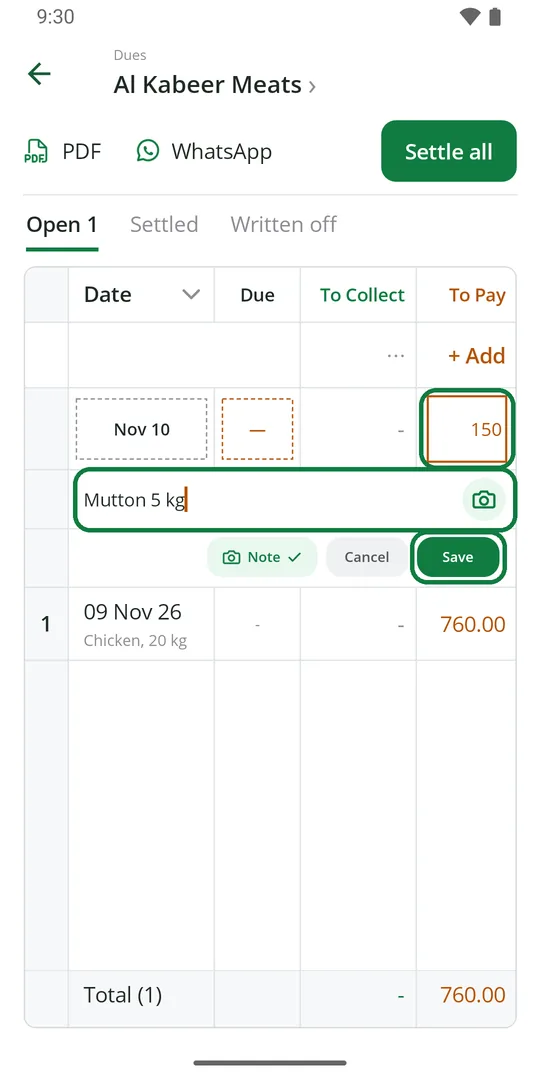
2Type the amount and a note, then tap Save 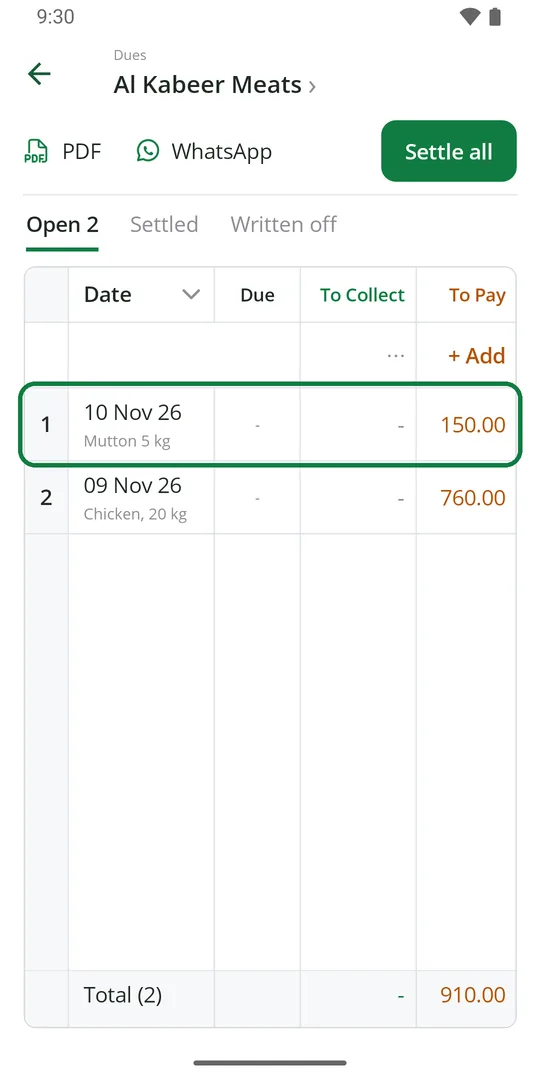
3It shows in orange under To Pay
Pay a supplier
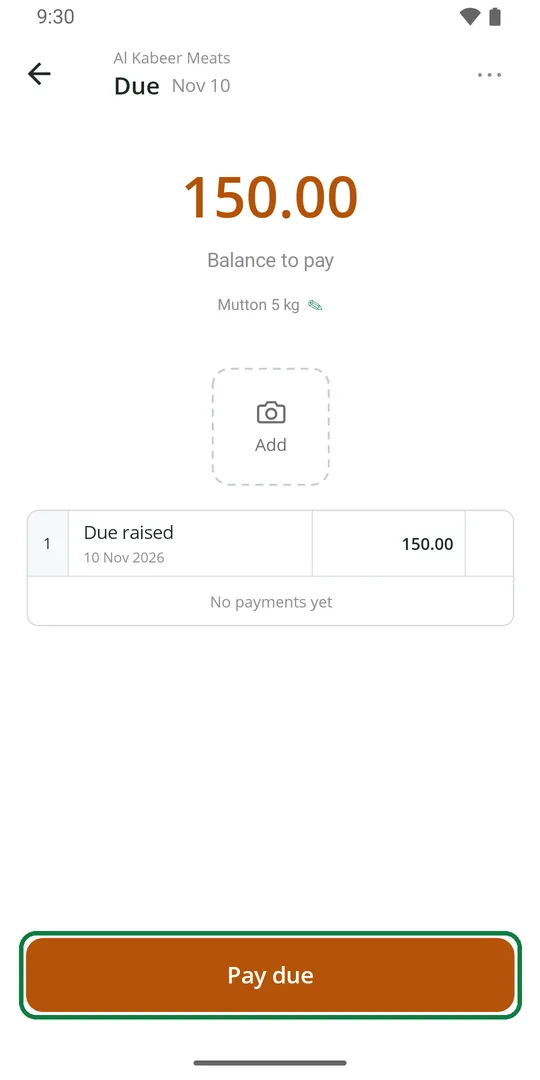
1Tap the due, then Pay due 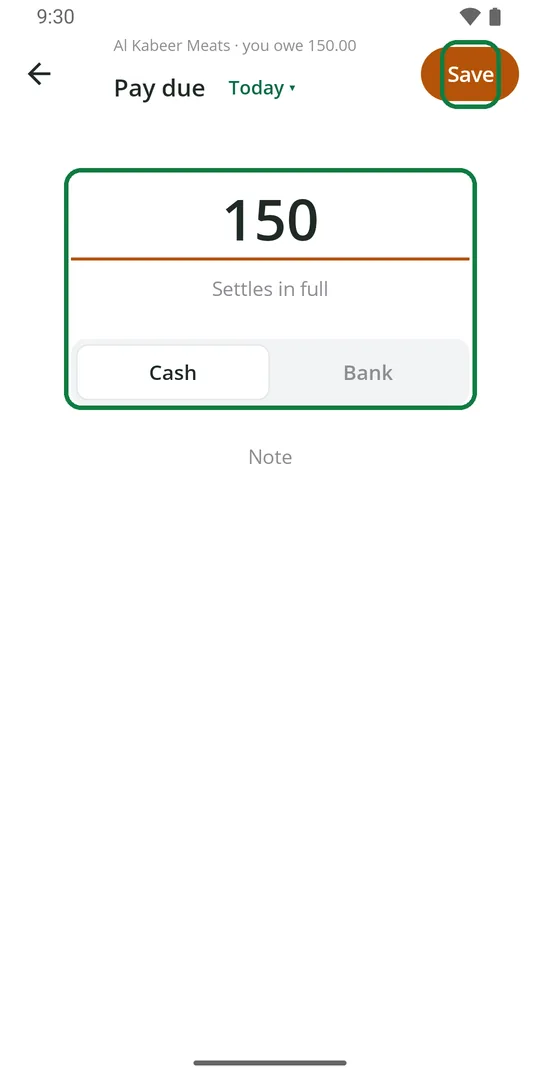
2Check the amount, pick Cash or Bank, and tap Save
See due payments in the Ledger
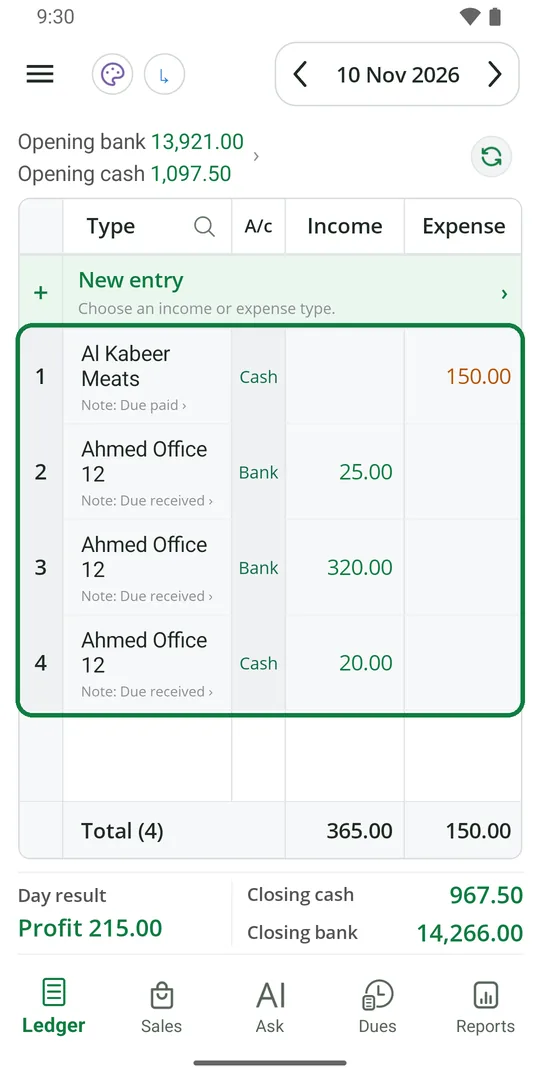
1Money you get or pay on dues shows in the Ledger with the person's name
To keep them out, see Ledger › Keep sales or due payments out of the Ledger.
Remove a payment written by mistake
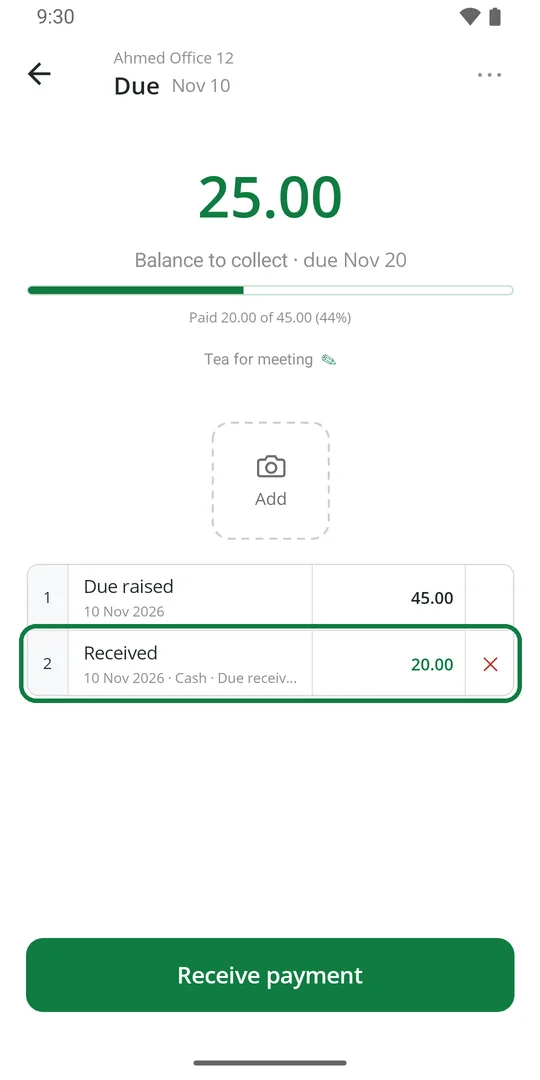
1Open the due and tap ✕ beside the payment 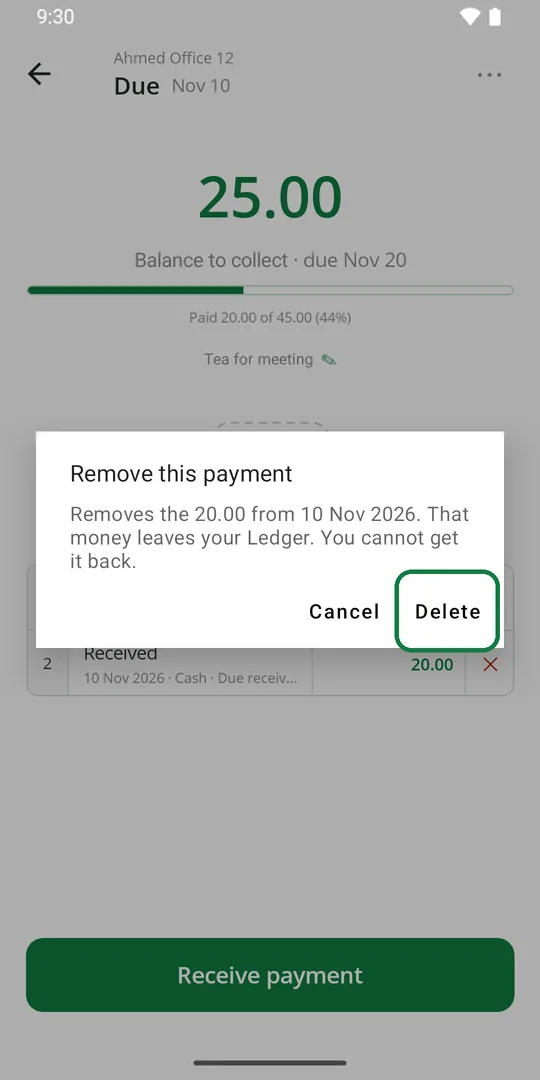
2Tap Delete
The money leaves the Ledger too. Just saved? Tap Undo on the message at the bottom instead.
Keep a photo of the bill
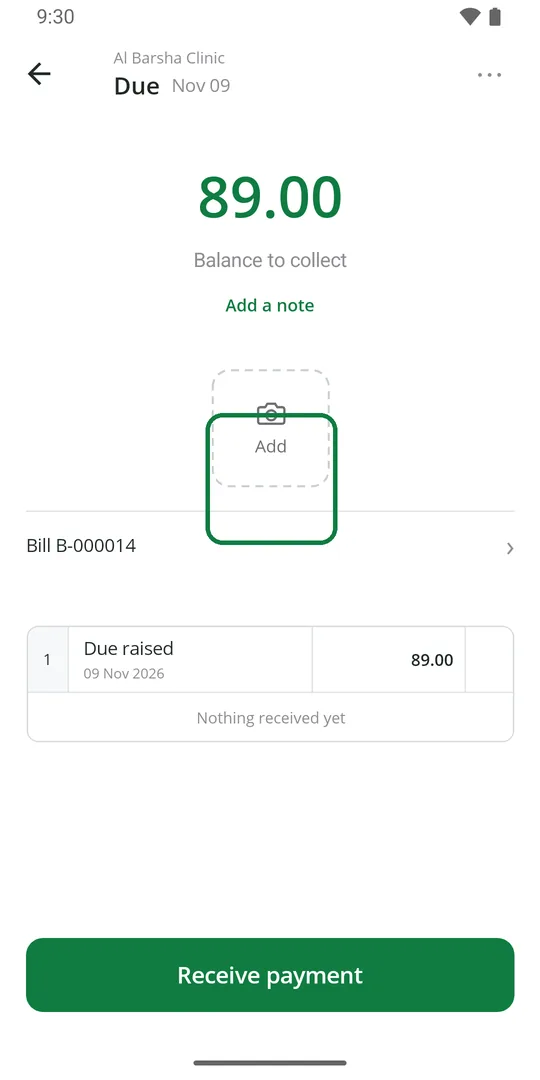
1Open the due and tap Add 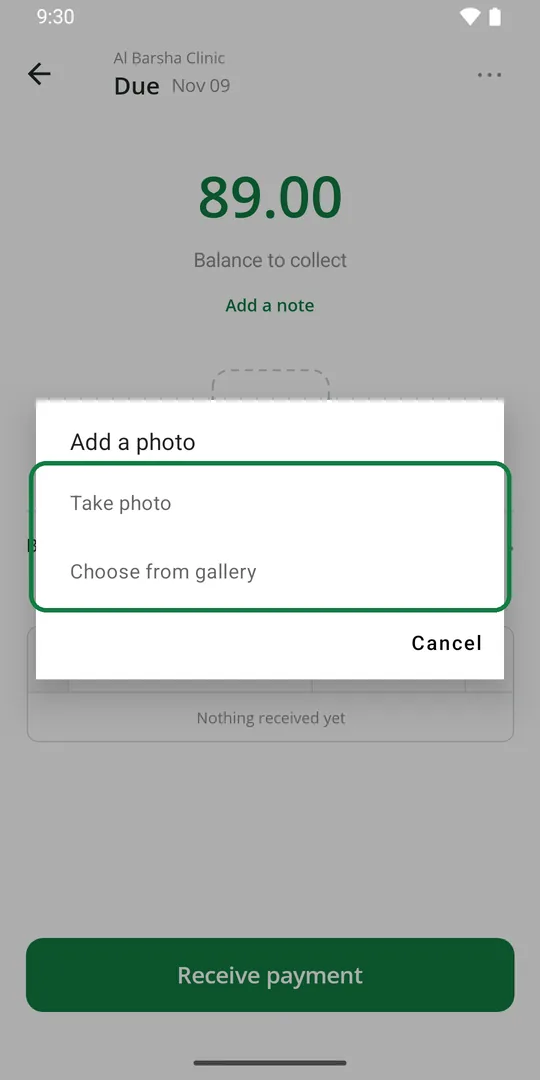
2Tap Take photo or Choose from gallery 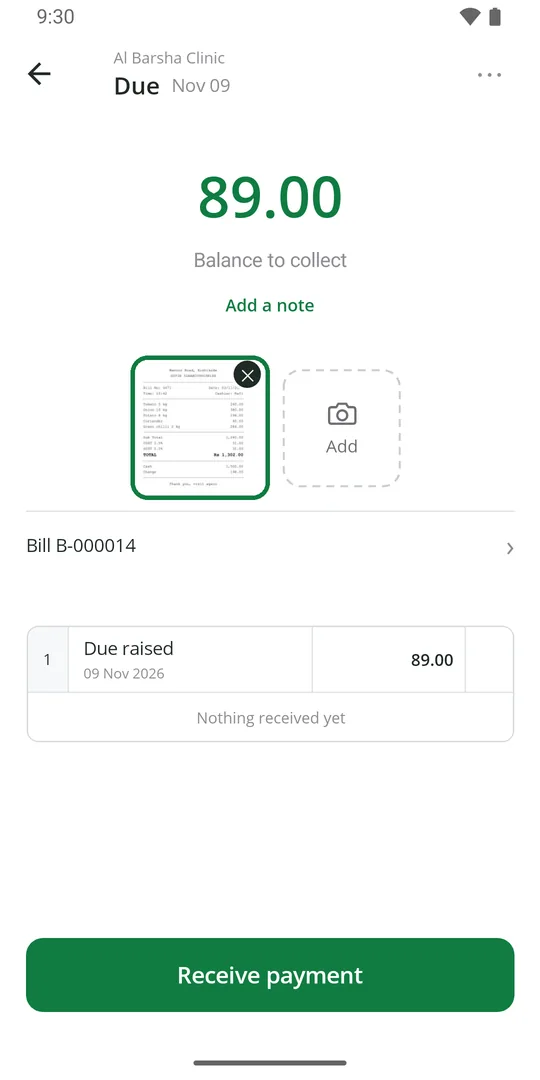
3The photo stays with the due. Tap it to see it big
Send a customer their statement
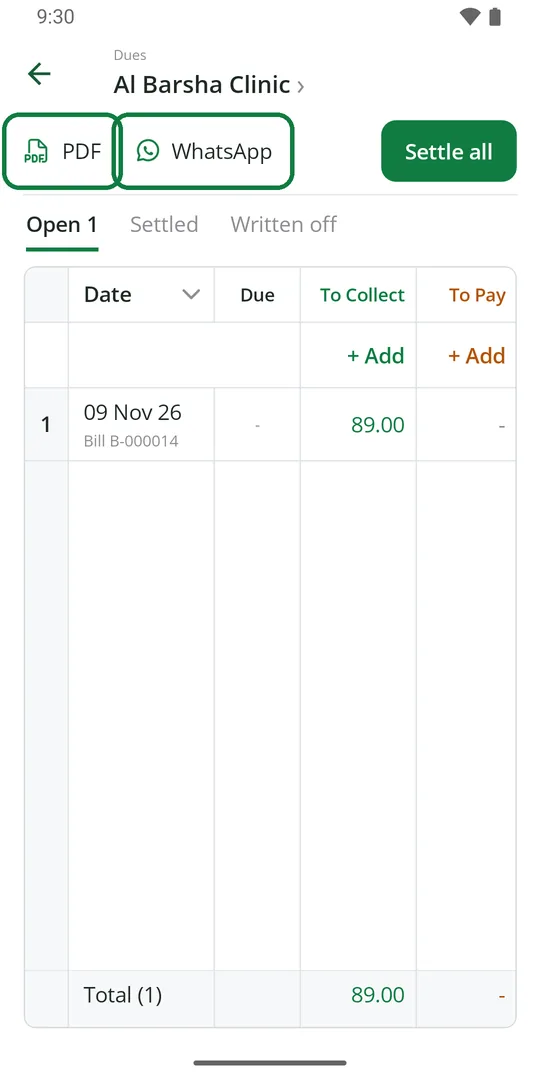
1Open the person. Tap PDF to send a file, or WhatsApp to send a message with a link 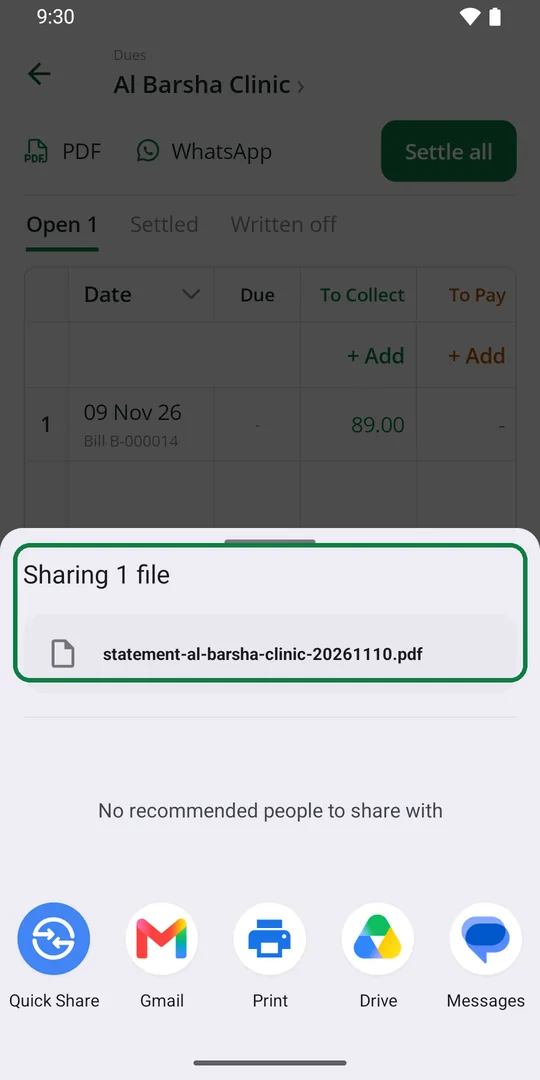
2Pick where to send it 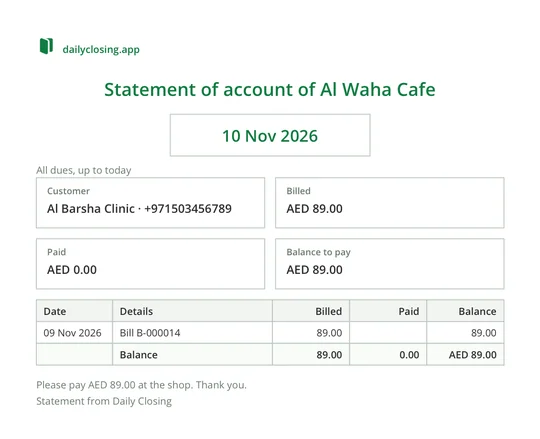
3The statement lists every due, what is paid and what is left
See one day's dues
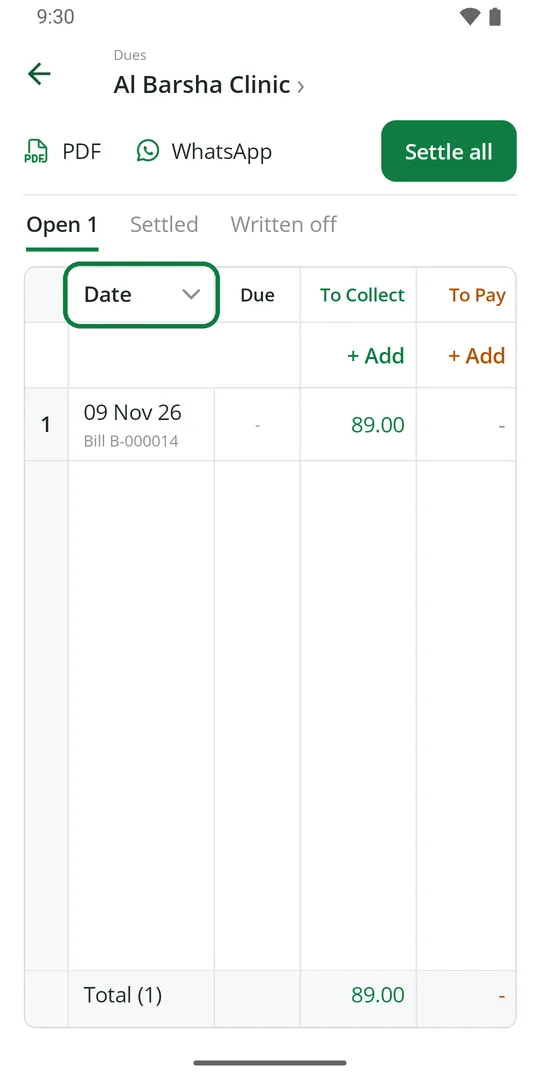
1On the person's page, tap Date 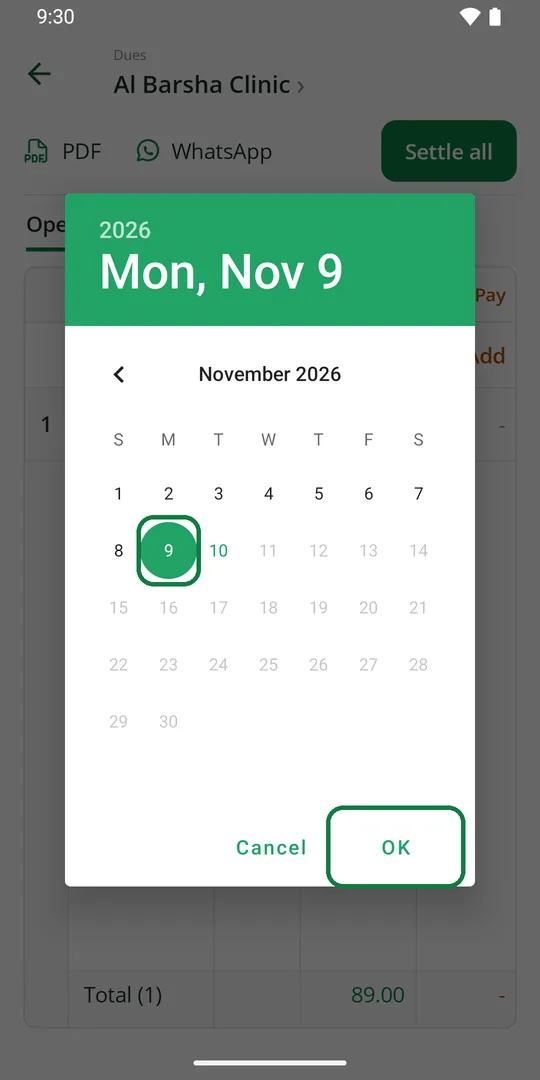
2Pick the day and tap OK 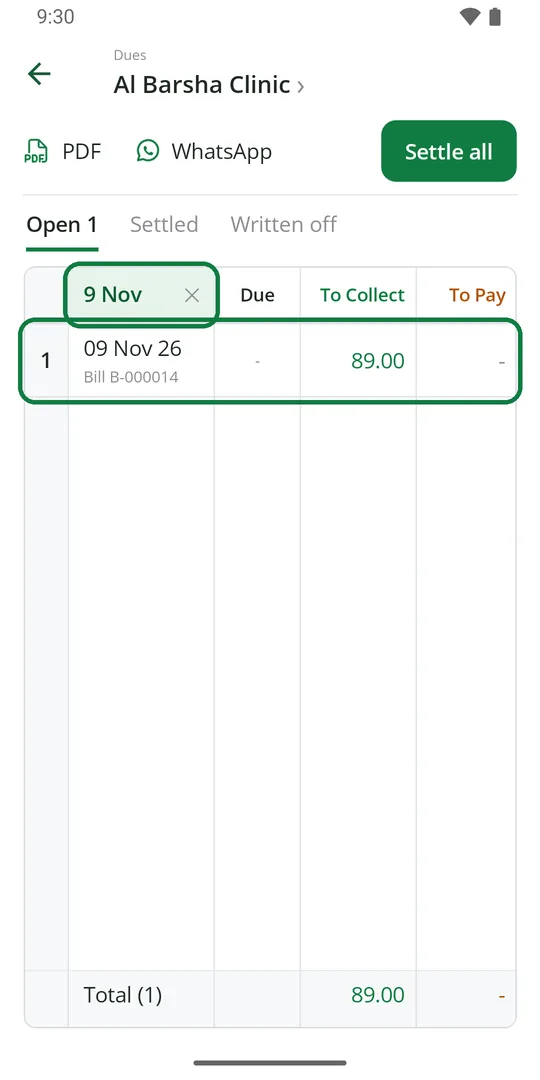
3Only that day shows. Tap ✕ to see all again
Close a due that will not be paid
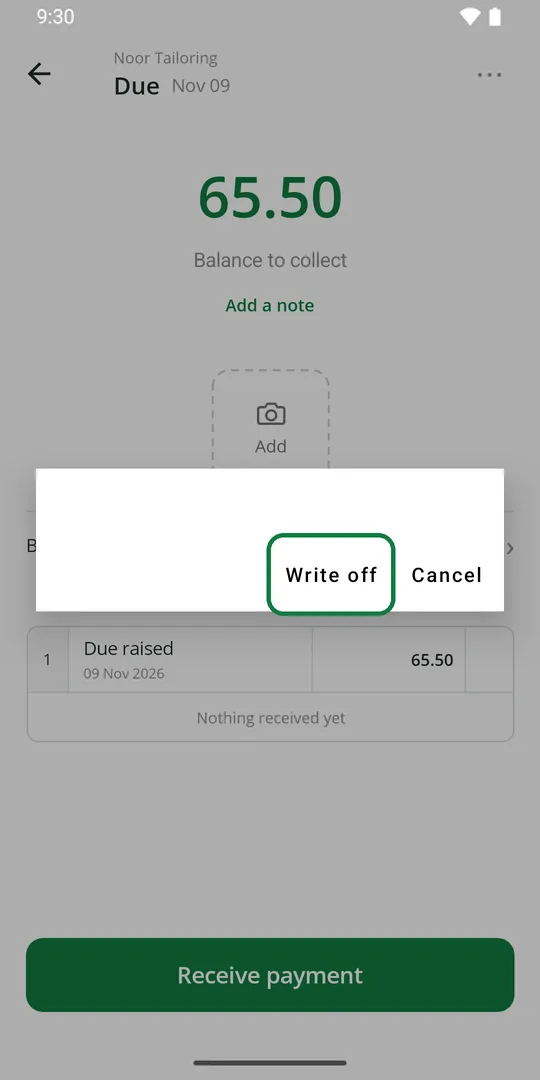
1Open the due, tap ⋯, then Write off or Delete this due 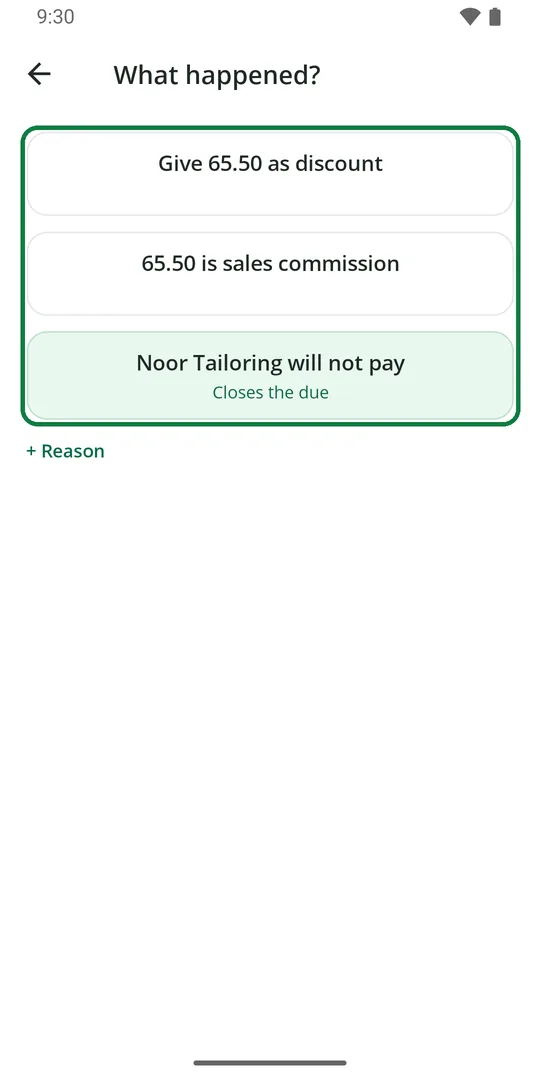
2Tap what happened: a discount, a commission, or they will not pay 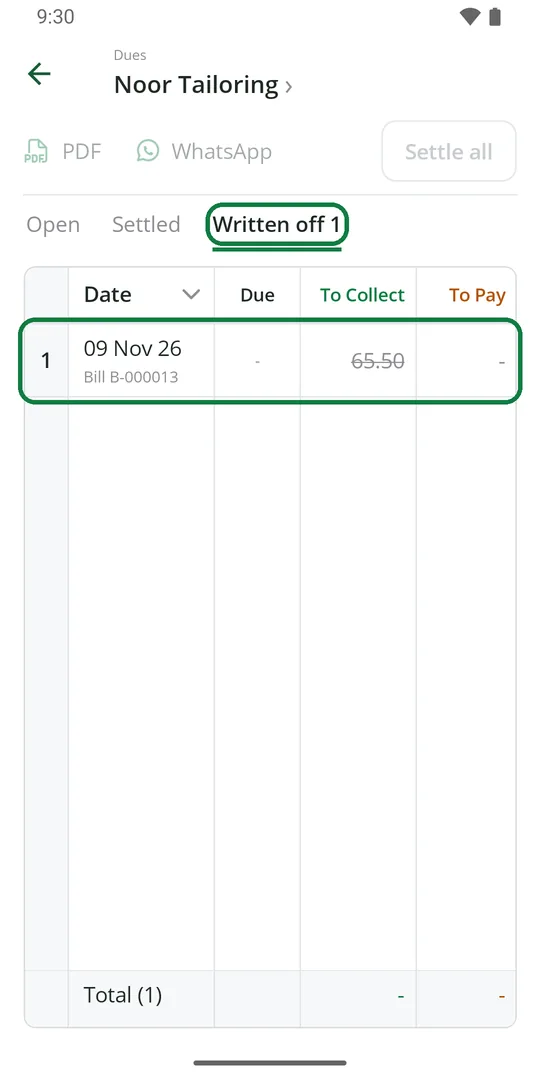
3The due moves to Written off
Wrote the due by mistake? The same page has Delete this due in red at the bottom. That cannot be undone.