
Items & stock
See your items
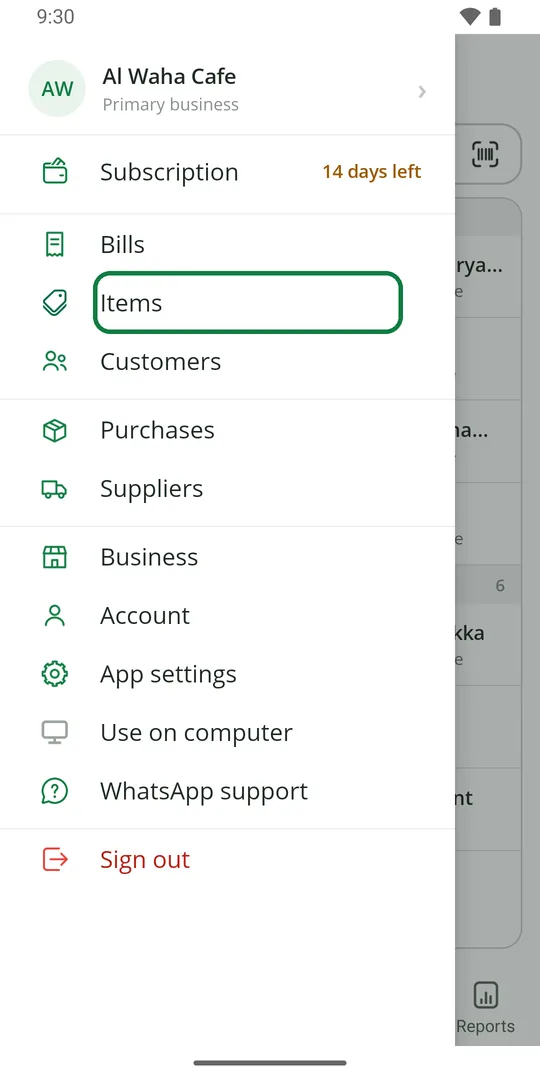
1Tap ☰, then Items 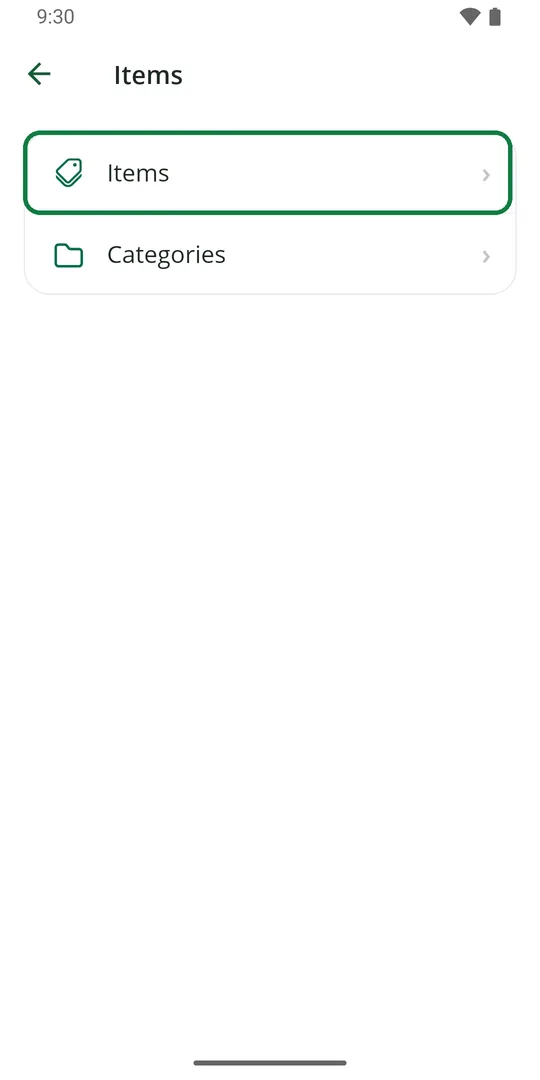
2Tap Items 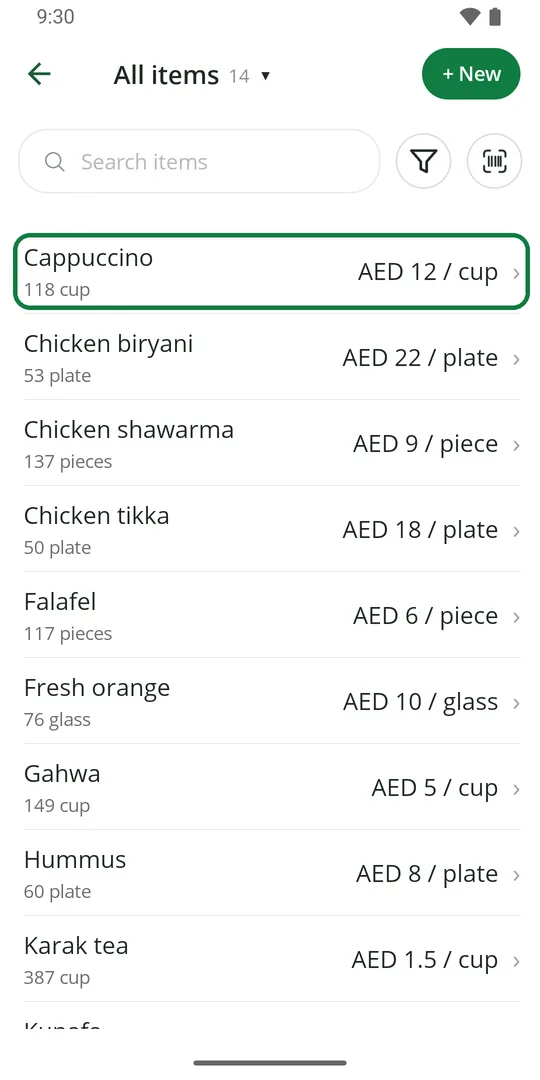
3Each item shows the stock left and the price. Tap an item to change it
Add an item
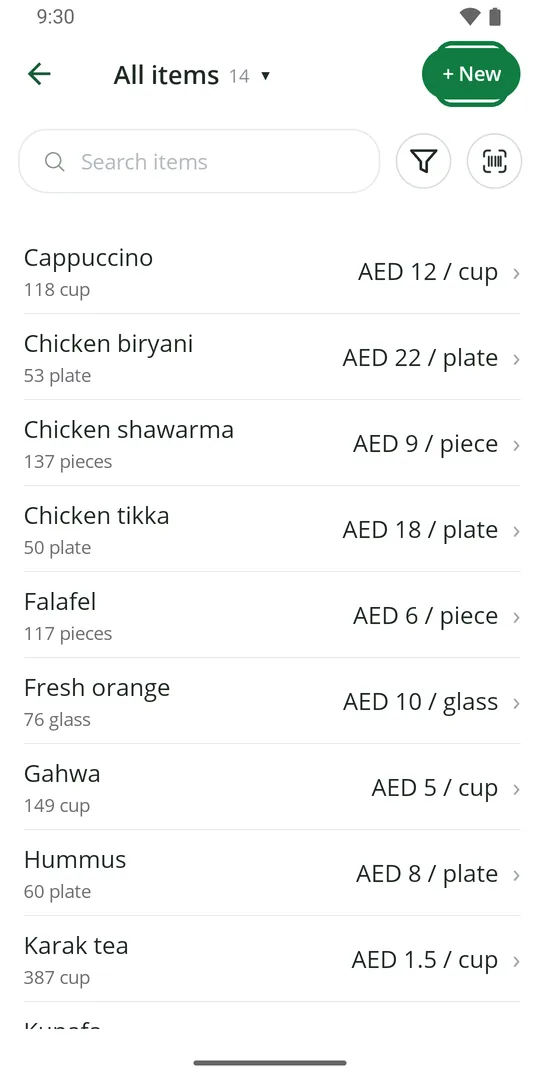
1In Items, tap + New 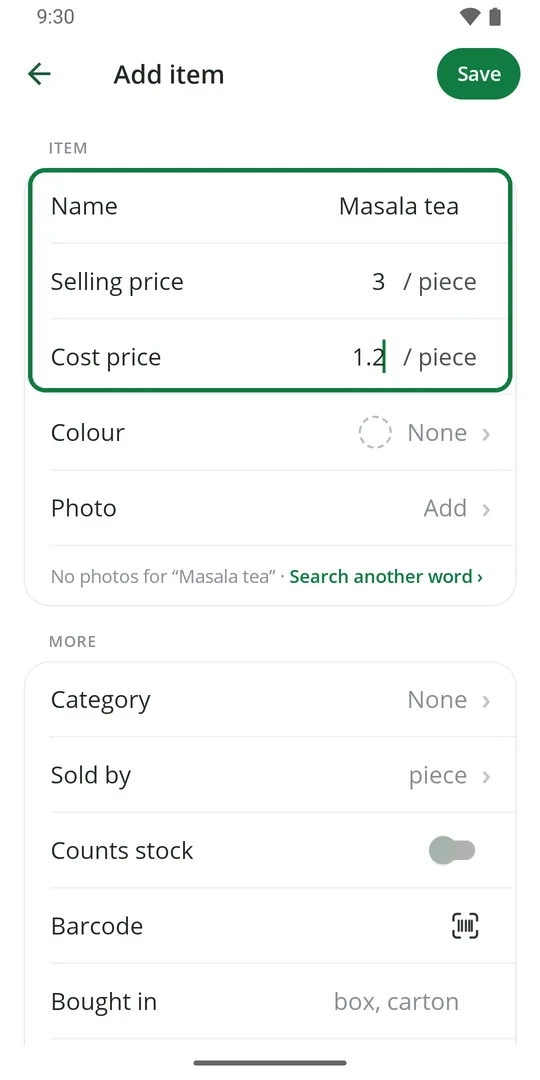
2Type the name, the selling price and what it costs you 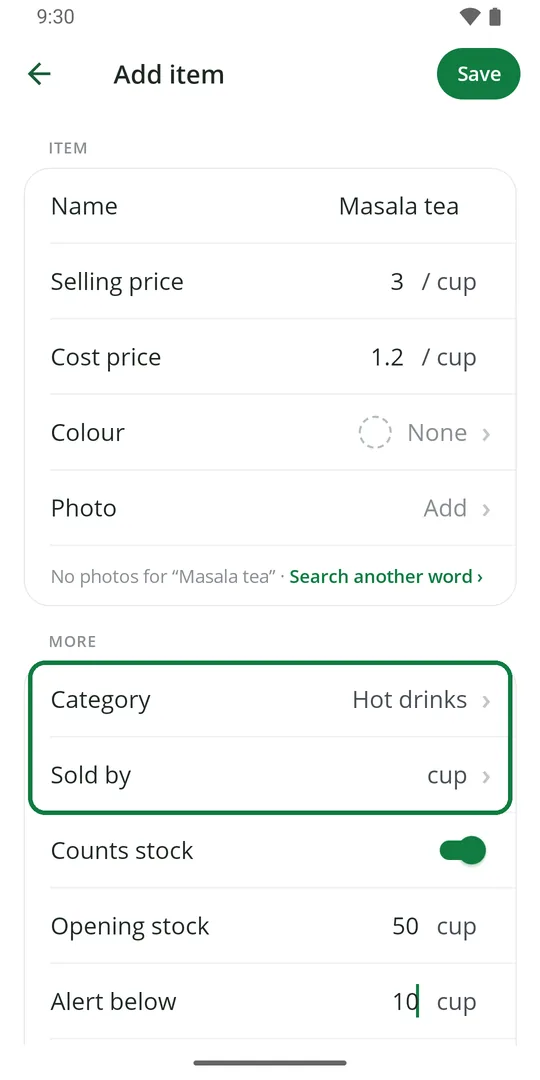
3Tap Category and Sold by to pick them 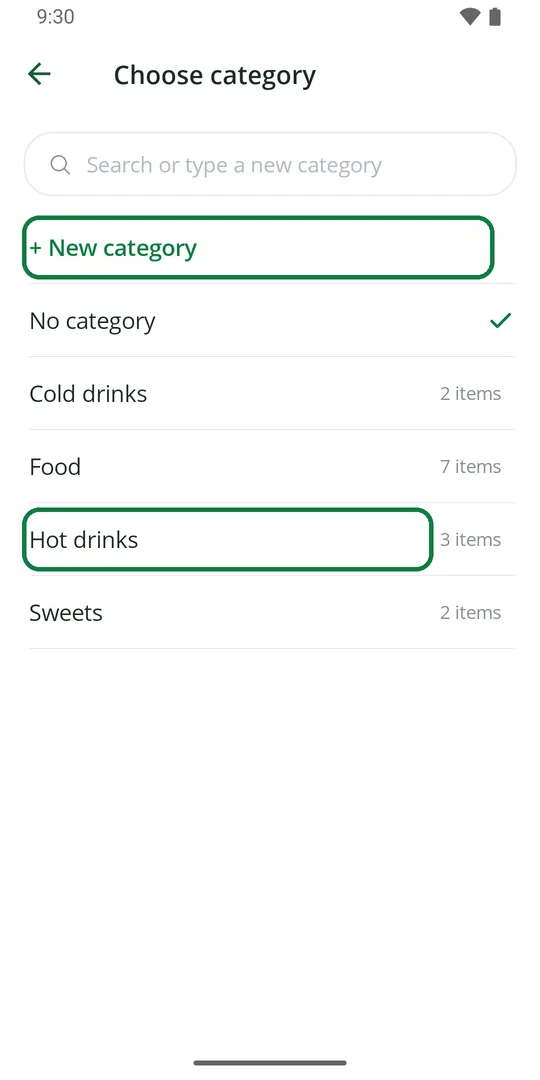
4Tap a category, or + New category 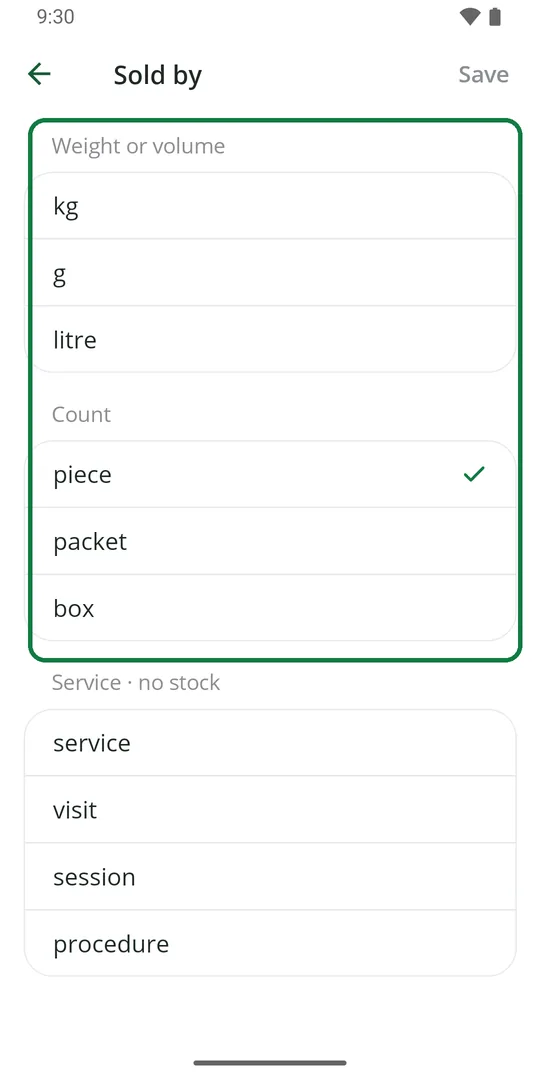
5Pick how you sell it: kg, litre, piece, packet… 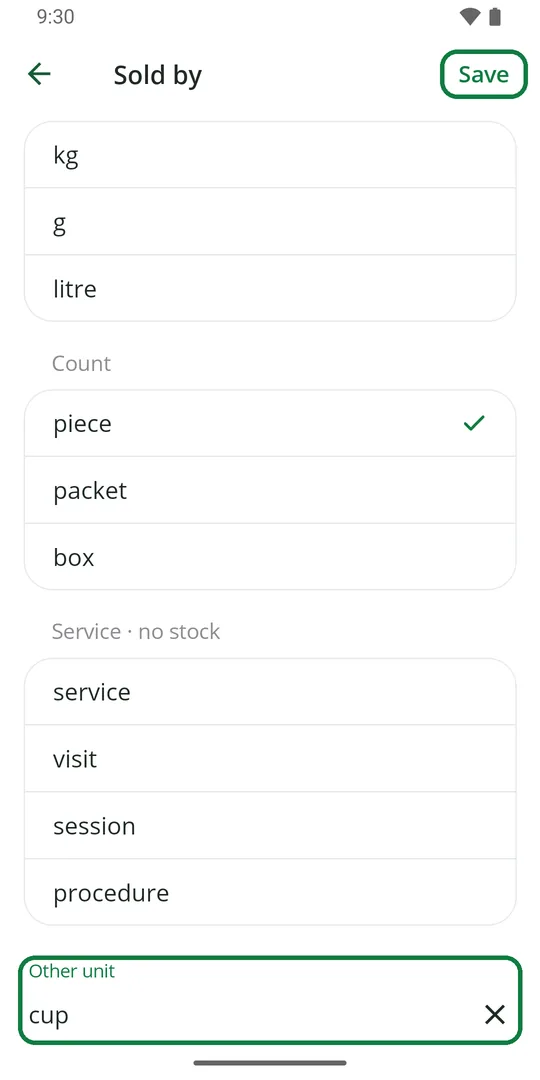
6Not in the list? Type it in Other unit and tap Save 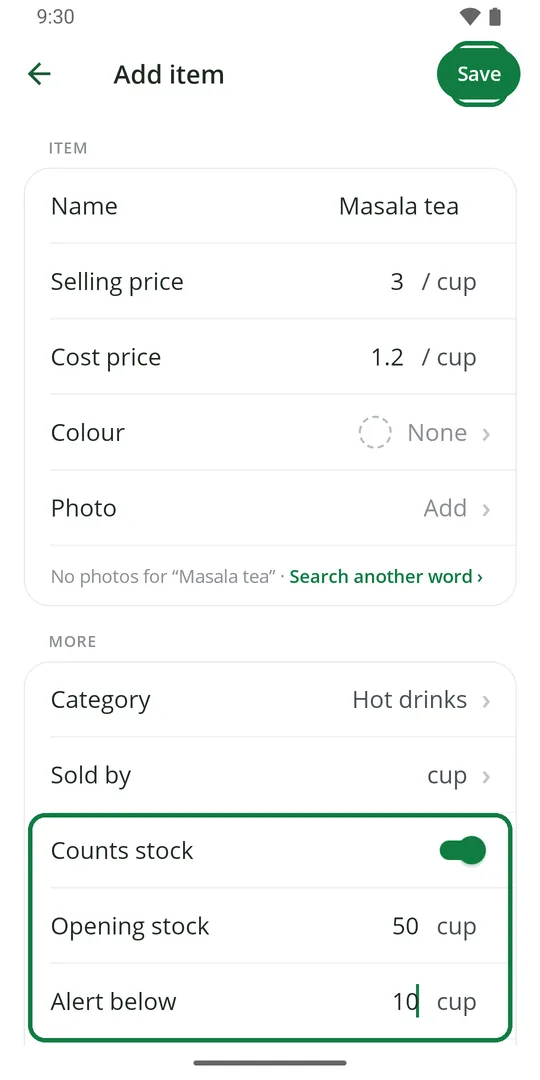
7Switch on Counts stock, type the stock you have now and when to warn you. Tap Save 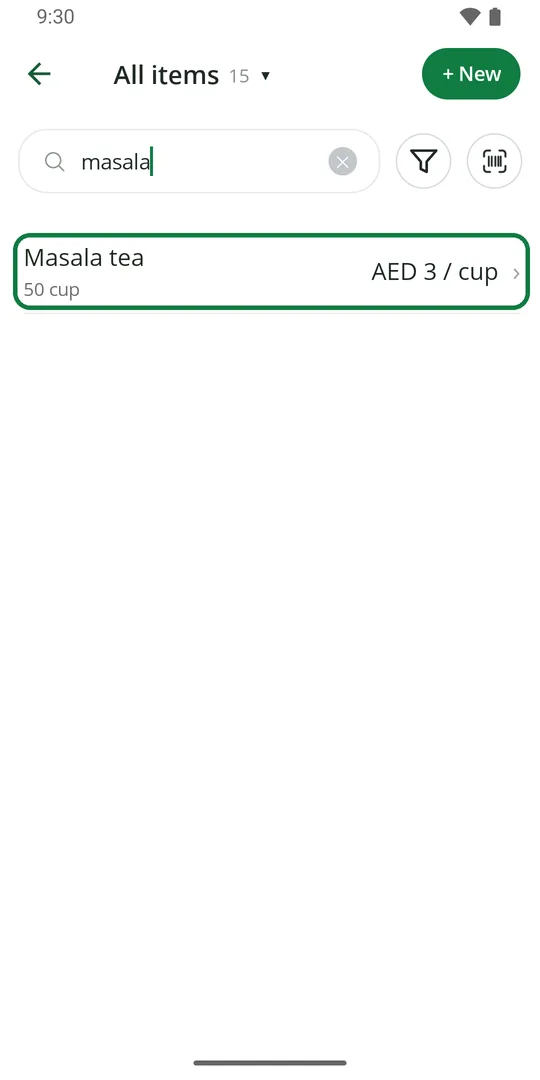
8The item is ready to sell
Only the name is needed. The rest can be filled in later. You can also tap + New item at the end of the Sales tab.
Sell a service, with no stock
1In Sold by, pick one under Service · no stock, like service or visit
A service is sold like any item, but no stock is counted.
Change a price
1In Items, tap the item 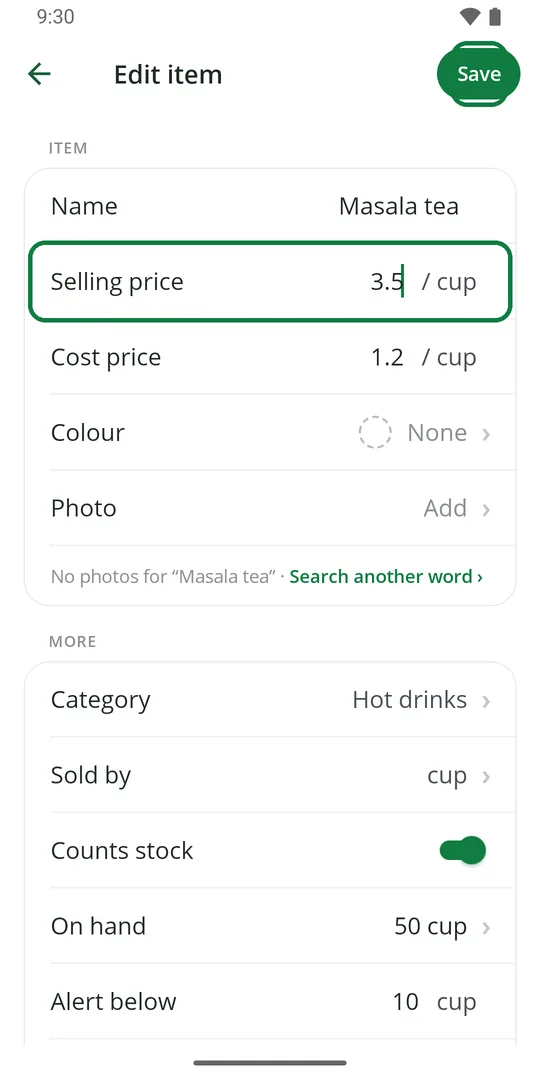
2Type the new price and tap Save
Old bills keep the price they were sold at.
Add stock that came in
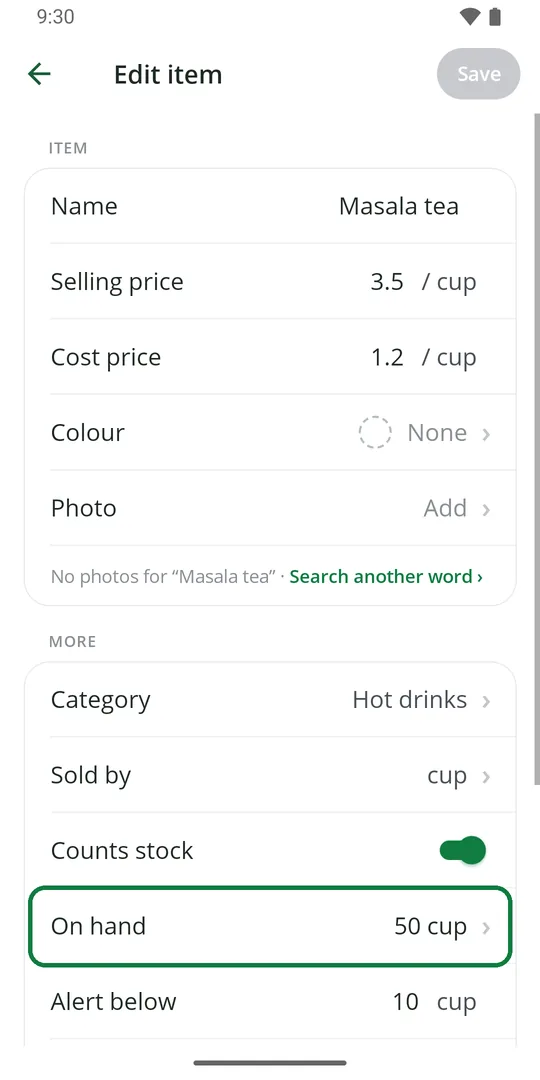
1Open the item and tap On hand 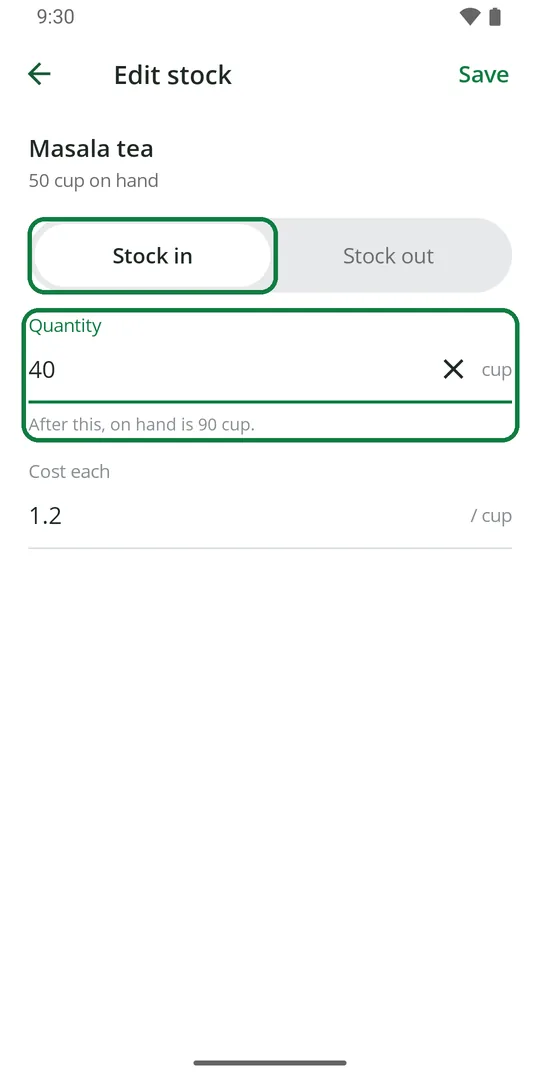
2Stock in is picked. Type how many came in 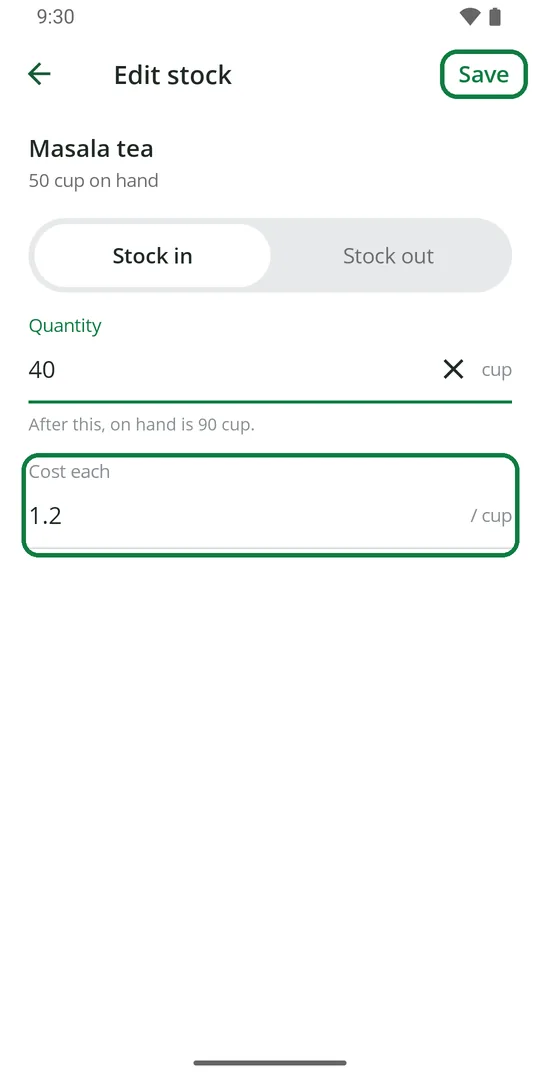
3Check the cost of each one and tap Save 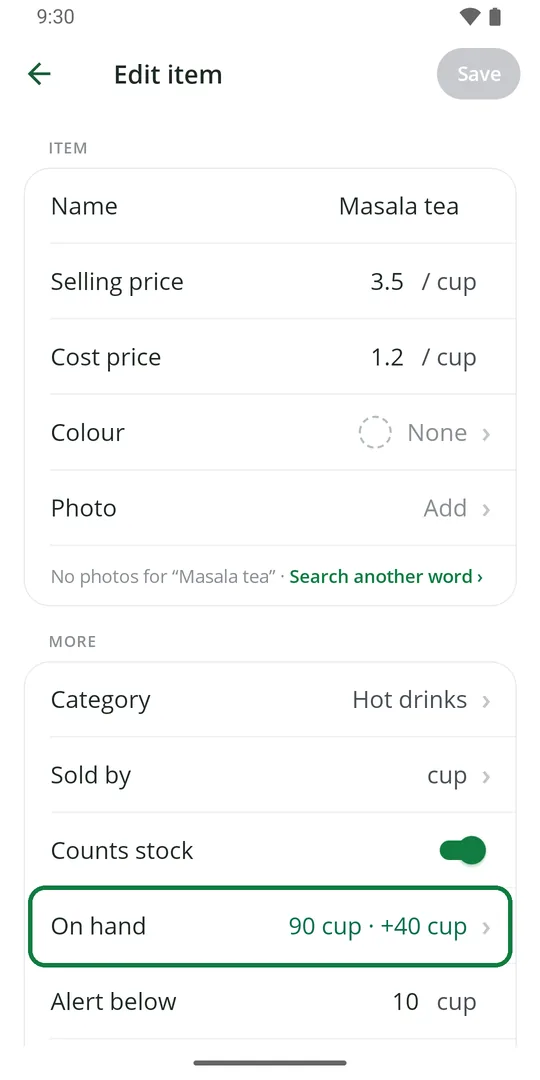
4On hand goes up
A new cost becomes the item's cost price. A purchase from a supplier adds stock by itself.
Take out spoiled or missing stock
1Open the item and tap On hand 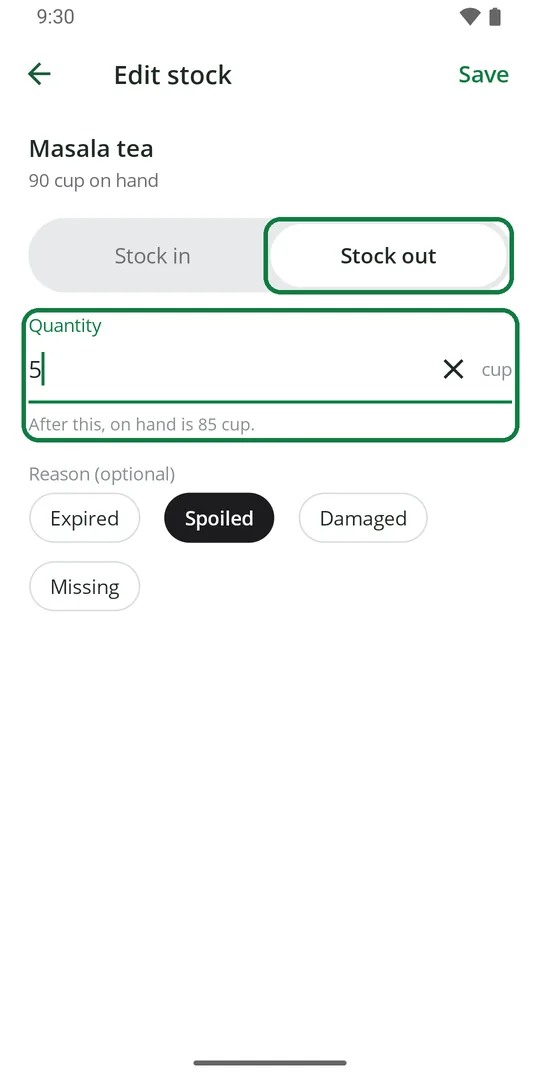
2Tap Stock out and type how many 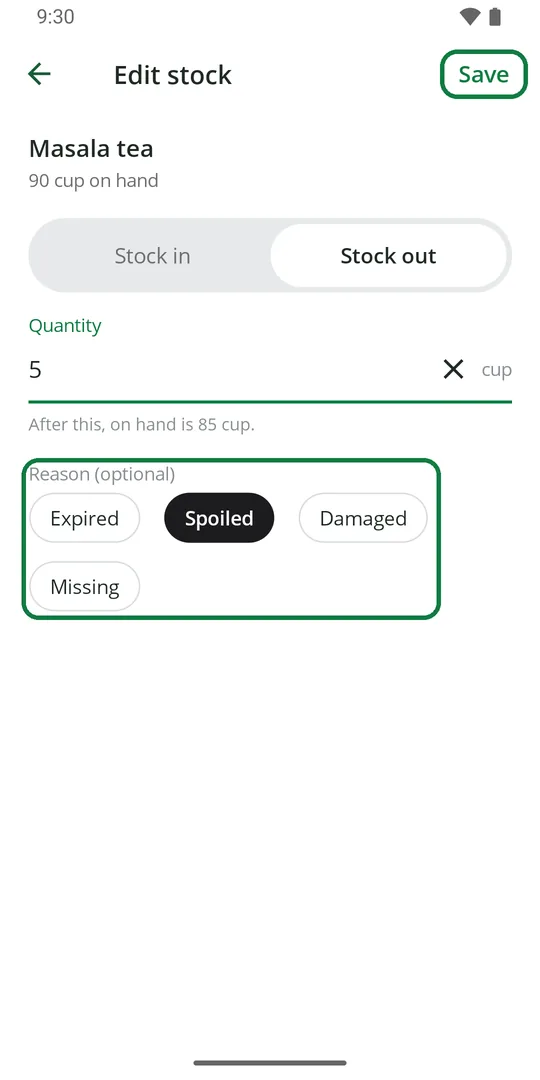
3Pick a reason if one fits, then tap Save
Sales take stock out by themselves. Use this only for stock that went another way.
Get warned when stock is low
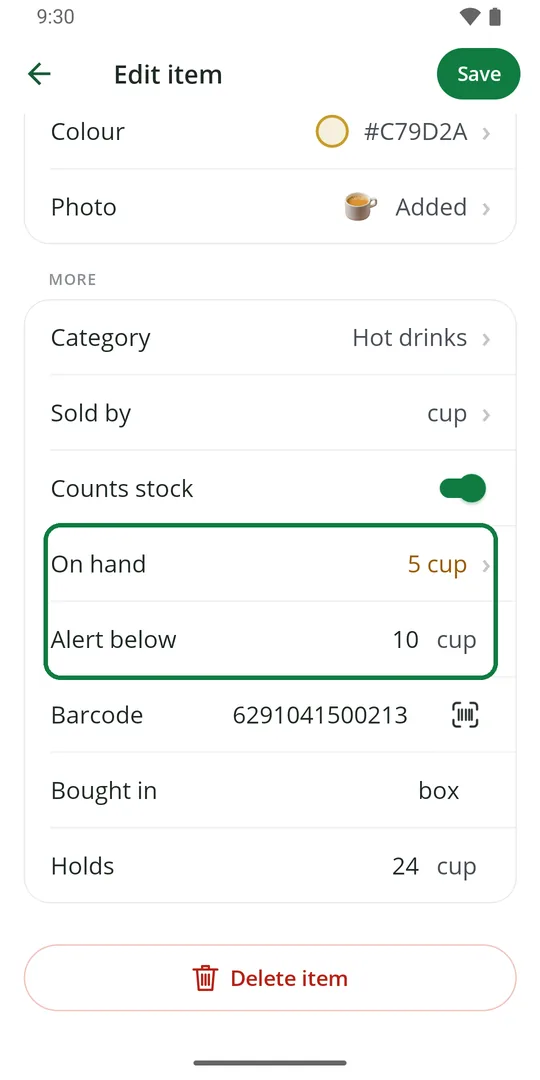
1Open the item, type a number in Alert below, and tap Save 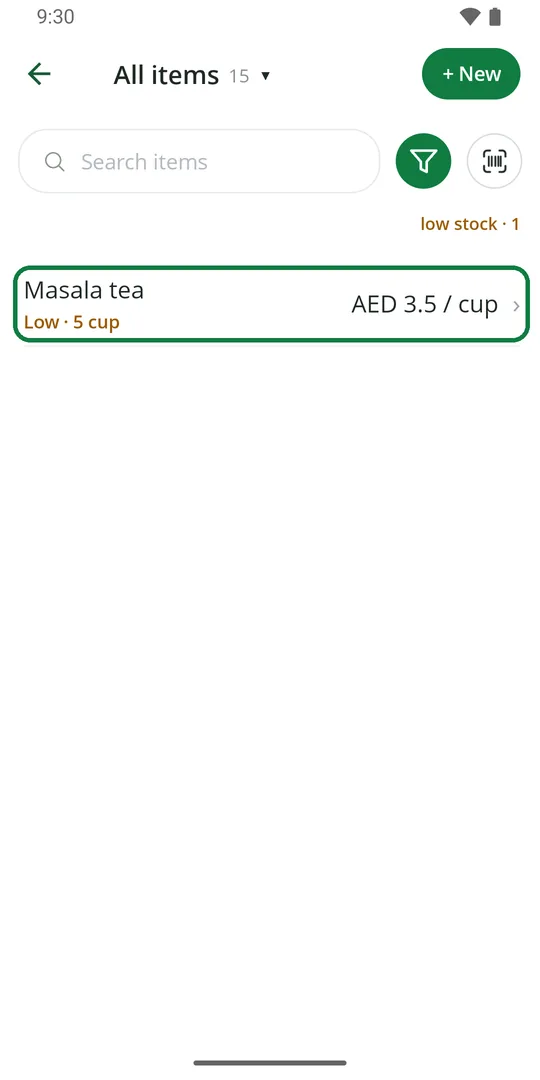
2When stock falls under it, the item shows Low in orange
See what is low or finished
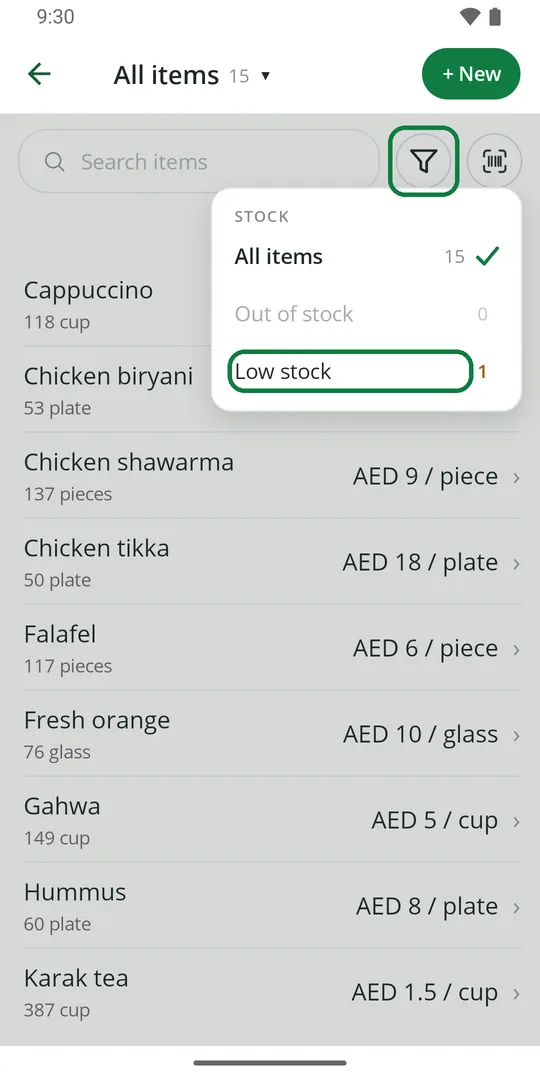
1In Items, tap the filter, then Low stock or Out of stock 2Only those items show. Tap the filter and All items to see all again
Find an item
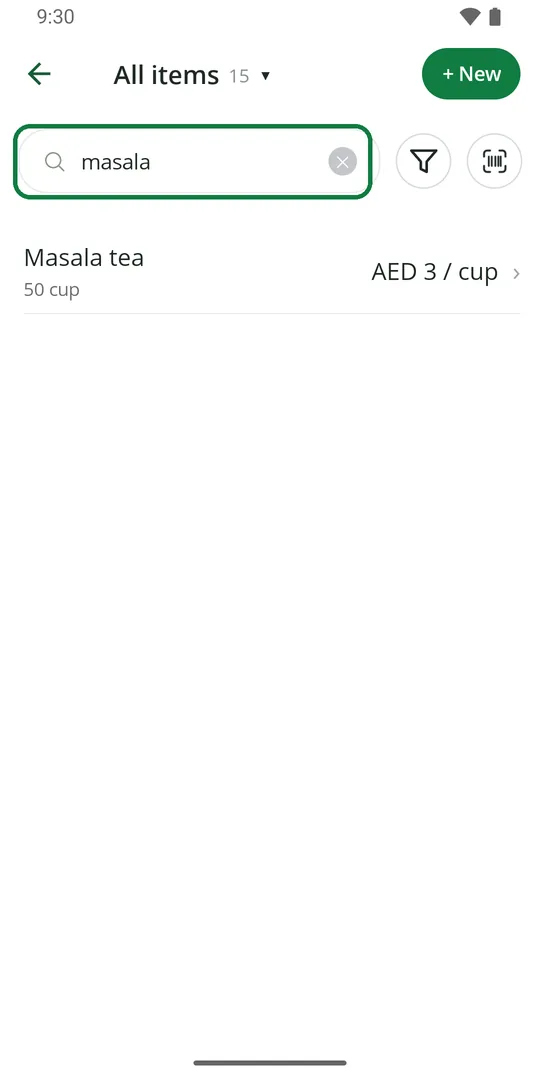
1Type part of the name in Search items. Tap ✕ to see all again
See one category
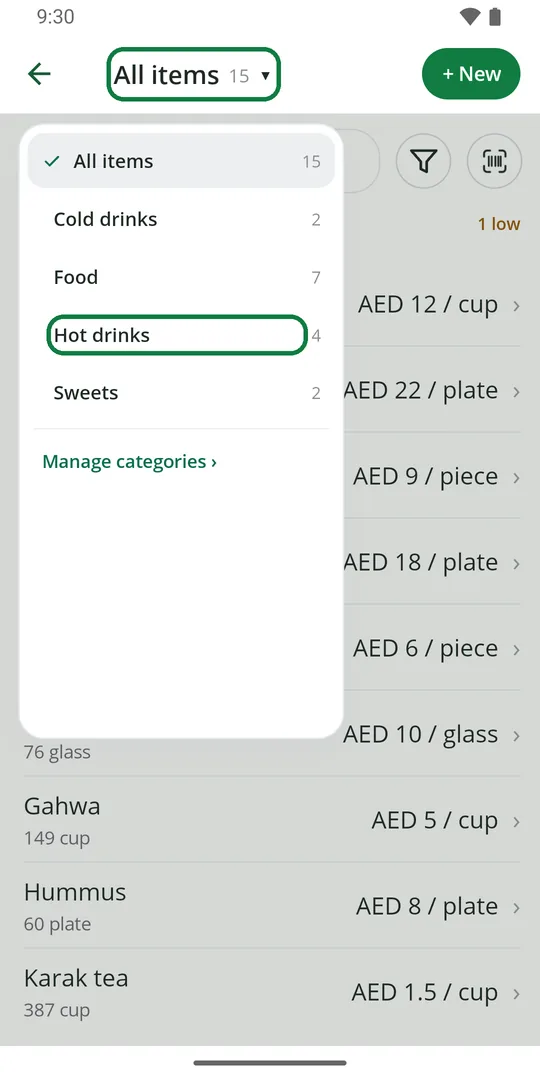
1Tap All items at the top, then a category 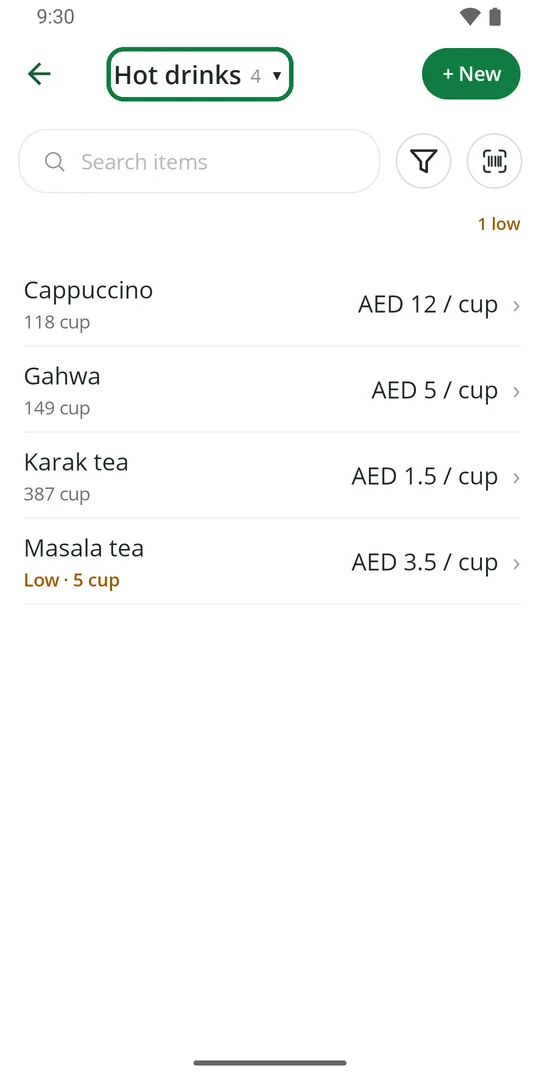
2Only its items show. Tap the title again for all items
Change how an item is sold
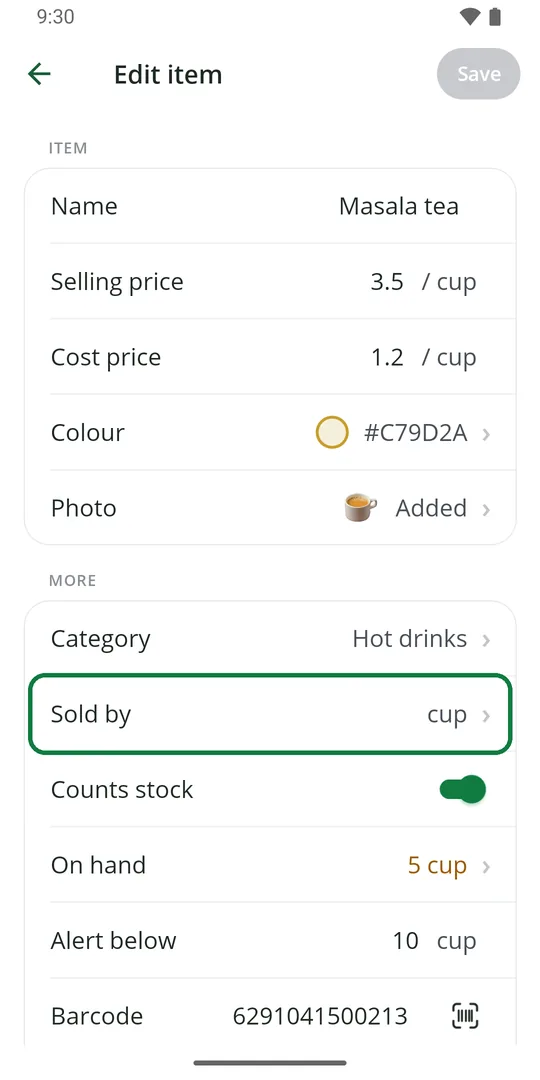
1Open the item and tap Sold by 2Tap the new unit 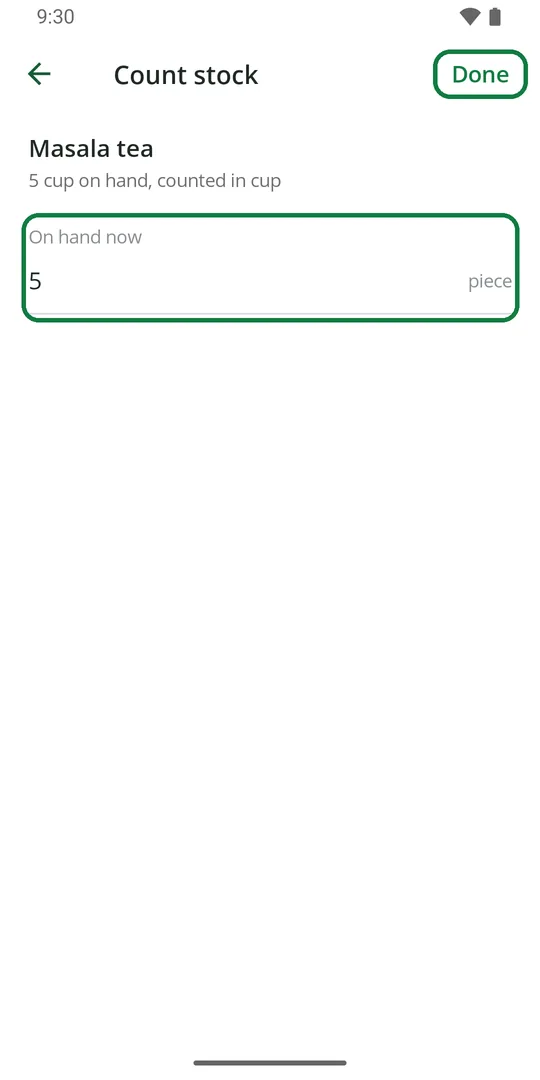
3Count what you have in the new unit and tap Done 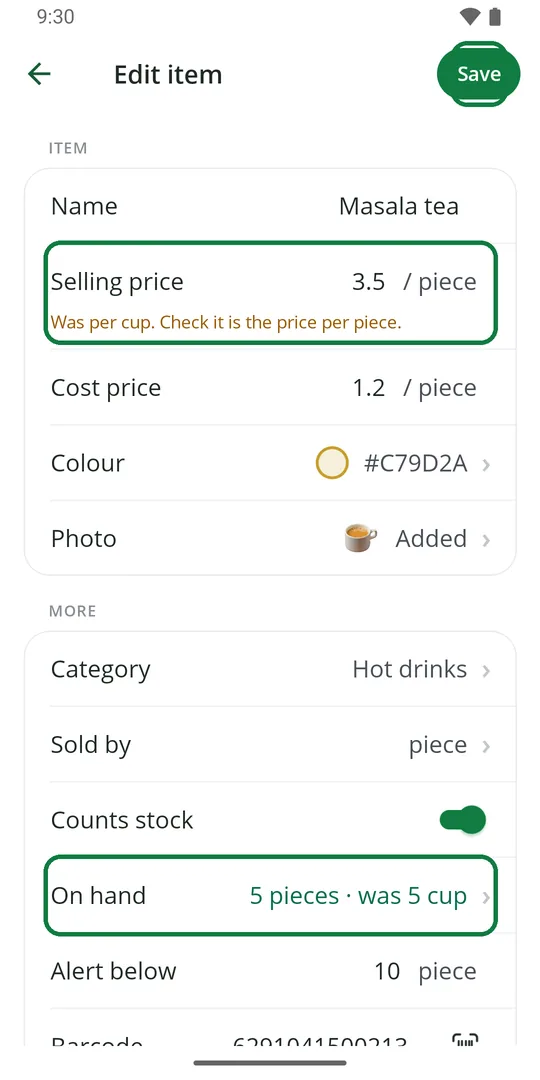
4Check the price is right for the new unit, then tap Save
Old bills keep the old unit.
Give an item a colour
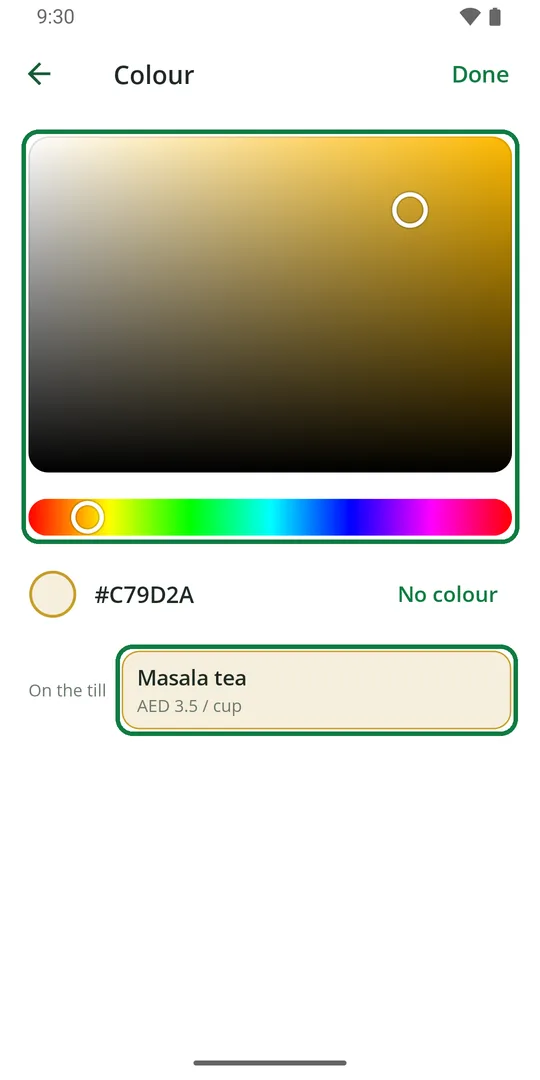
1Open the item, tap Colour and pick one. The tile shows how it looks. Tap Done 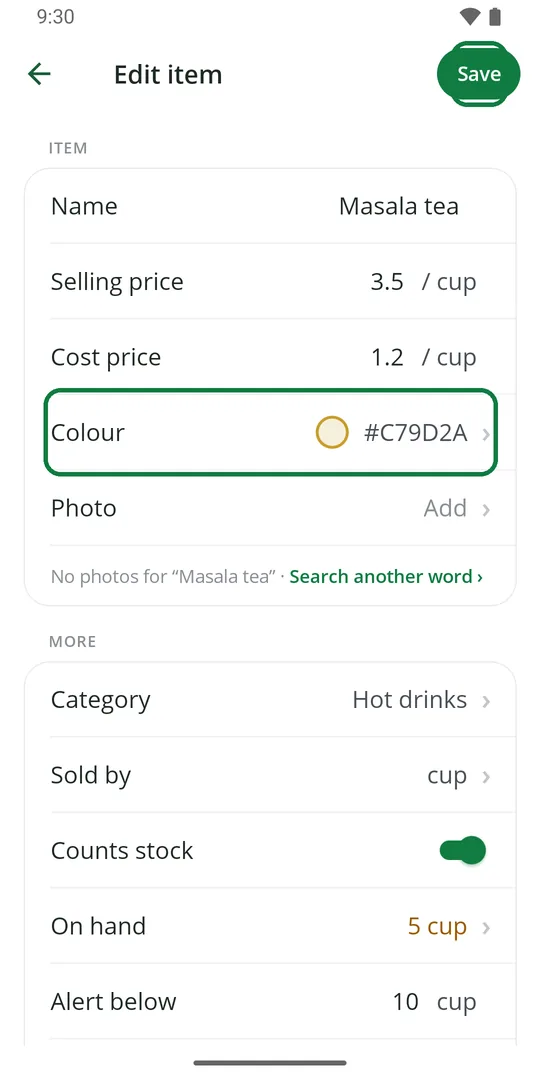
2Tap Save
Add a photo of the item
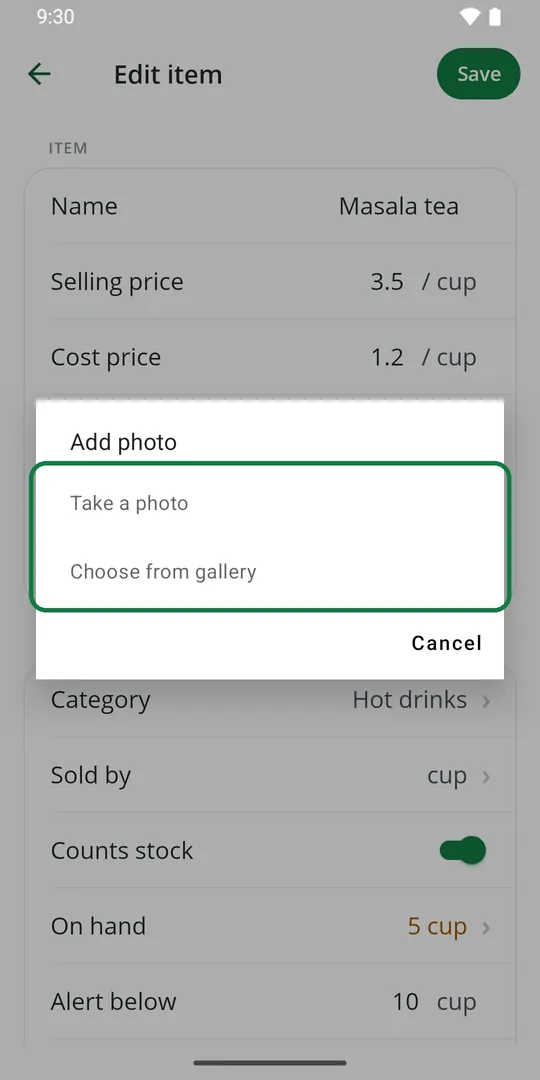
1Open the item, tap Photo, then Take a photo or Choose from gallery 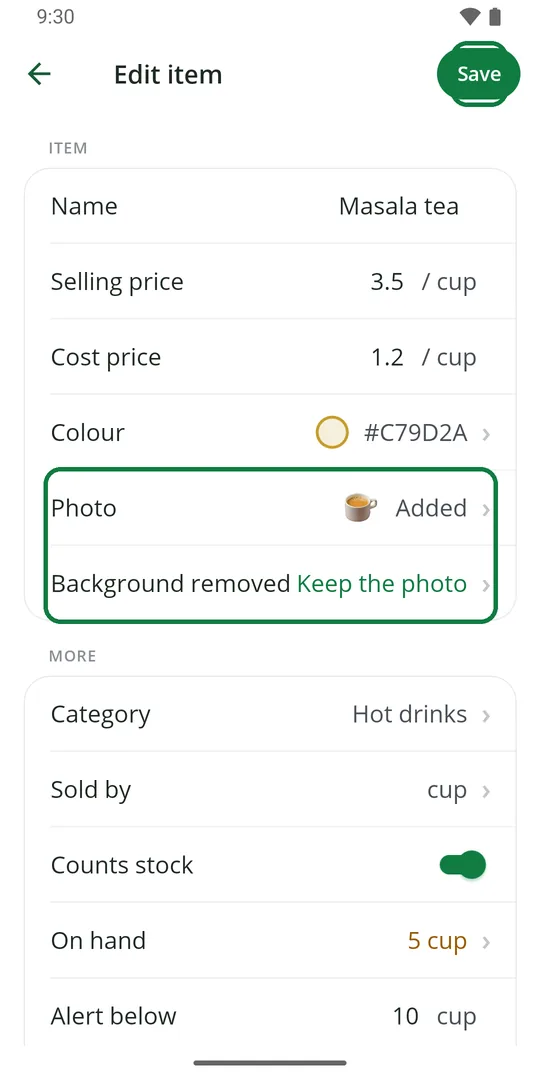
2The background is taken off for you. Want the photo as it was? Tap Keep the photo. Then tap Save 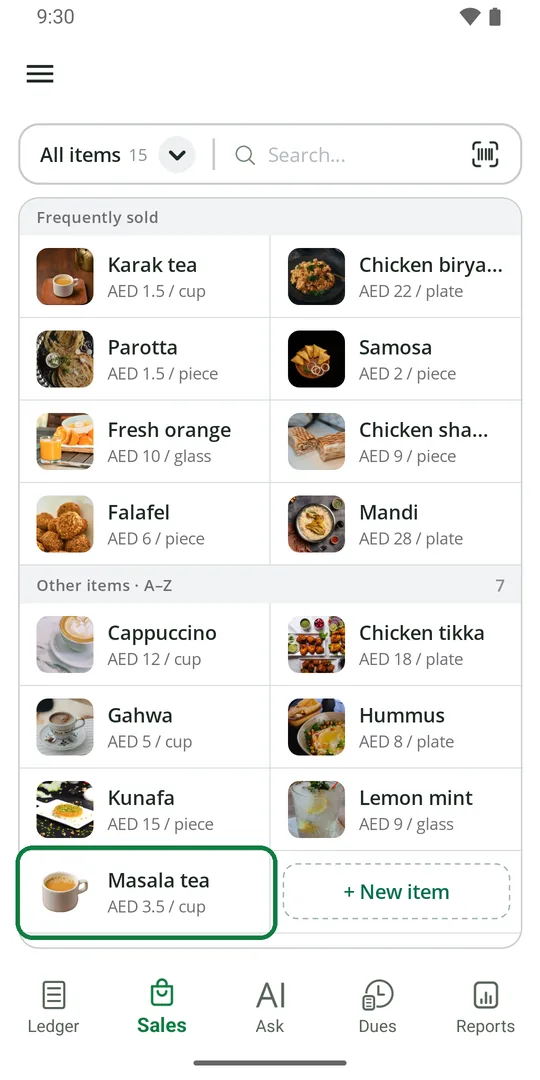
3The photo shows on the Sales tab
Save an item's barcode
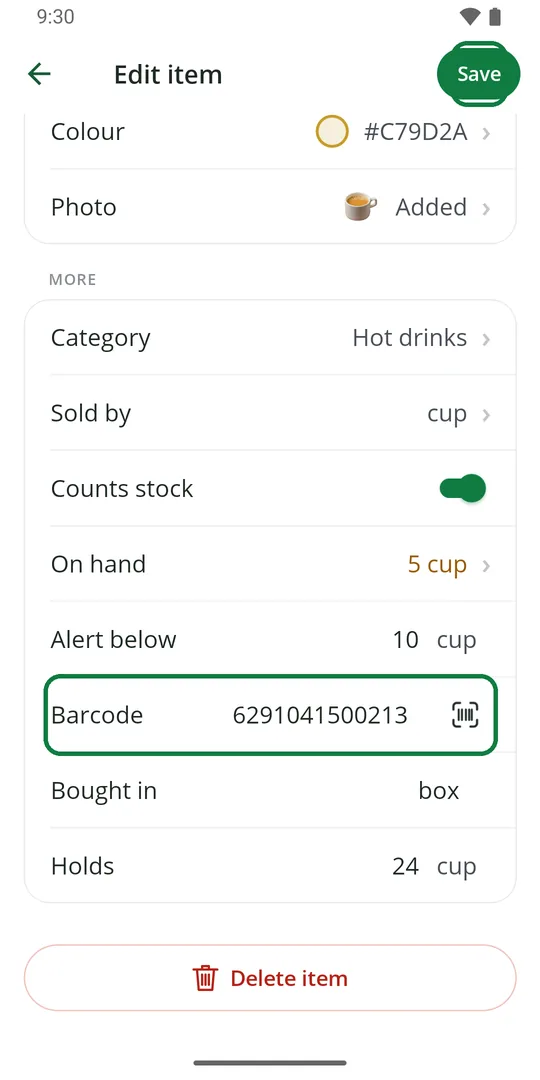
1Open the item. Tap the barcode mark and point the camera at the barcode, or type the number. Tap Save
Now scanning it on the Sales tab puts it on the bill.
Bought in boxes, sold one by one
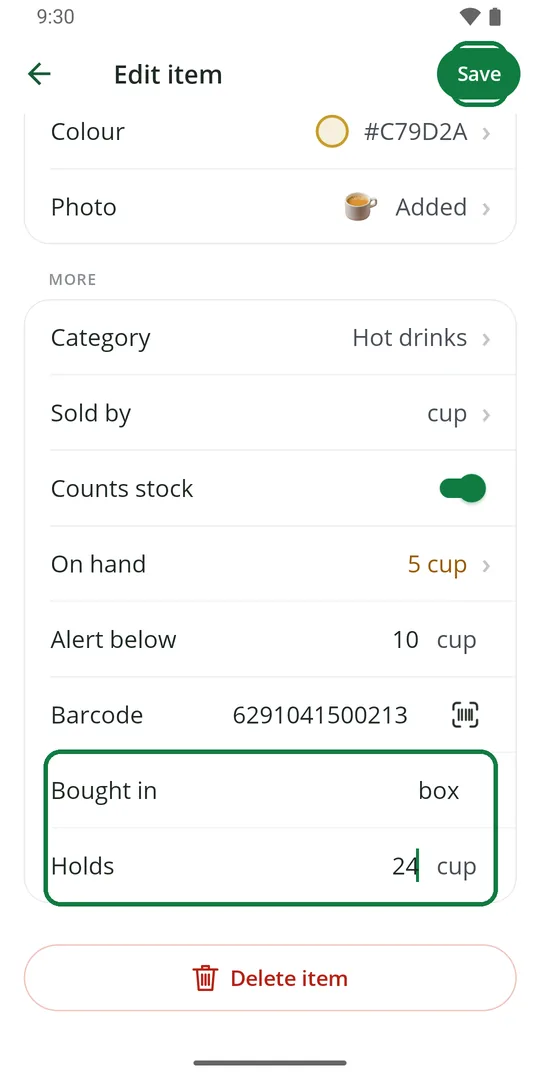
1Open the item. Type box in Bought in, and how many one box holds. Tap Save
Buying one box then adds that many to stock.
Delete an item
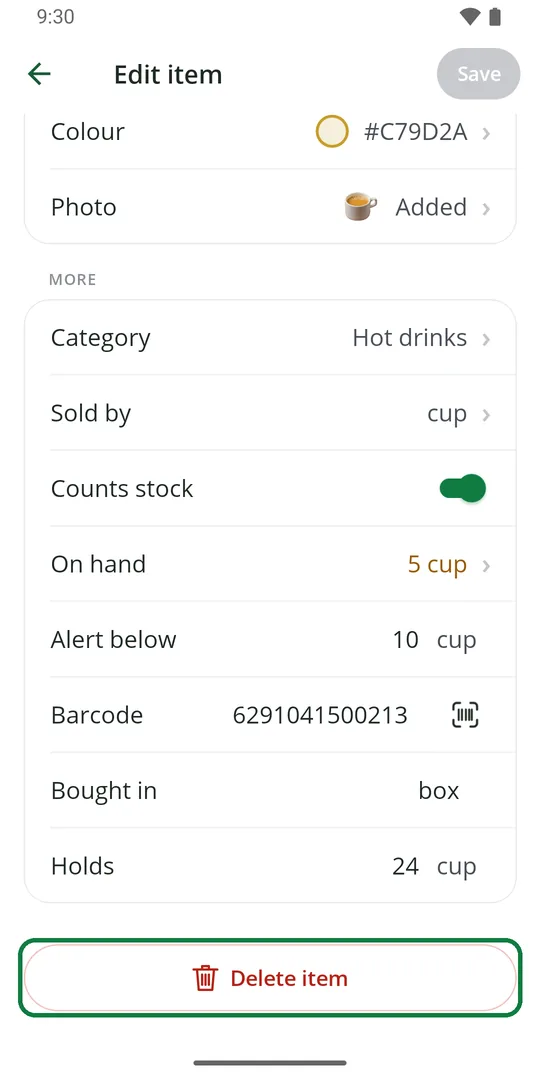
1Open the item and tap Delete item at the bottom 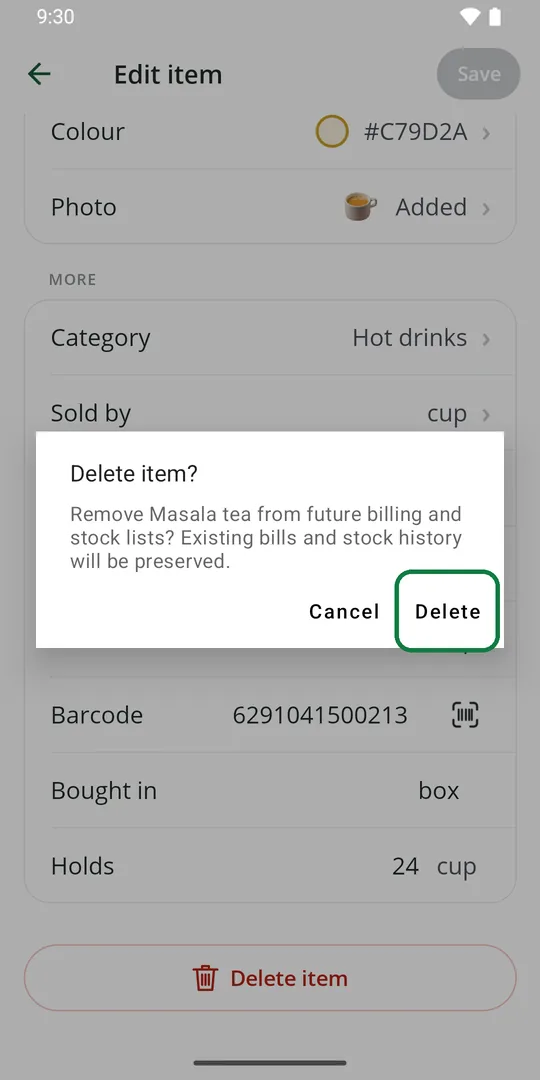
2Tap Delete
Old bills and stock history stay.
Make a category
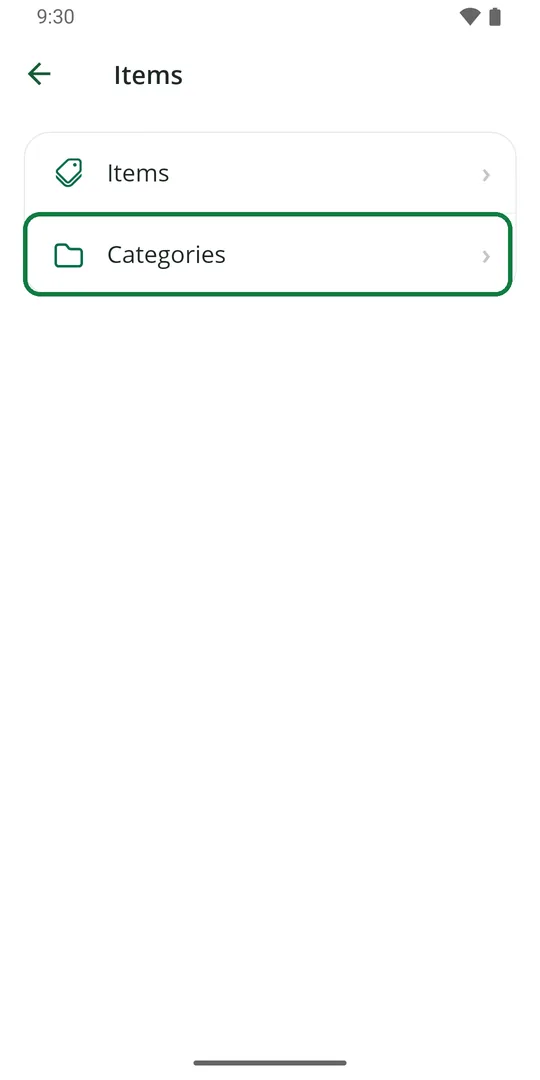
1Tap ☰, Items, then Categories 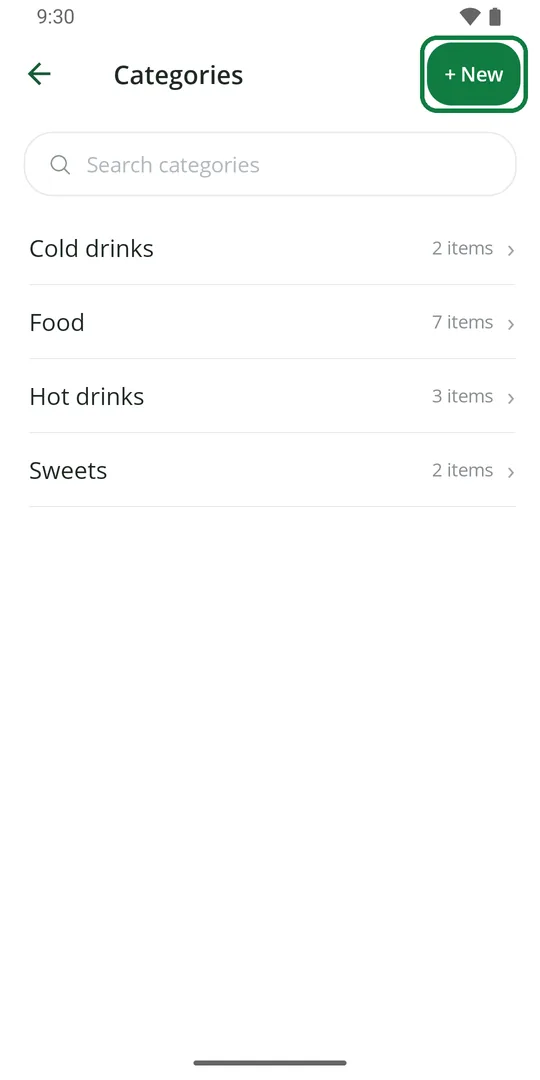
2Tap + New 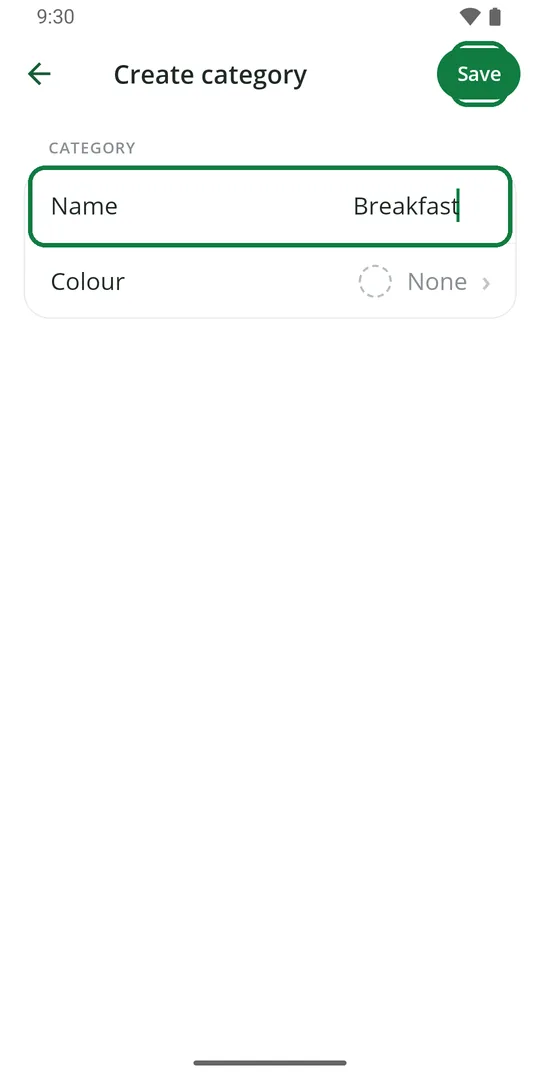
3Type the name and tap Save 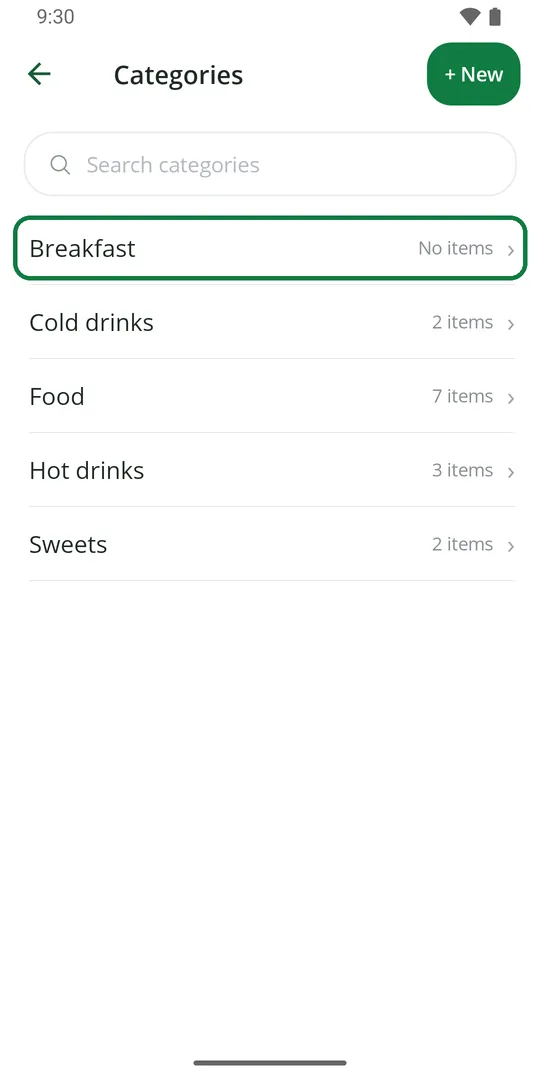
4The category is in the list
Rename or delete a category
1In Categories, tap the category 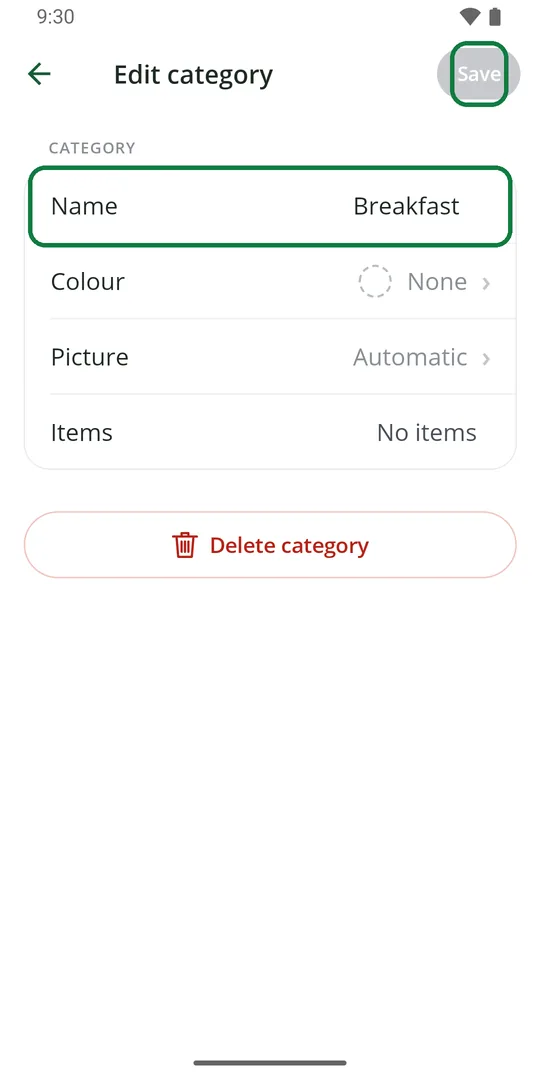
2Change the name and tap Save 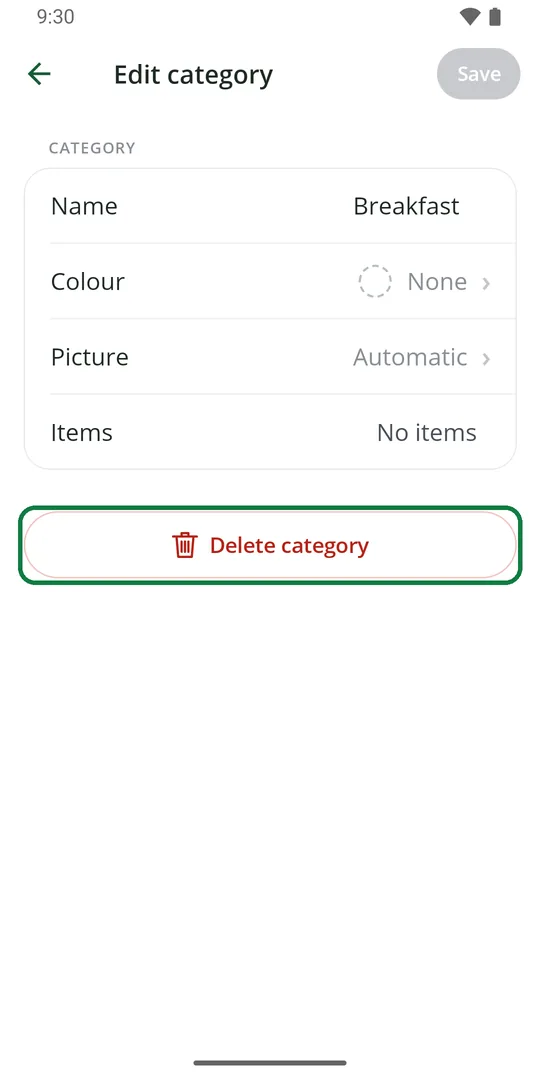
3Or tap Delete category, then Delete
Its items keep their names and prices and move to No category.