
Reports
Open a report
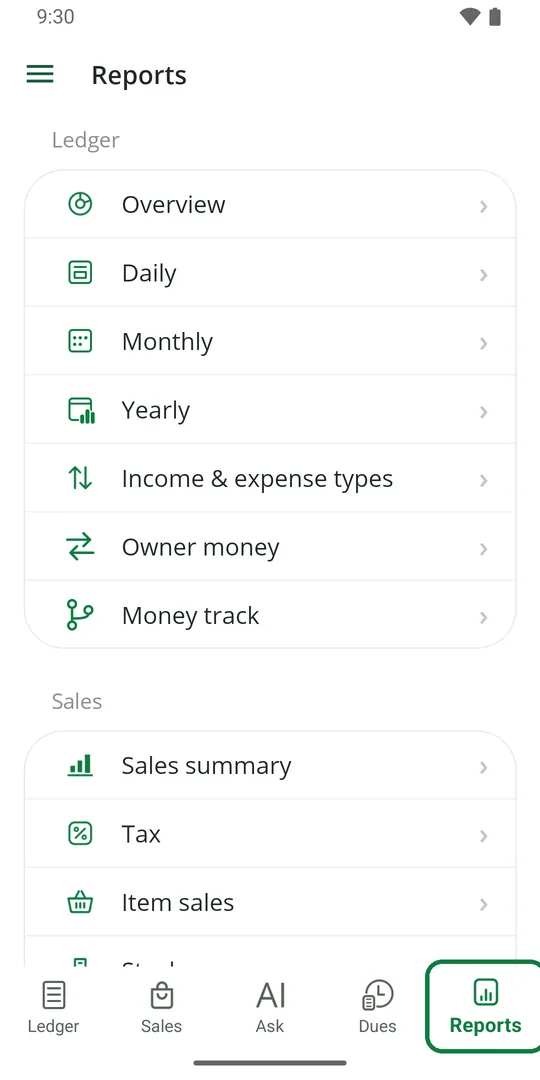
1Tap Reports at the bottom, then the report you want 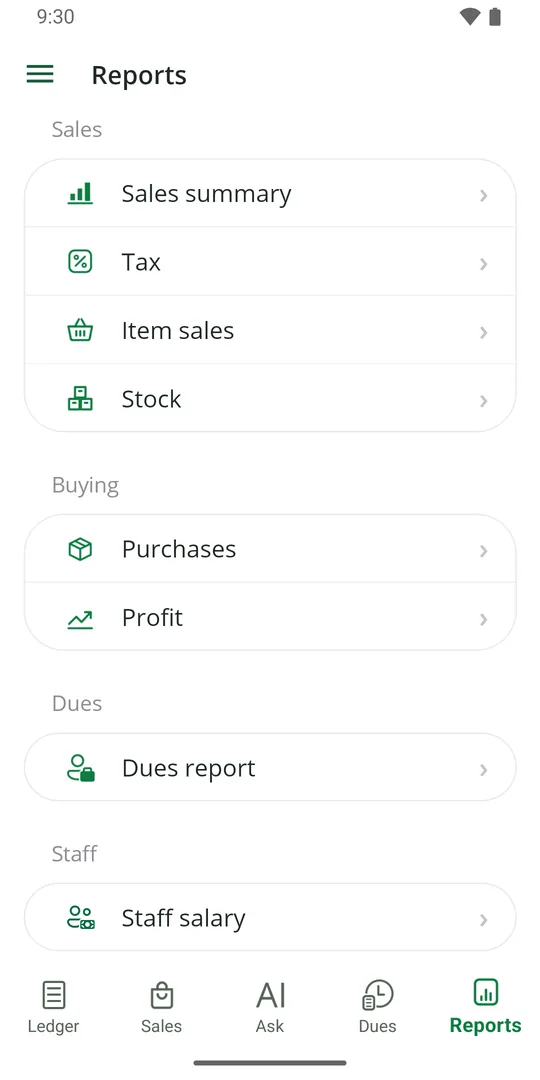
2Scroll for more. Reports are in groups: Ledger, Sales, Buying, Dues and Staff
Pick the days
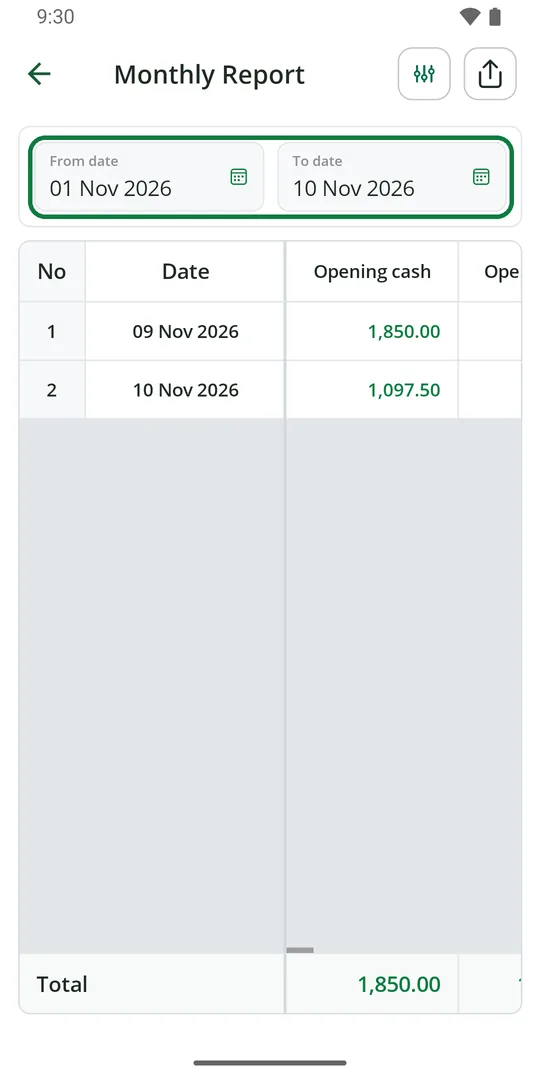
1Tap From date or To date and pick the day
Many reports also have quick buttons like Today, This week and This month.
Send a report as PDF or Excel
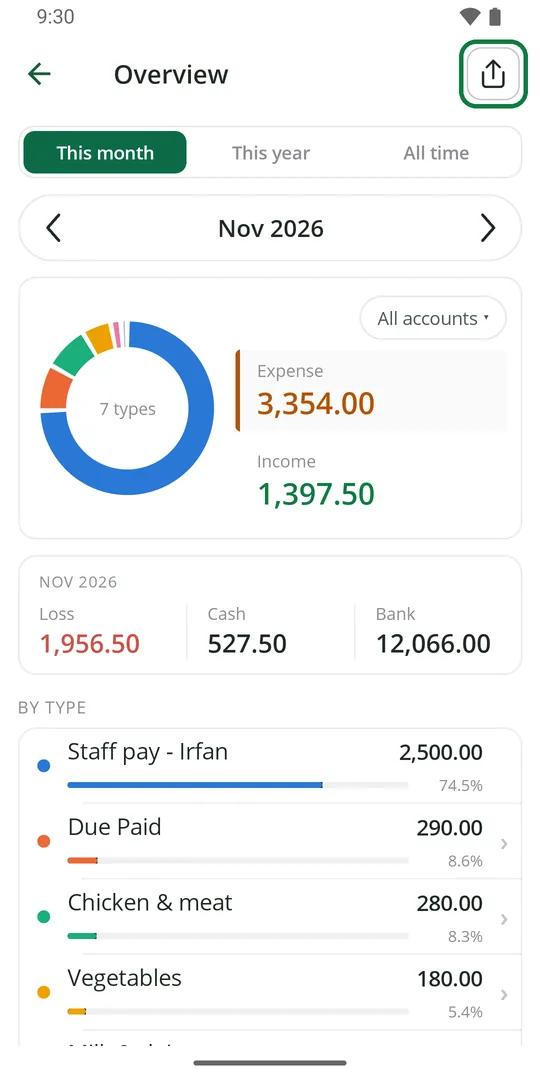
1Open the report and tap the share mark at the top right 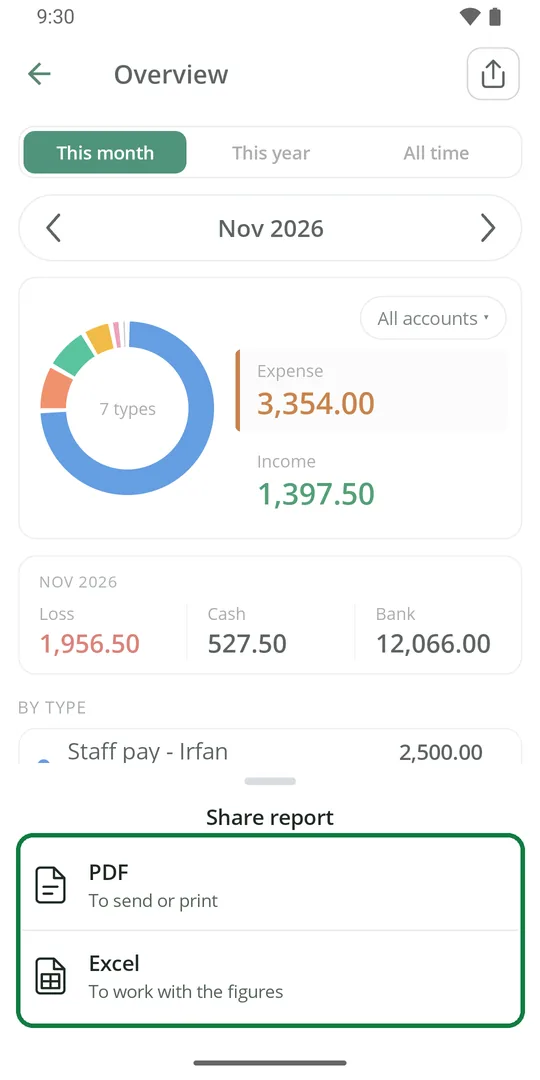
2Tap PDF to send or print it, or Excel to work with the figures 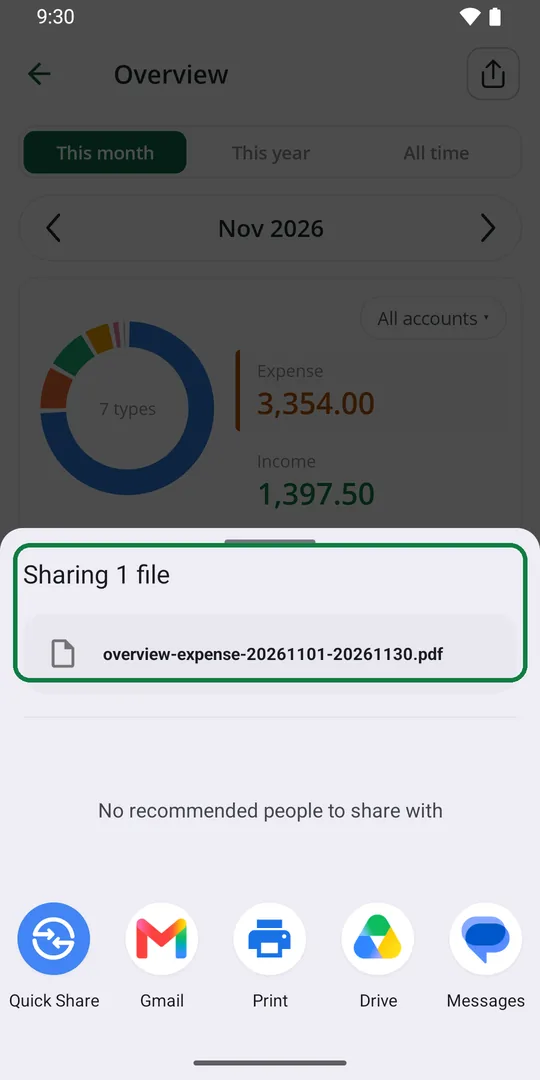
3Pick where to send it, like WhatsApp, Gmail or Print 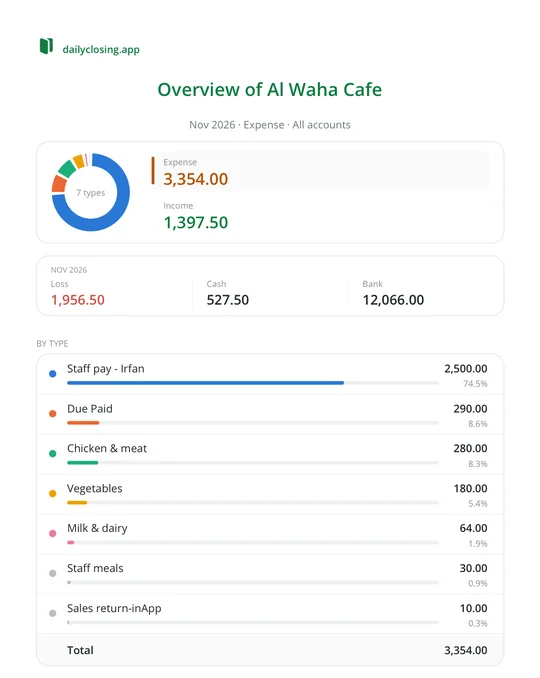
4The PDF carries your shop name and looks like the screen
See the month at a glance
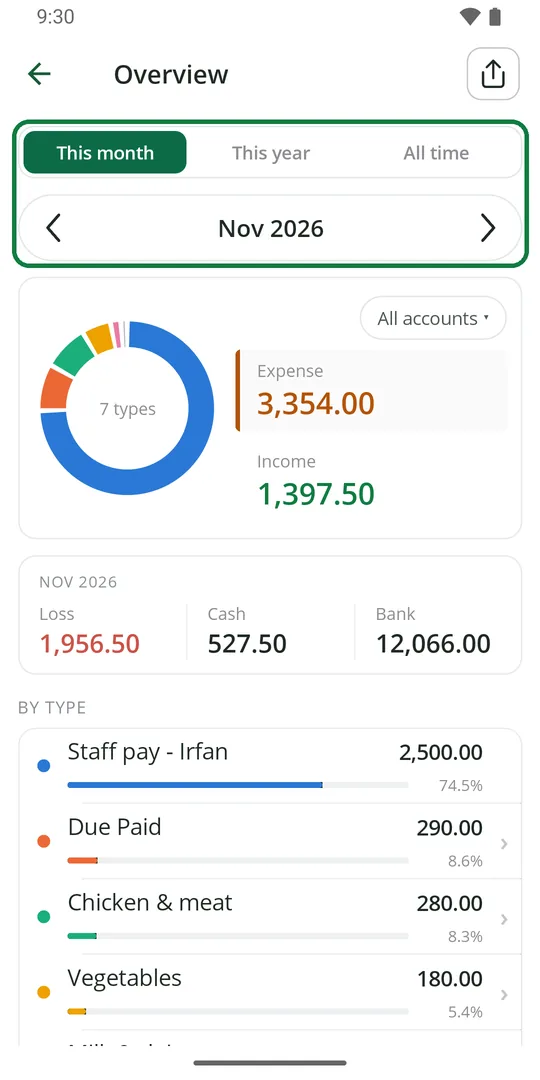
1Open Overview. Pick This month, This year or All time. Tap ‹ › for another month 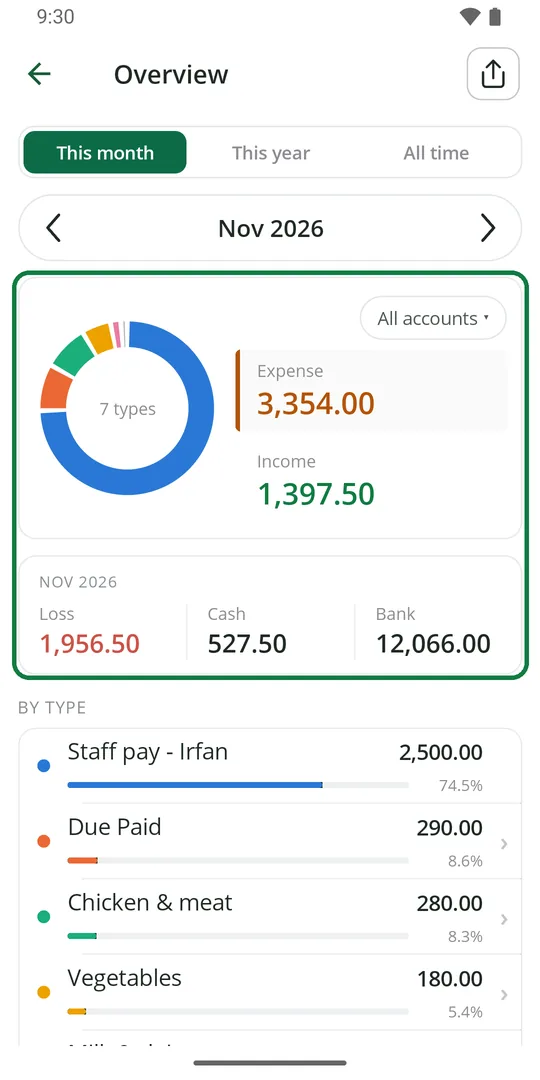
2You see expense, income, the profit or loss, and closing cash and bank 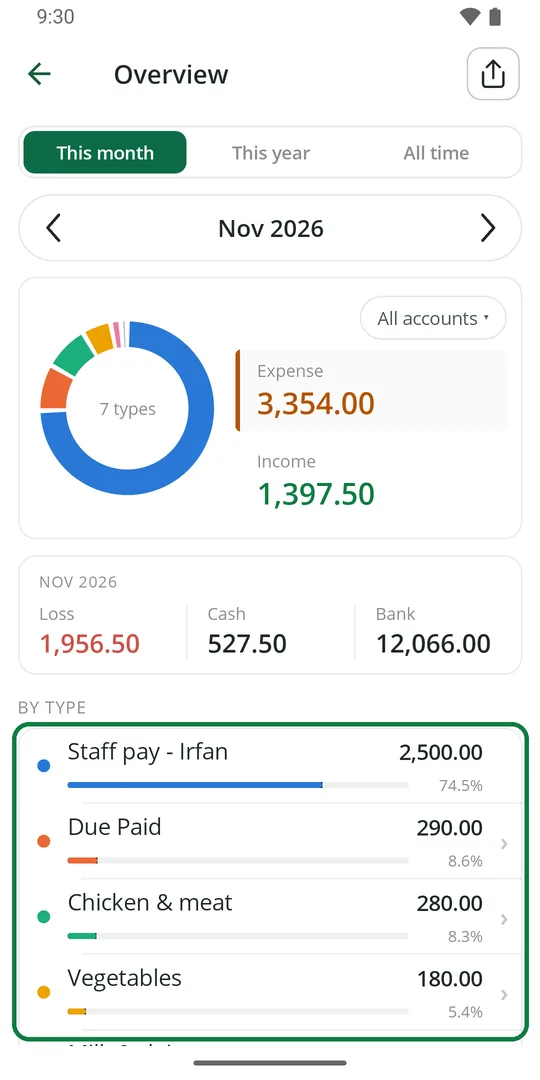
3Below, each type with its share. Tap a type to see its entries
See one day
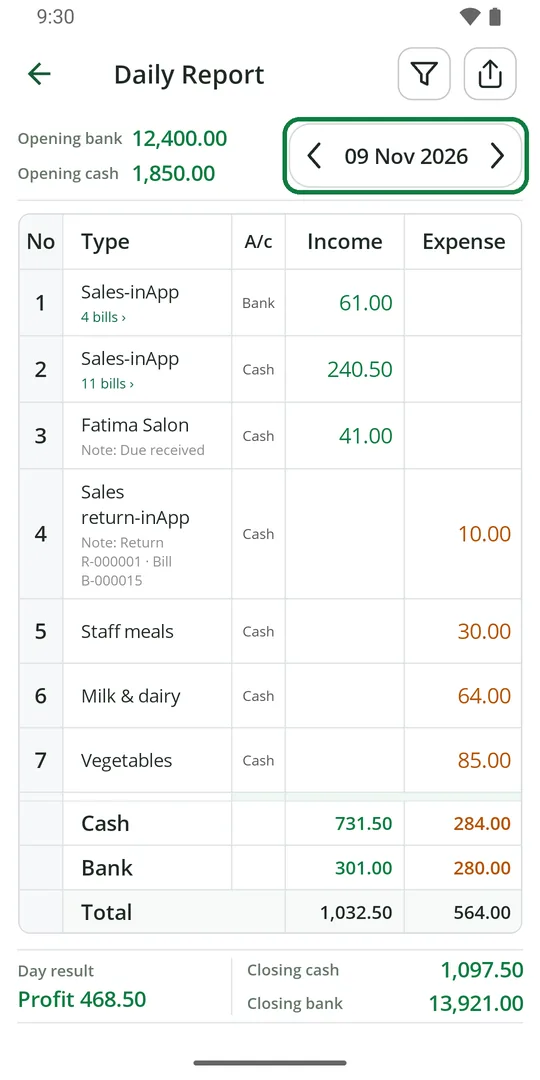
1Open Daily. Tap ‹ › or the date to pick the day 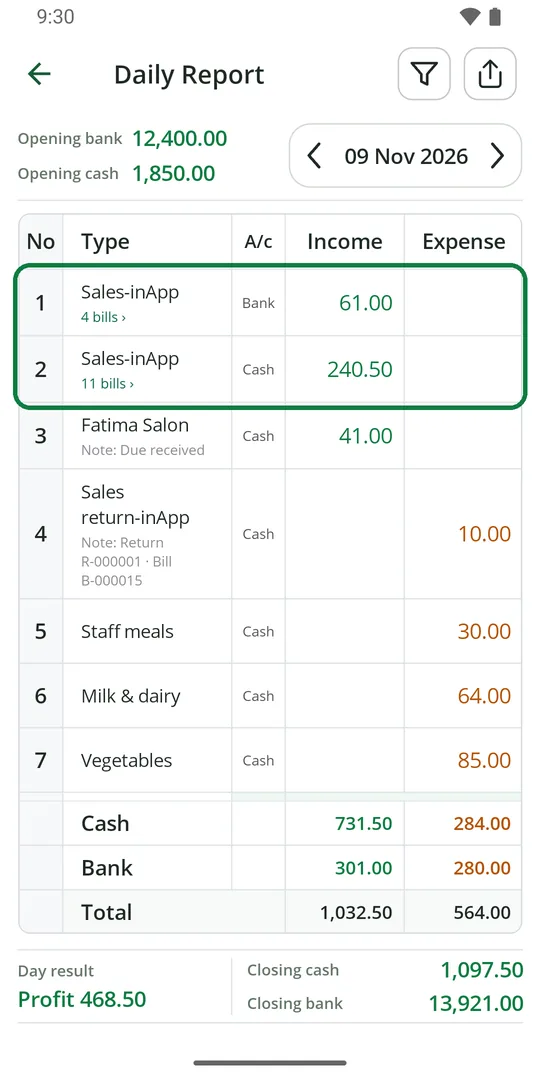
2Every Ledger entry of that day. Sales are one row per account. Tap bills › to see them 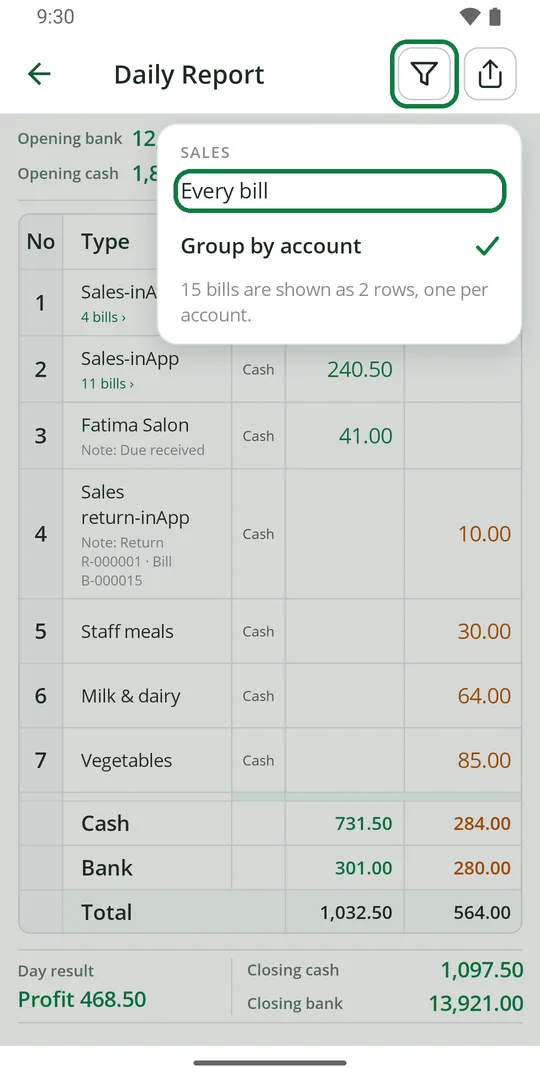
3Want each bill on its own row? Tap the filter, then Every bill 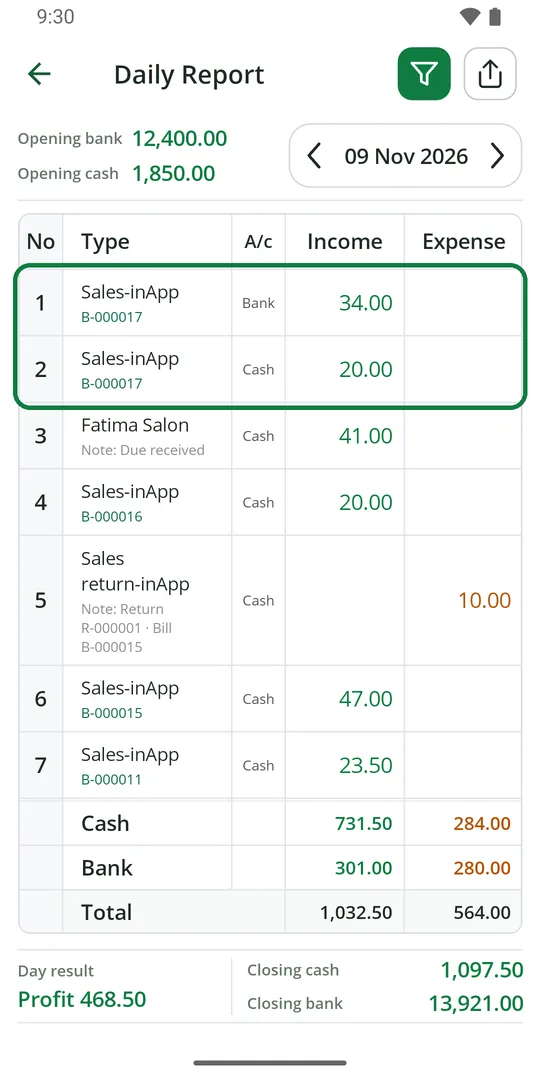
4Each bill shows with its number
See day by day for a month
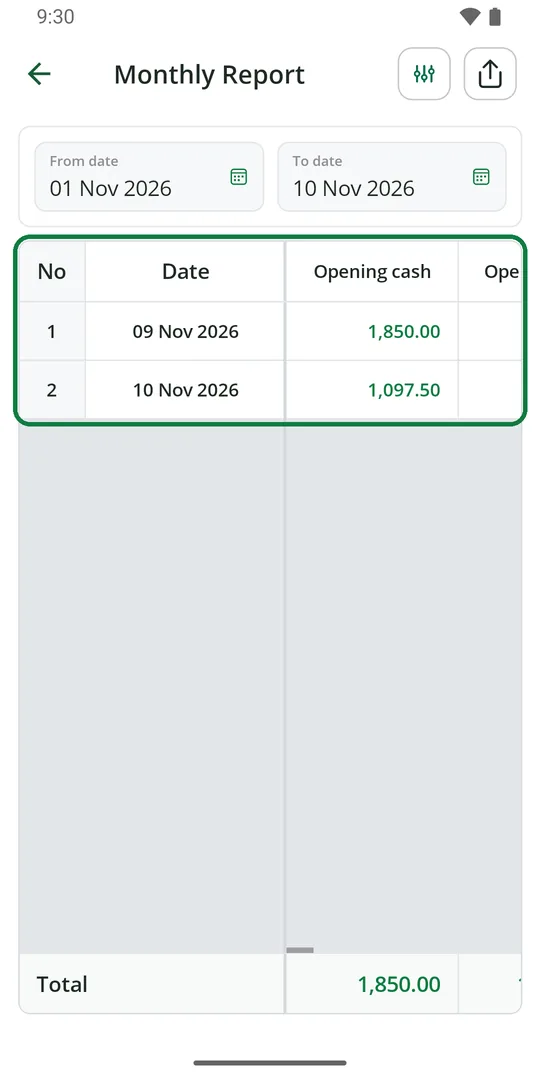
1Open Monthly and pick the days. One row a day. Swipe the table sideways for income, expense, profit and closing 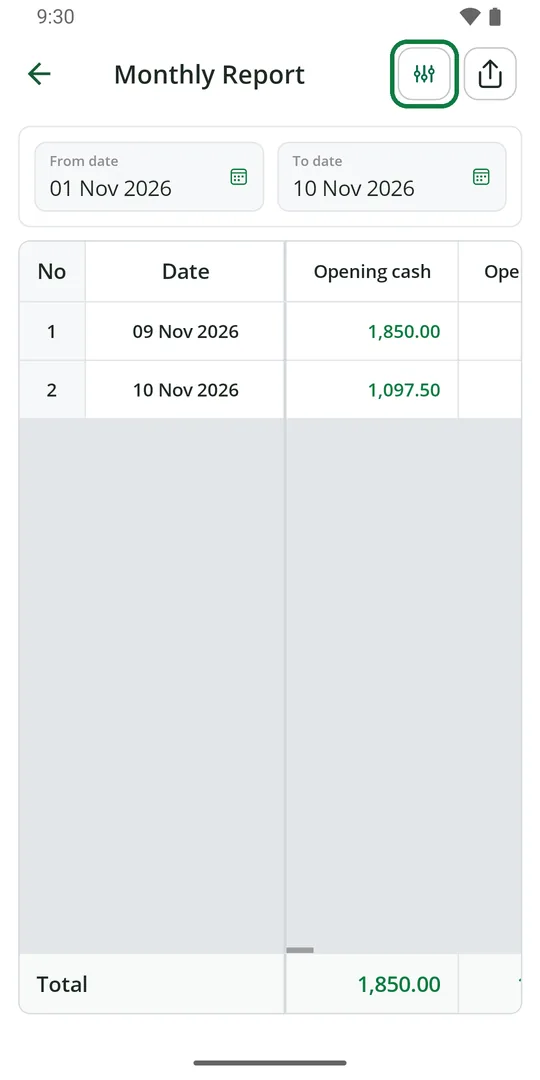
2Too many columns? Tap the sliders mark at the top 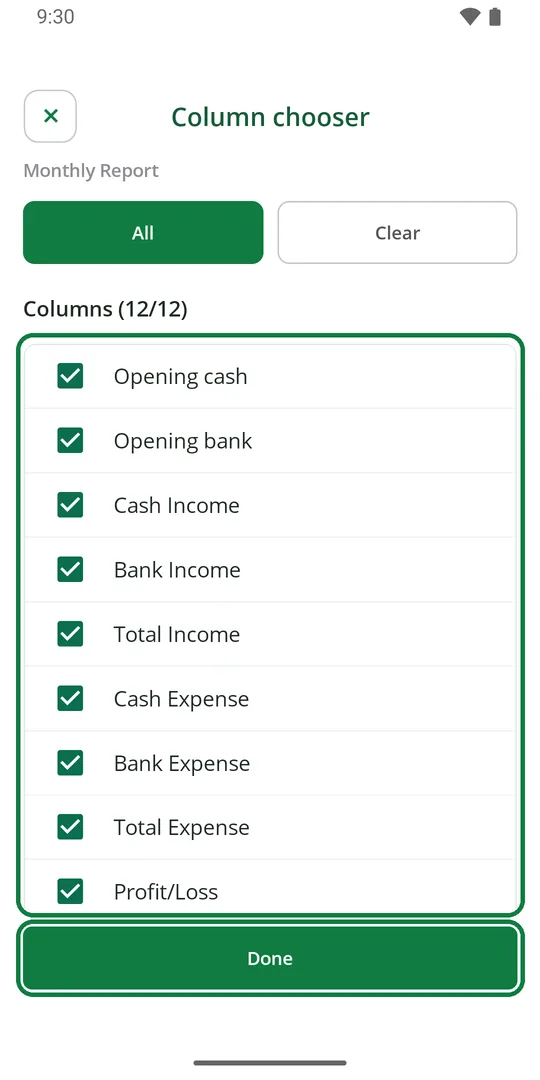
3Tap the columns to show or hide them, then tap Done
See month by month for a year
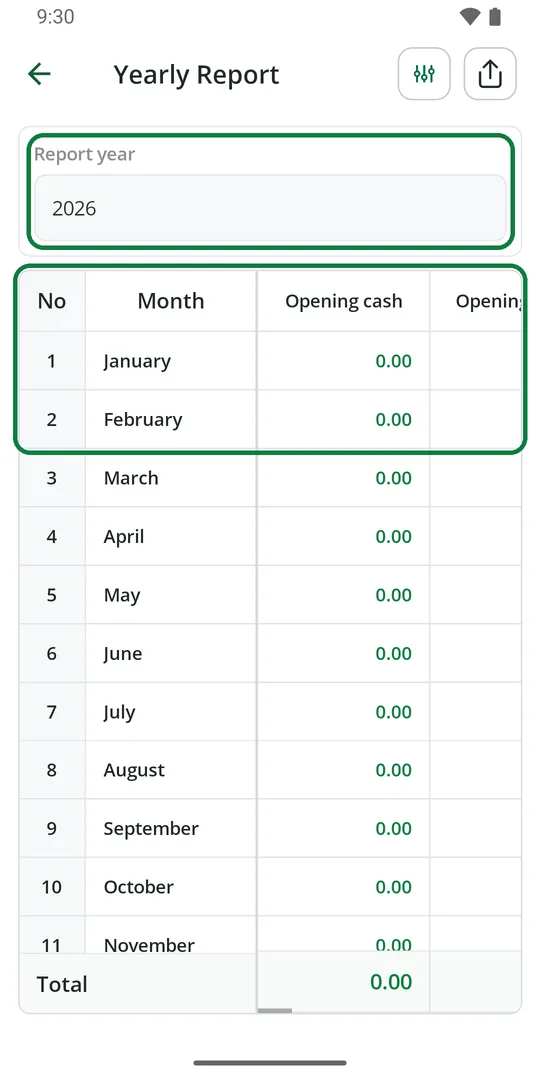
1Open Yearly and pick the year. One row a month
See one type of income or expense
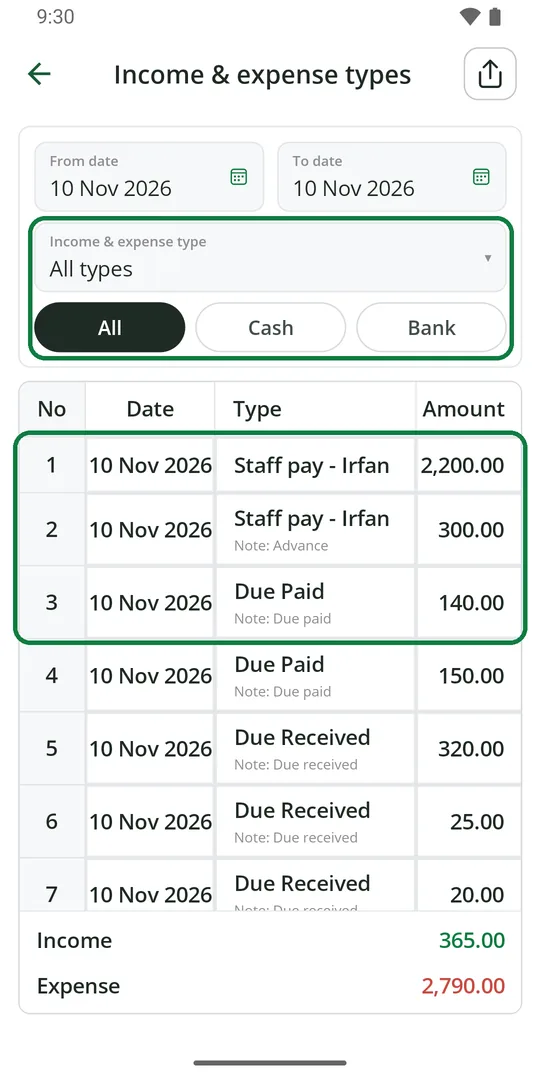
1Open Income & expense types. Pick the type and All, Cash or Bank
See money you took out or put in
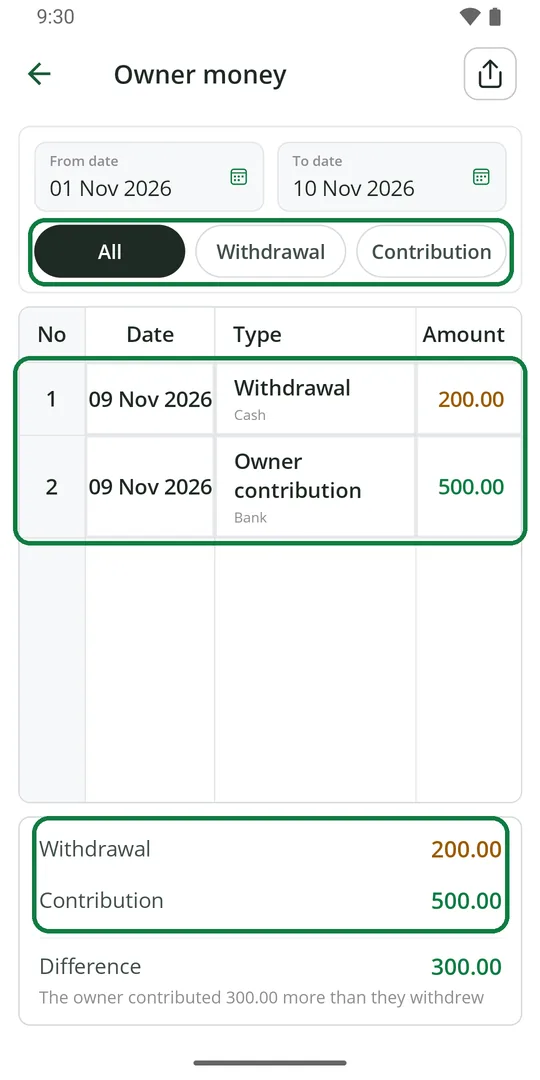
1Open Owner money. Pick Withdrawal, Contribution or All. The totals are at the bottom
See where a day's money went
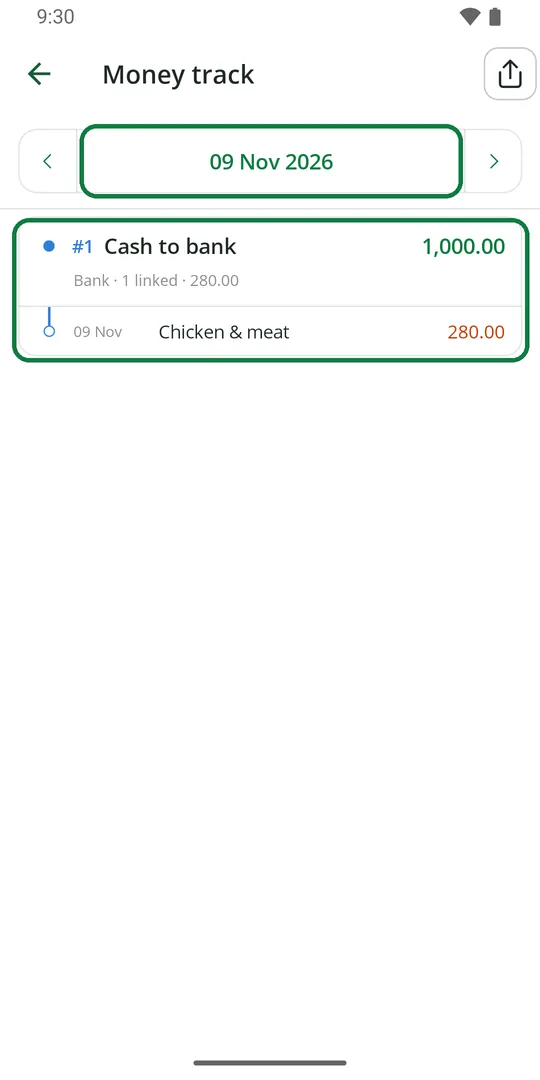
1Open Money track and pick the day. Each money in shows what it paid for
Links are made in the Ledger with the arrow button. See Ledger › See where money went.
See how much you sold
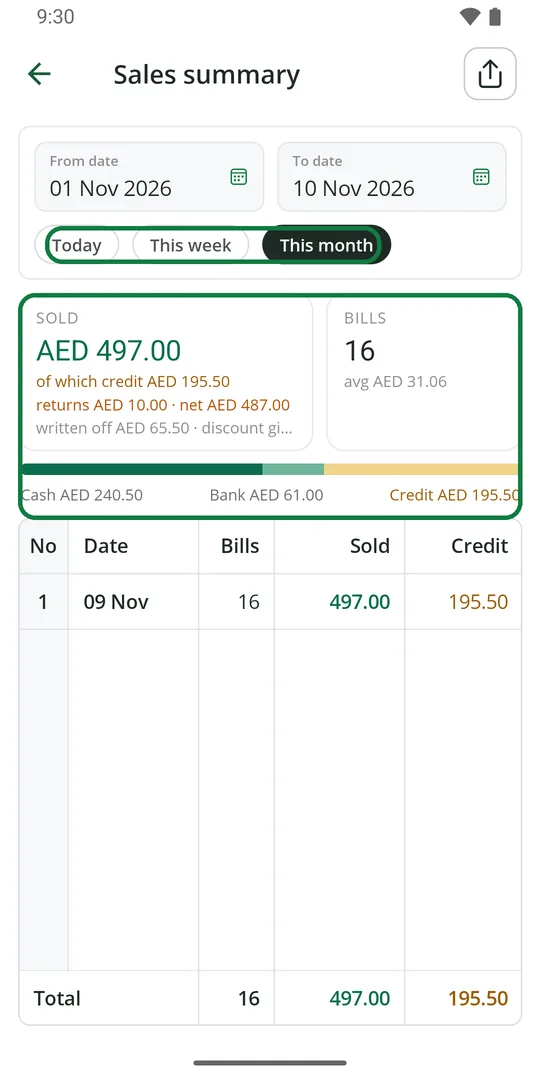
1Open Sales summary. You see what you sold, the number of bills, credit, returns, and cash, bank and credit
See the tax to pay
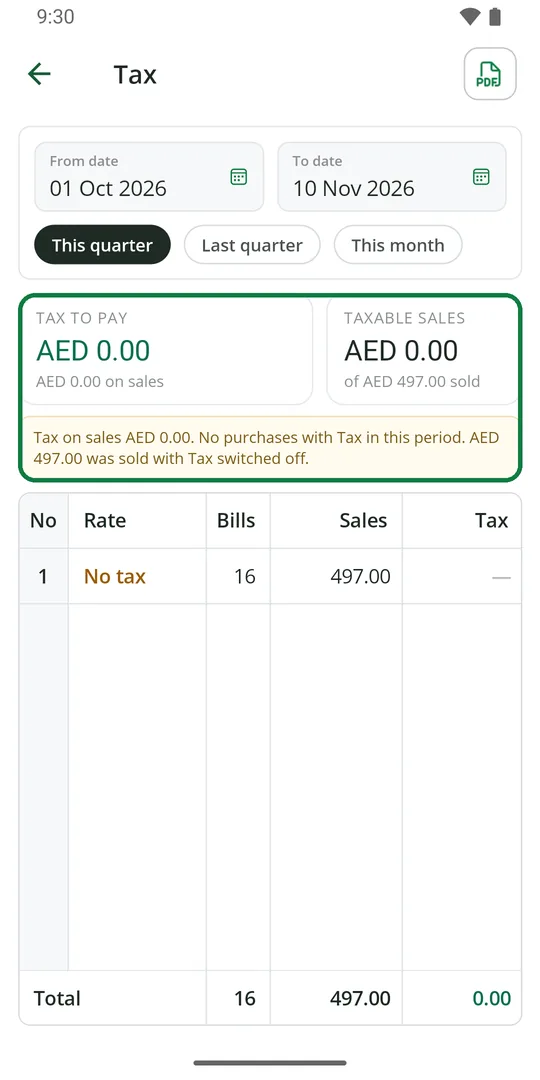
1Open Tax and pick the quarter or the days. You see the tax to pay and the taxable sales
Tax shows only after you switch it on in ☰ › Business › Tax.
See which items sell most
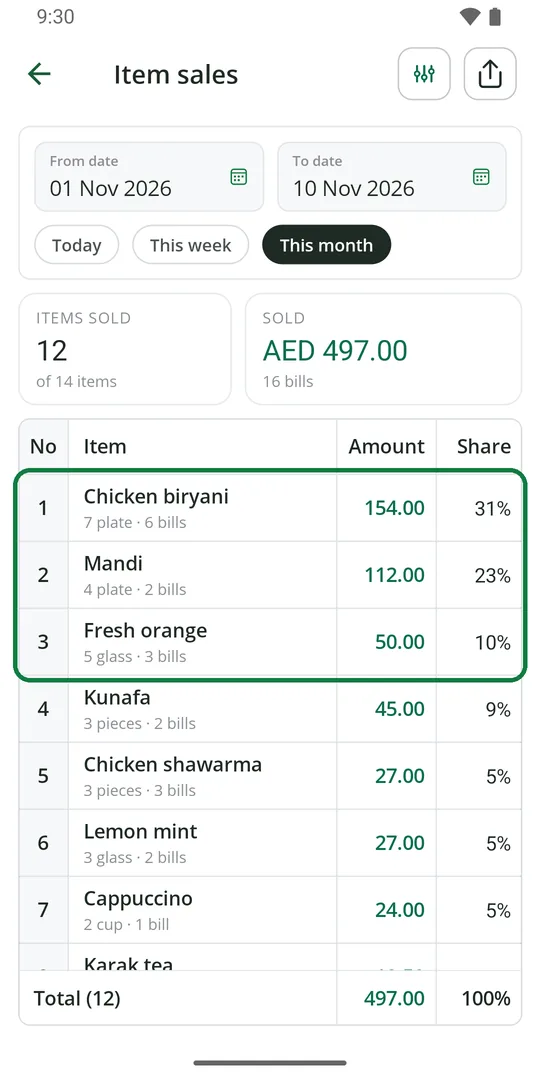
1Open Item sales. Items are listed from the most sold, with how many and their share 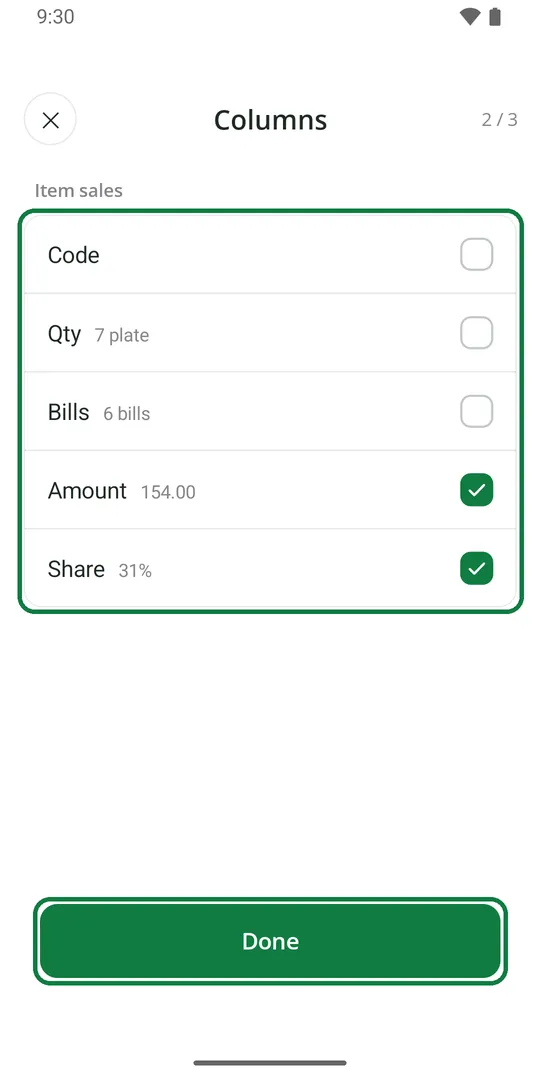
2Tap Columns at the top to choose what each row shows, then Done
See your stock
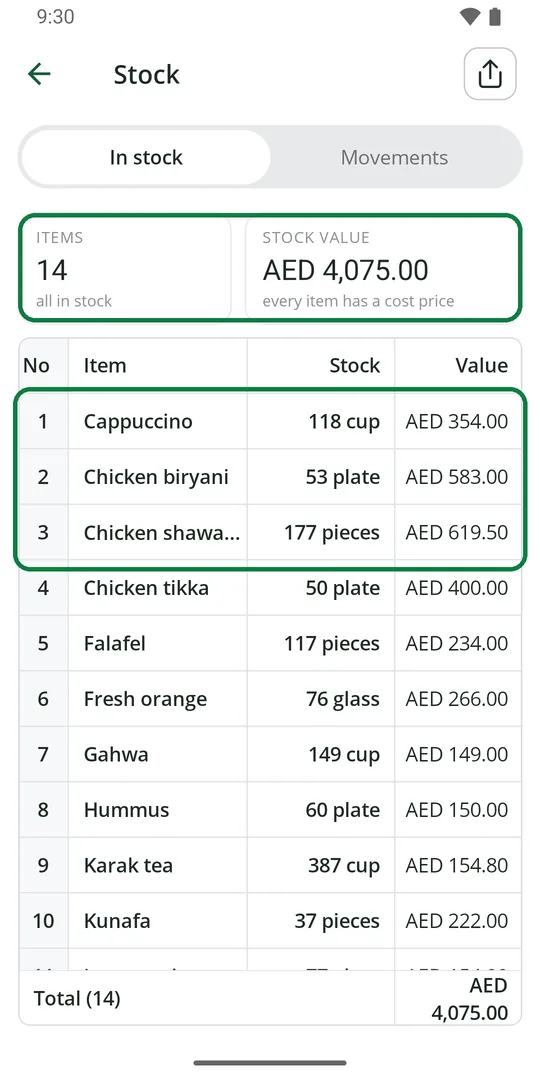
1Open Stock. In stock shows each item, how many and what it is worth 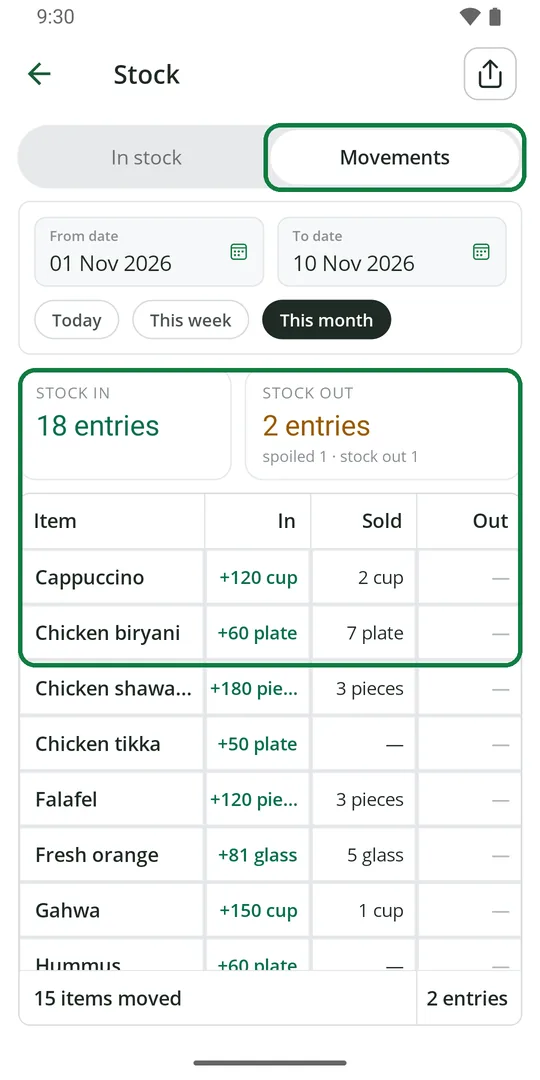
2Tap Movements to see what came in, was sold and went out in those days
See what you bought
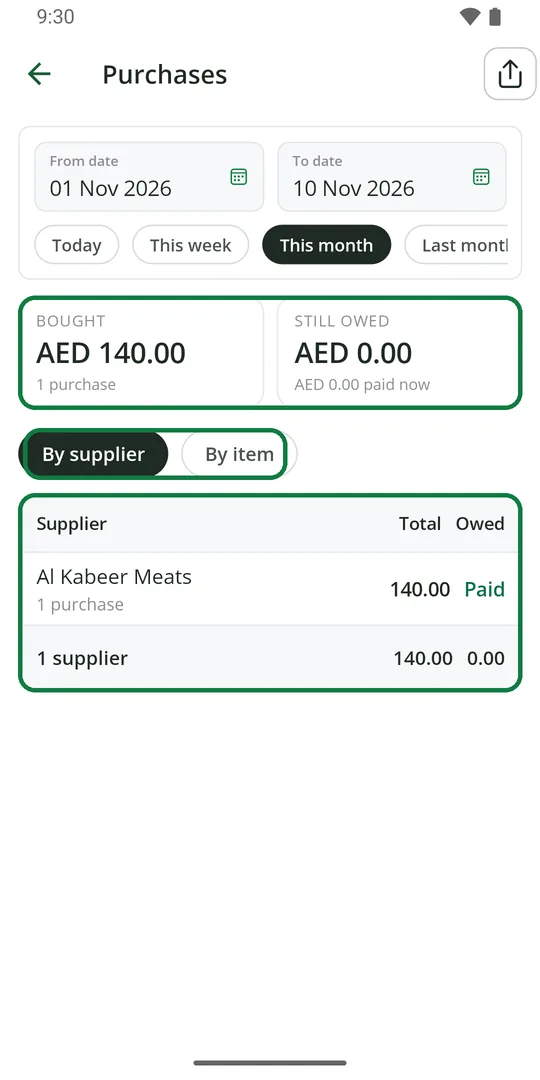
1Open Purchases. You see what you bought and what is still owed. Pick By supplier or By item
See the profit on items
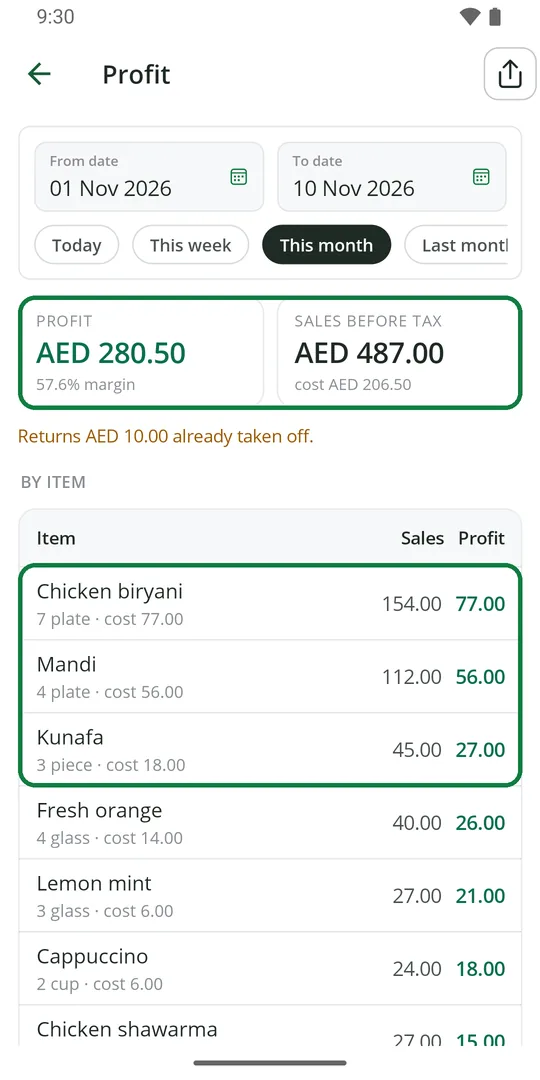
1Open Profit. You see the profit, the margin, and each item's sales and profit
Profit needs the cost price on each item. See Items › Add an item.
See all dues together
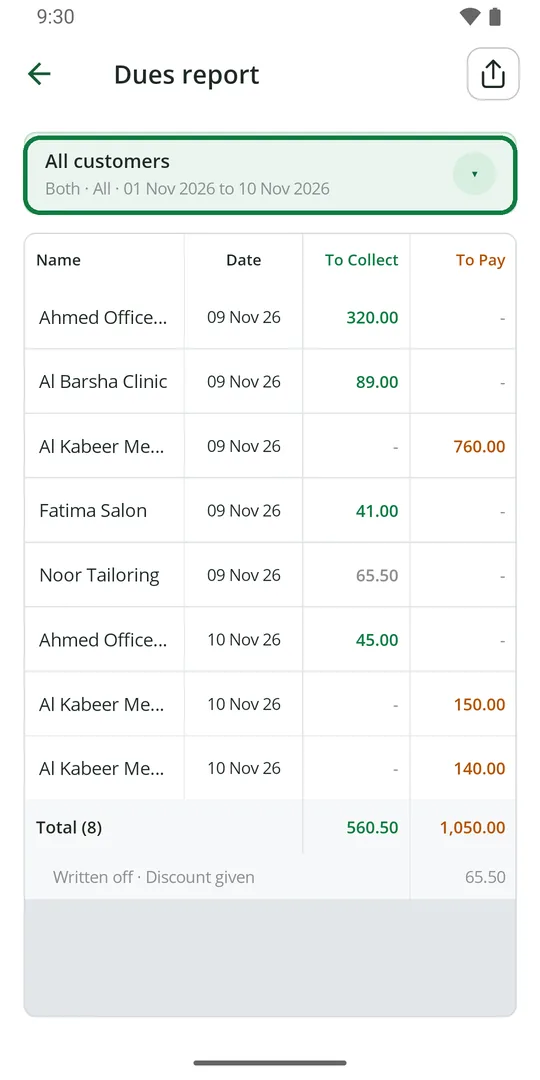
1Open Dues report. Tap the top line to change what it shows 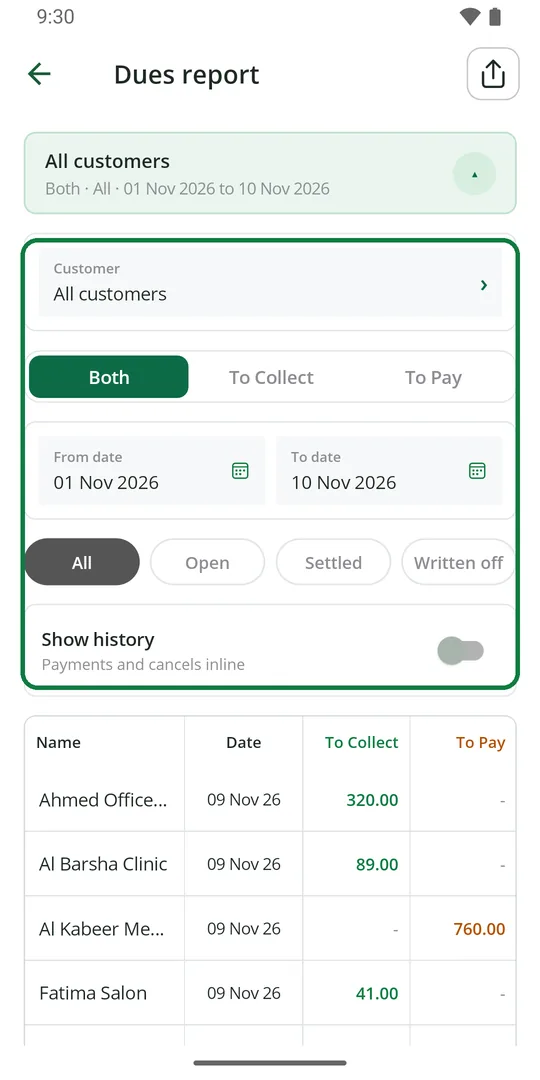
2Pick one customer or all, to collect or to pay, the days, and open, settled or written off
See staff salaries
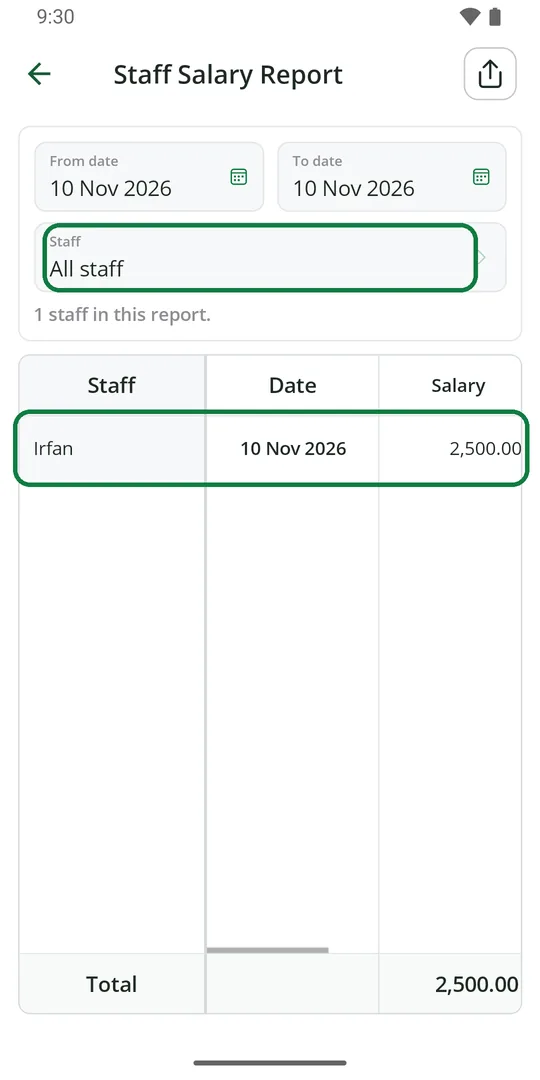
1Open Staff salary. Pick the days and one staff member or all